
What you need to know:
The Poly Rove R20 Guide covers this phone's basic features and functions. Refer to this guide for an overview of your device.
MENU
- What you need to know
- Overview
- Poly Rove base station status indicators
- Handset pairing
- Place a call
- Answer a call
- Place a call on hold
- Transfer a call (blind transfer)
- Transfer a call (consulted transfer)
- Transfer a call directly to voicemail
- Initiate a conference call
- Turn do not disturb on or off
- Call Forward
- Park and retrieve a call
- Add a contact
- Manage your voicemail
- View call history

What you need to know
The Poly Rove 20 guide covers this phone's basic features and functions. Refer to this guide for an overview of your device.
Overview
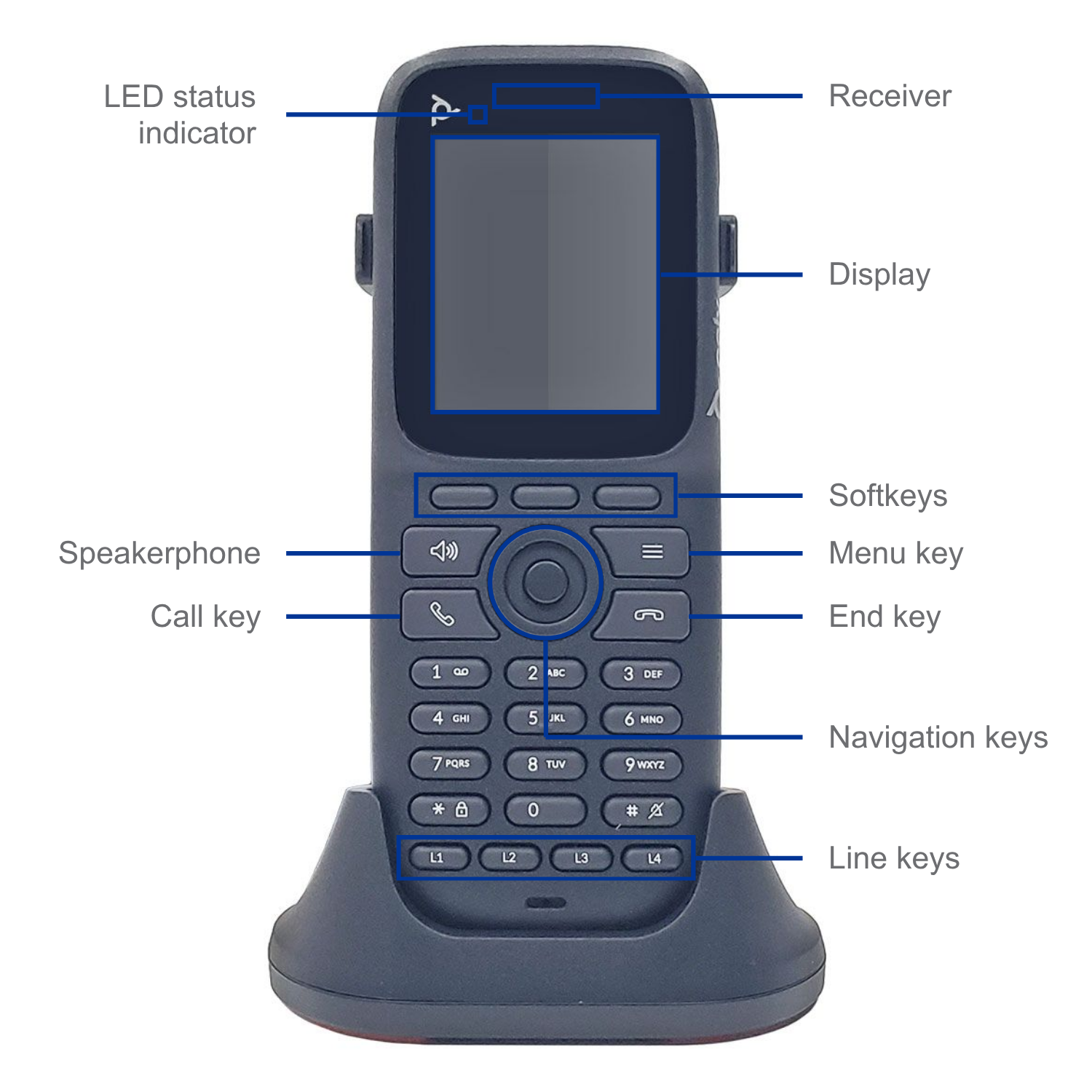

The basic features of the Poly Rove 20 include:
- Base station
- Charging cradle
- Receiver
- LED Light
- Display
- Softkeys - Select context-sensitive keys that display along the bottom of the screen.
- Speakerphone
- Call key
- Navigation keys and Select key - Scroll through information or options displayed on the phone’s screen or select a field of displayed data. The Up and Down navigation keys are assigned shortcuts for adjusting the ringer volume.
- Menu key
- End key
- Dialpad
- Line keys
- Headset port
In the following sections, we go over some key features and functions in more detail.
Poly Rove base station status indicators
Refer to the following table to understand the status of each LED indicator.
| LED Indicator | Status |
|---|---|
| No indicator | Powered off |
| Solid green | Registered; good quality signal |
| Blinking green | Searching for nearby base stations, handset, or repeater registration. |
| Solid red | Powered on but has an error or no signal |
| Blinking red | Firmware update or factory reset in progress |
| Slow blinking red | SIP registration failure |
| Solid orange | Powered on but has poor signal quality |
| Blinking orange | Searching for IP address |
Handset pairing
To pair a handset to the base station:
- Hold down the button on the top of the base station.
- Once the LED starts slowly blinking green (about 5 seconds), release the button.
- On the handset, go to Settings > Connectivity > Easy registration. The device should pair after a few seconds of searching.
Note: After a handset is initially paired, it downloads its firmware in the background. This process starts when the phone is idle, in the cradle, and has sufficient battery life (greater than 70%). The LED of the phone flashes green and red indicating the software upgrade is in progress. The upgrade process can take around an hour to complete.
Place a call
To place a call:
- Dial a valid 10-digit number.
- Press the Call key.
To place a call while on an active call:
- Press the New Call softkey.
- Enter a valid 10-digit number or select one of the options: Contacts, Central Directory, Recent Calls, or Intercom.
- Press the Call softkey.
Answer a call
To answer a call, use one of the following options:
- Press the Call key.
- Use the Speakerphone key.
- Select the Answer softkey.
To answer an incoming call while on an active call:
- Select the Call key or Speakerphone key.
- The first call is automatically placed on hold.
- To move between the two calls, use the Swap softkey.
Place a call on hold
To put an active call on hold:
- Press the Options softkey.
- Select Hold.
To resume a call on hold:
- Press the Options softkey.
- Select Resume.
Transfer a call (blind transfer)
A blind (or unannounced) transfer takes place when you transfer a call to someone else without announcing the call first.
To conduct a blind transfer while on an active call:
- Press the Options softkey.
- Select Blind Transfer.
- Enter an extension or valid 10-digit number.
- Select Transfer.
The call is transferred when the receiving party answers the call.
Transfer a call (consulted transfer)
A consulted (or announced) transfer is performed when you announce the call to the recipient before transferring the call.
To conduct a consulted transfer while on an active call:
- Press the Options softkey.
- Select Transfer.
- Enter an extension or a valid 10-digit number.
- Press the Call key.
- Once the party answers, announce the call.
- Press the Options softkey again.
- Select Transfer.
Transfer a call directly to voicemail
A direct to voicemail transfer is performed when you wish to transfer a call directly to another user’s voicemail.
To transfer an active call directly to voicemail:
- Press the Options softkey.
- Select Transfer. The caller is automatically placed on hold.
- Enter star (*) 55, followed by the user’s extension, then press the pound (#) key.
Initiate a conference call
To initiate a three-way conference call while on an active call:
- Press the Options softkey.
- Select Conference. The first caller is automatically placed on hold.
- Enter a valid extension or 10-digit number.
- Press the Call softkey.
- Once the party answers, press the Options softkey and select Conference.
The two calls are now connected.
Turn do not disturb on or off
The do not disturb (DND) feature is used to send all incoming calls to voicemail.
To enable DND:
- Press the Menu key.
- Select Do Not Disturb.
- Use the navigation arrows to select Enable.
Your phone is now in DND mode, and this is reflected on your home screen.
Note: Once DND is enabled, calls cannot be received until you disable the feature. To disable this feature, repeat the previous steps.
Call Forward
Call forwarding forwards incoming calls to the predefined destination.
To enable call forwarding:
- Press the Menu key.
- Select Call Forward.
- Choose the forwarding option you would like to enable:
- Always: Forwards all incoming calls to a specified forward-to destination.
- No Answer: Forwards calls when the DND feature is enabled, or if you do not answer. Note: You must also select the number of seconds before the call is forwarded.
- Busy: Only forwards calls if your line is busy.
- Select On and enter a forward to destination phone number.
To disable call forwarding, select the forwarding service to disable and set the feature to Off.
Park and retrieve a call
Parking a call allows you to park a call (place the call on hold) from your handset and retrieve (resume) the call from another device within the location.
To park a an active call:
- Press the Options softkey.
- Select Call Park.
- Enter the extension to park the call on, followed by the pound (#) key.
To retrieve a parked call:
- Dial *88 and press the Call key.
- When prompted, dial the extension number against which the call was parked, followed by the pound (#) key.
Add a contact
To add a new contact:
- Press the Menu key.
- Select Contacts
- Press the Options softkey.
- Select Add New Contact.
- Enter the contact’s information.
- Select Save.
Manage your voicemail
To set up your voicemail for the first time:
- Press the Menu key.
- Select Messages and then Message Center.
- Enter your default passcode followed by the pound (#) key.
- The system prompts you to enter a new passcode. Enter your new passcode followed by the pound (#) key
- Confirm your new passcode followed by the pound (#) key.
To access your voicemail:
- Press the Menu key.
- Select Messages and then Message Center.
- Enter your passcode followed by the pound (#) key.
- Follow the audio prompts to retrieve your messages.
Note: If you forget your voicemail passcode, contact your system administrator to have it reset.
View call history
To access your call history:
- Press the Call key.
- The All calls list is displayed. Use the navigation arrows to access the Received, Dialed, and Missed call lists.
- Go to the desired entry.
- Press the Options softkey and select View Details.