What you need to know:
This document provides guidance for users to effectively utilize their Texting app within ProConnect with Teams.

Introduction
This document provides guidance for users to effectively utilize their mobile Texting app within ProConnect with Teams.
1.
Overview of Texting Using Teams
- Texting allows you to send and receive text messages from your work phone numbers.
- Creates an easy way for you to use a work number for texting instead of your personal mobile phone.
- All the features of your smart phone from your business line.
2.
The Basics
Prerequisites
Prior to utilizing Texting for ProConnect with Teams, ensure that you have:
- An active Texting subscription through Fidium.
- The Texting application is installed on your Teams sidebar.
Note: Your Microsoft O365 administrator may need to authorize the app for use within Teams.
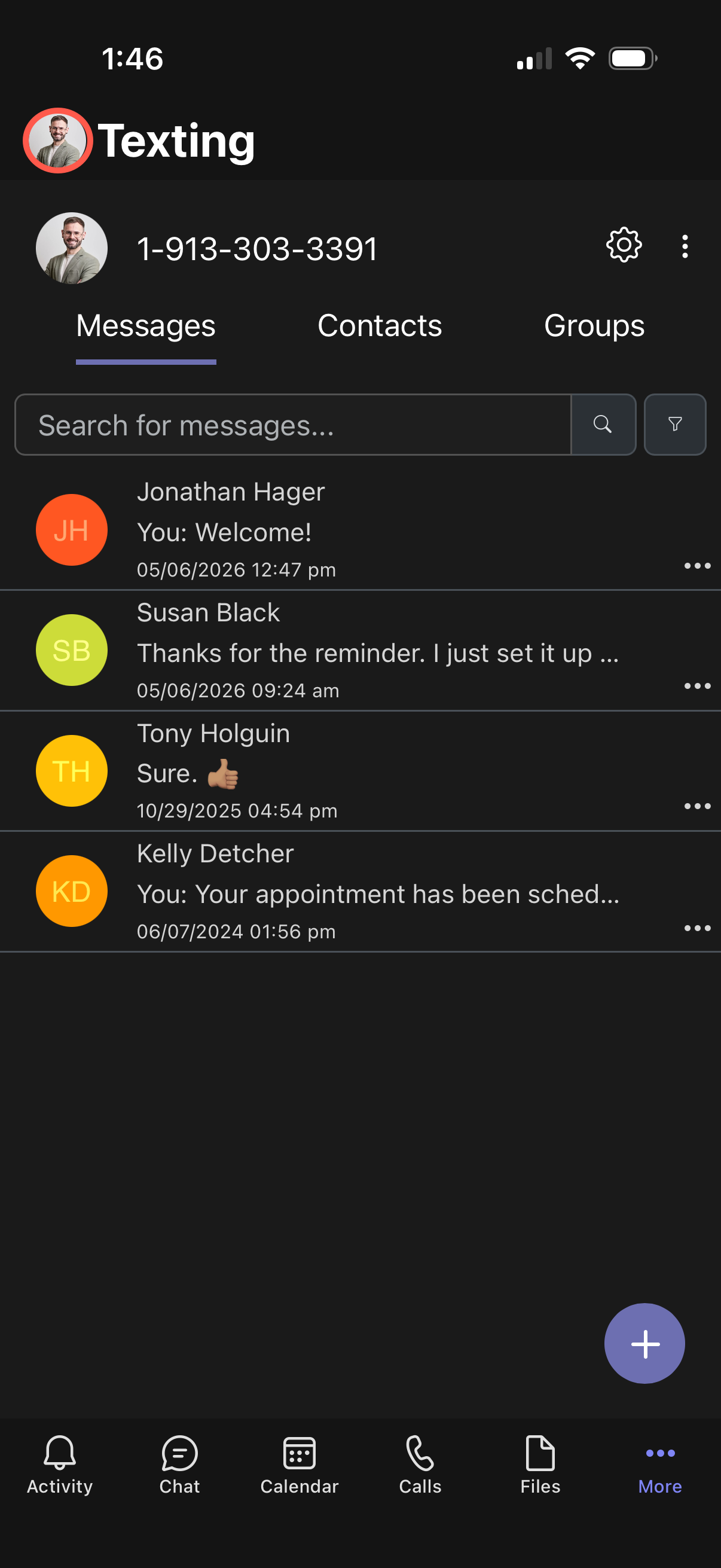
Access Texting in your Teams mobile app
- Sign in to Teams.
- Go to More.
- Search for Texting.
- Tap on the Texting app.
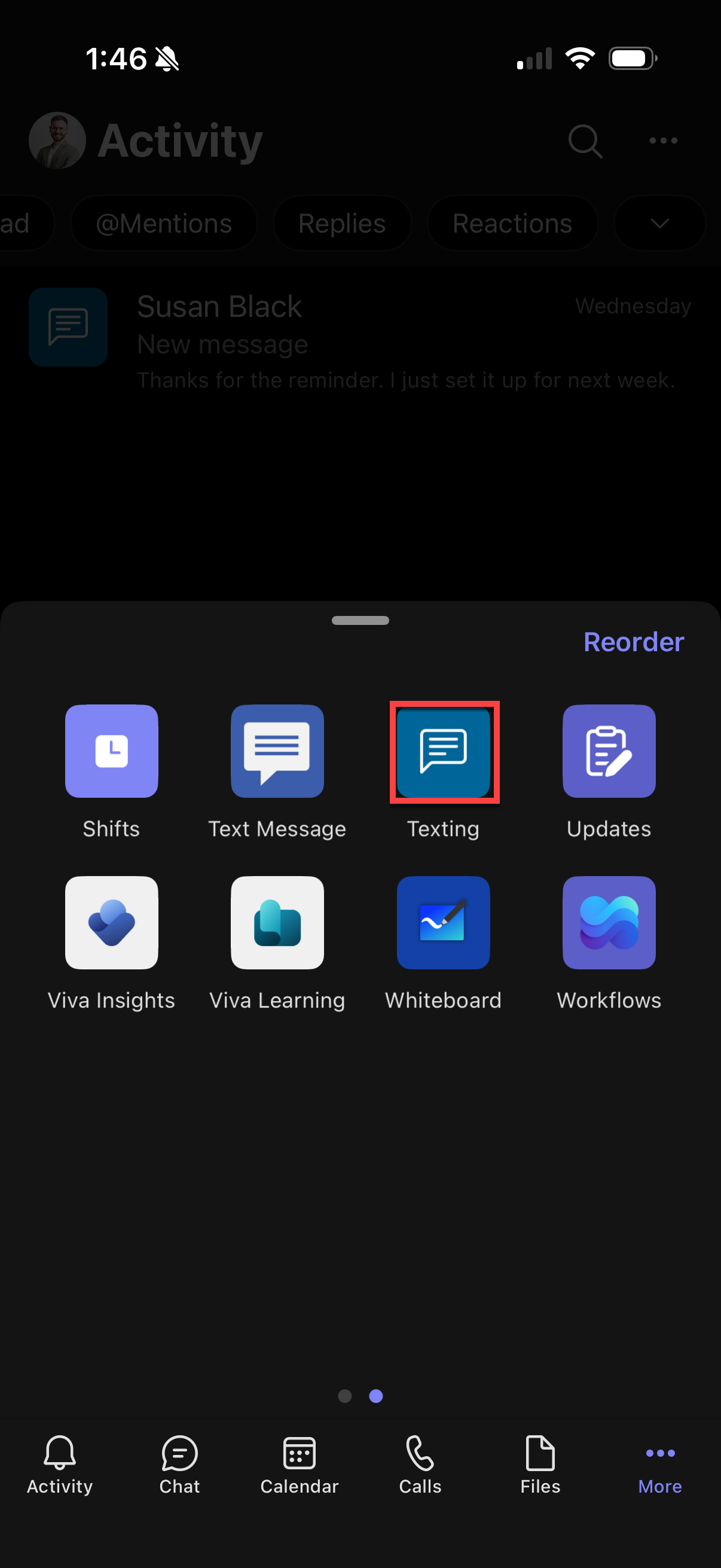

If the account is correctly configured, it should automatically populate your personal number. Please contact your administrator if the app does not appear in your Teams app hub.
3.
Settings
Configure settings for your phone number
You can configure and customize your settings for Texting within Teams for your assigned phone number.
- Navigate to the Texting application in your Teams account.
- Tap the settings icon to the right of your phone number. A list containing several menu options populates. Note: Some of the following settings are only available using A2P.
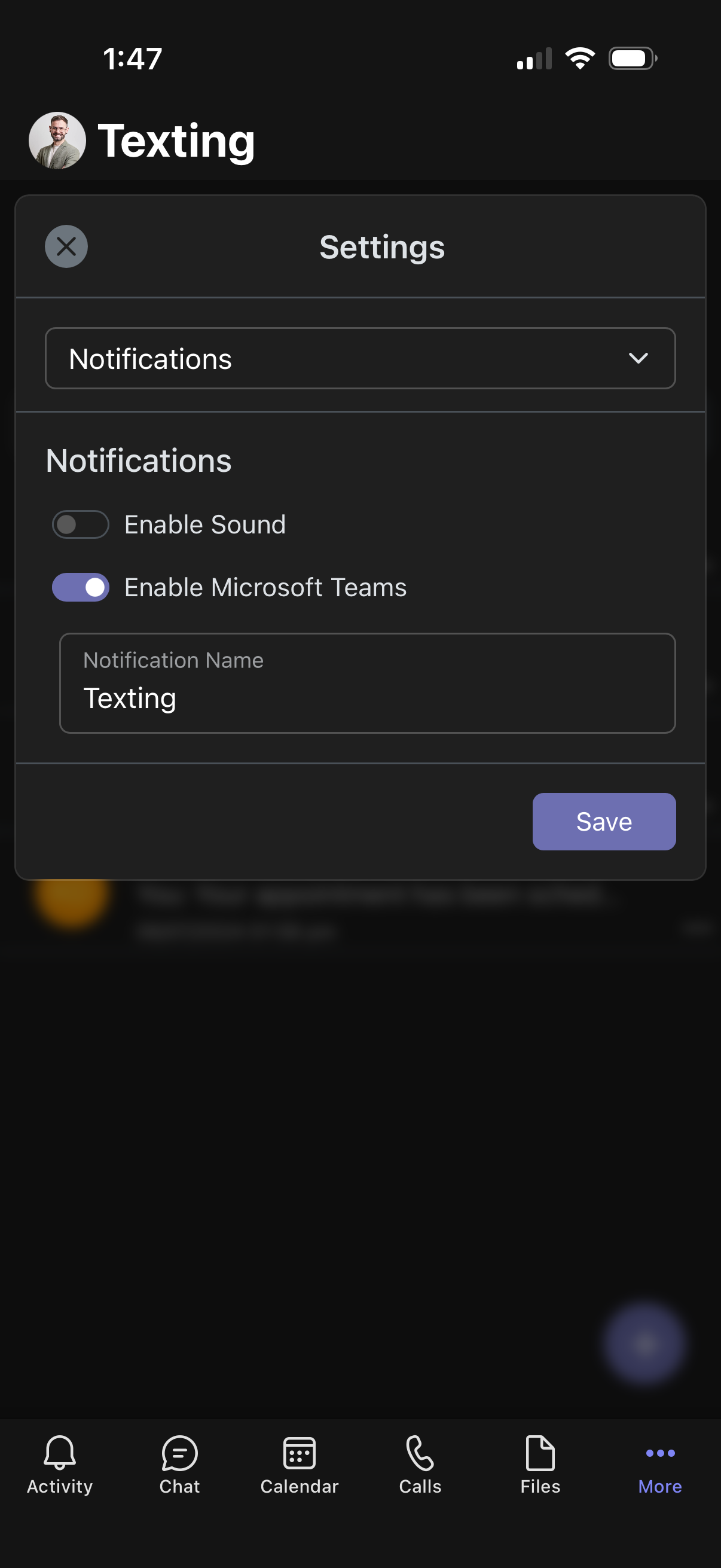
- Notifications — Teams notifications are defaulted and toggled on, allowing the utilization of the Teams notification bot installed locally on your instance. App notifications for Teams have a global/org setting that needs to be enabled. Check the Texting app's global settings if no one is receiving notifications. Contact your Teams tenant administrator for assistance. Toggle on Enable Sound and Enable Microsoft Teams as preferred. When Enable Microsoft Teams is toggled on, a Notification Name must be assigned. Tap Save.
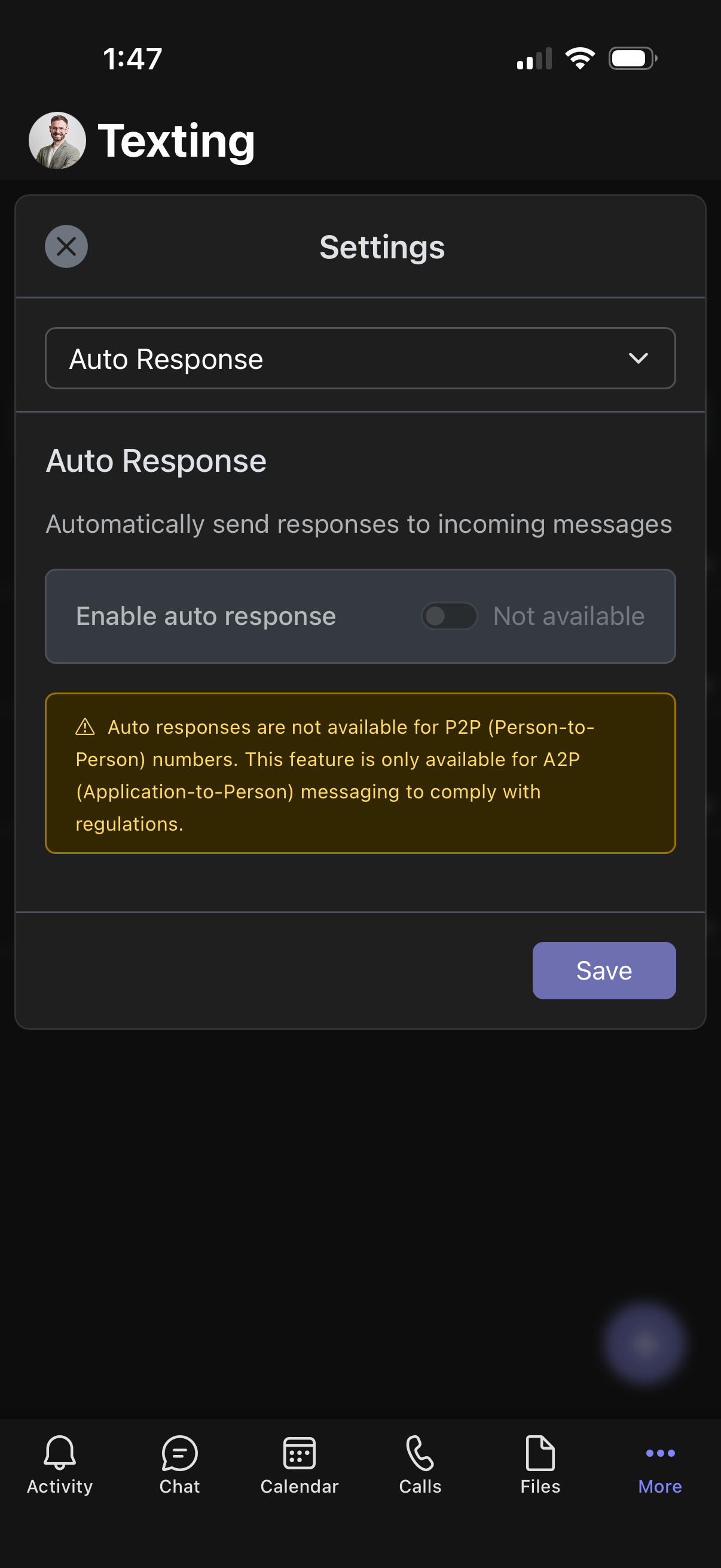
- Auto Response — Set an automatic reply for incoming texts. Note: This feature is only available for A2P accounts (marketing campaigns) and will not work for person-to-person texting.
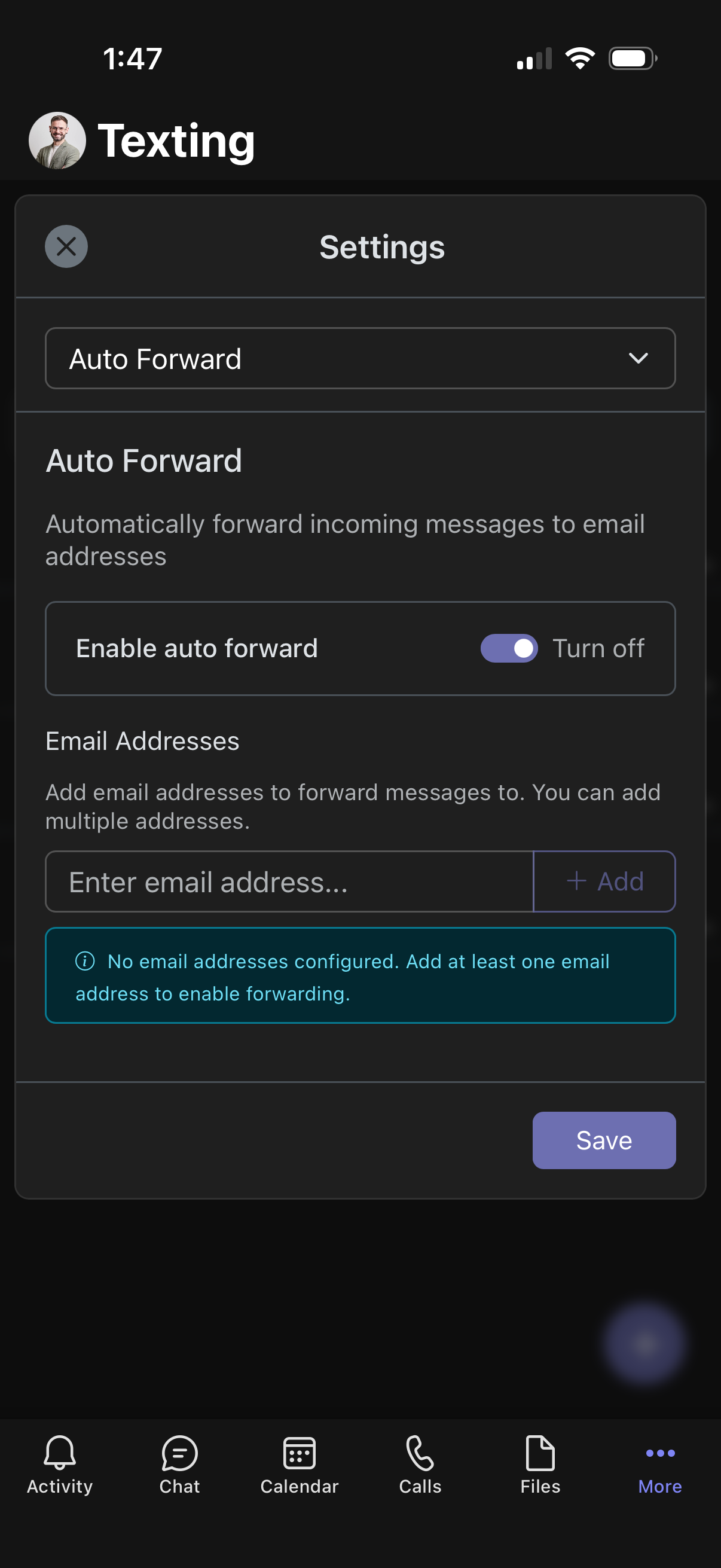
- Auto Forward — To forward incoming messages to an email address, toggle on Enable auto forward. Enter the desired email address and tap Add. Tap Save to save your preferences.
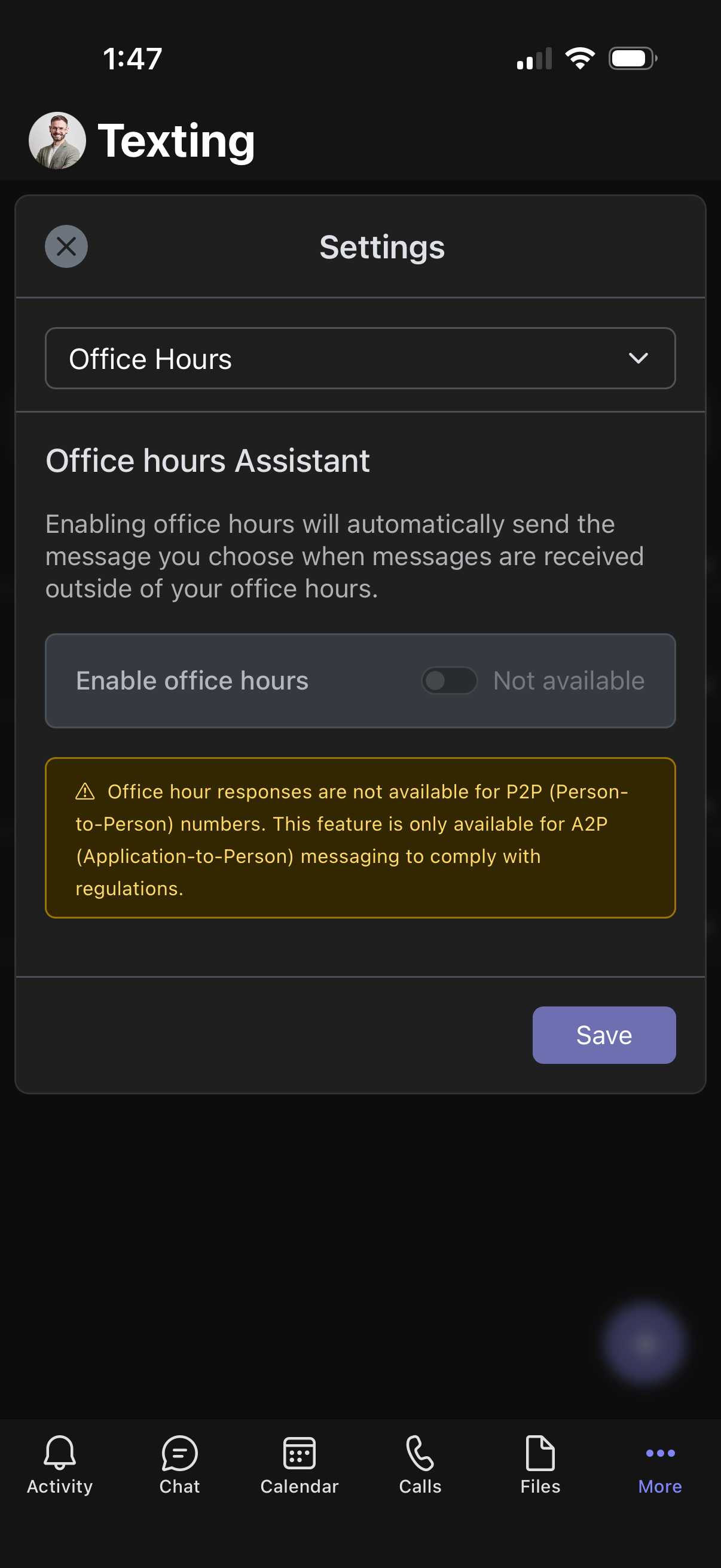
- Office Hours — Send automatic replies when messages arrive outside business hours. Note: This feature is only available for A2P (Application-to-Person) messaging to comply with regulations.
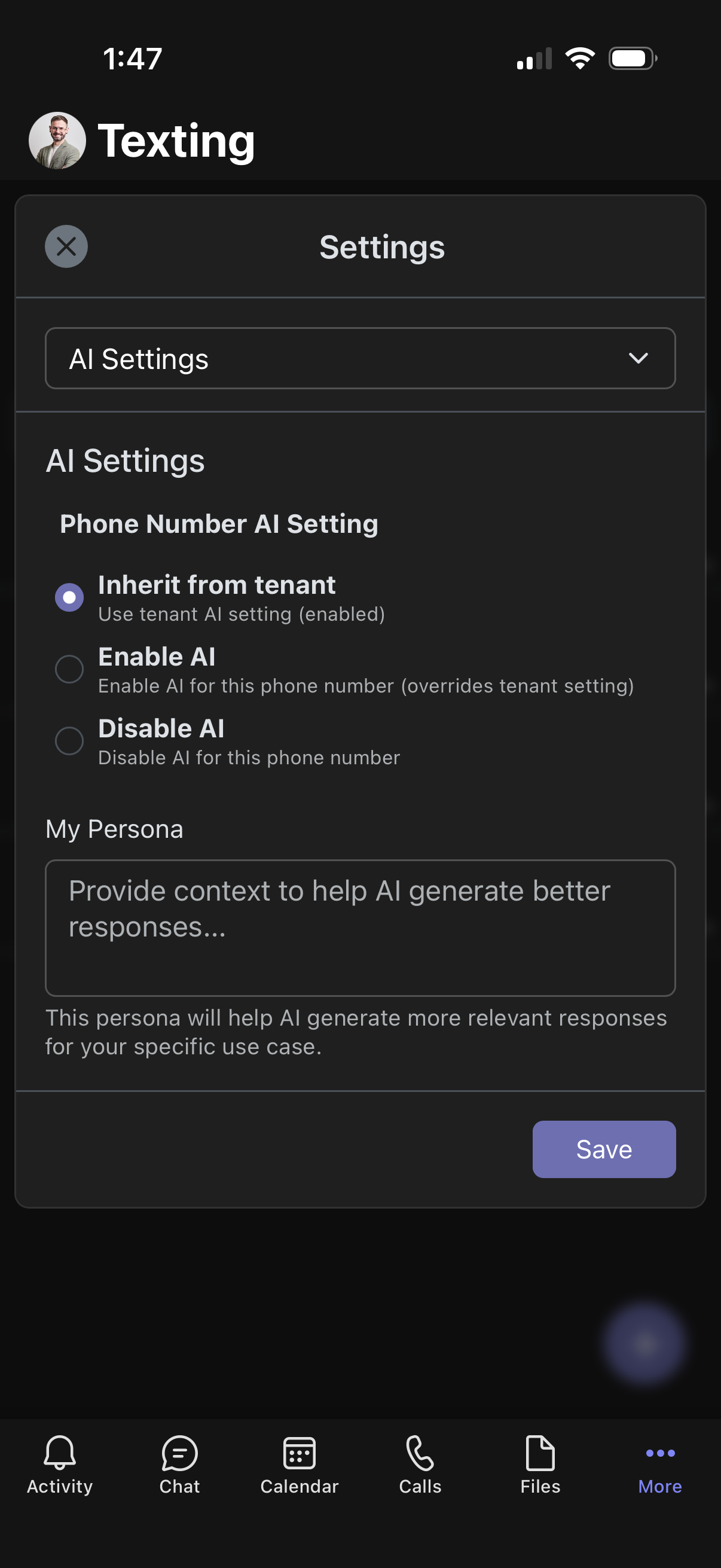
- AI Settings — Choose to Inherit from tenant, Enable AI, or Disable AI, and optionally edit My Persona to help AI respond more effectively to your use case. Tap Save to save your preferences.
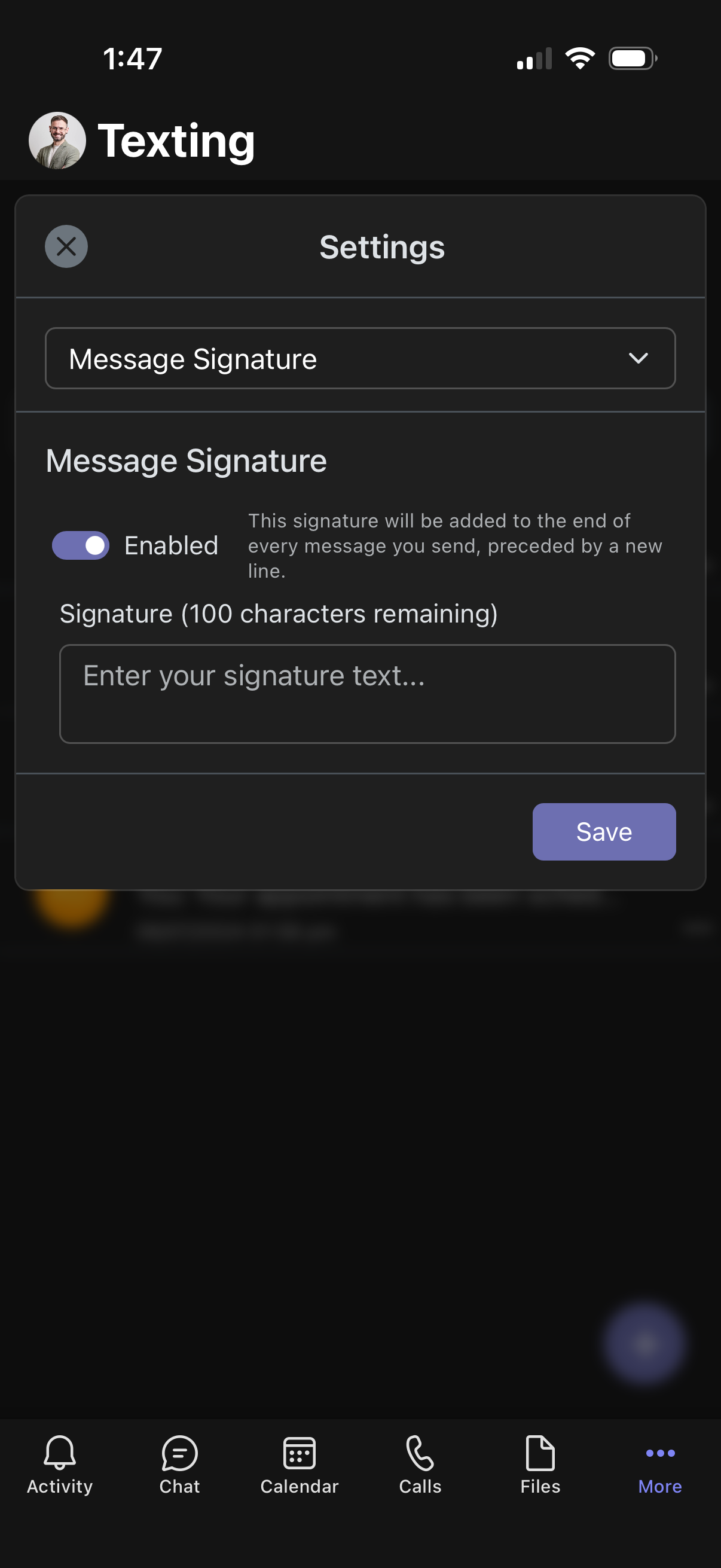
- Message Signature — Toggle on Enabled to add a signature to your messages. Enter the text you want to appear at the end of every message. Tap Save.
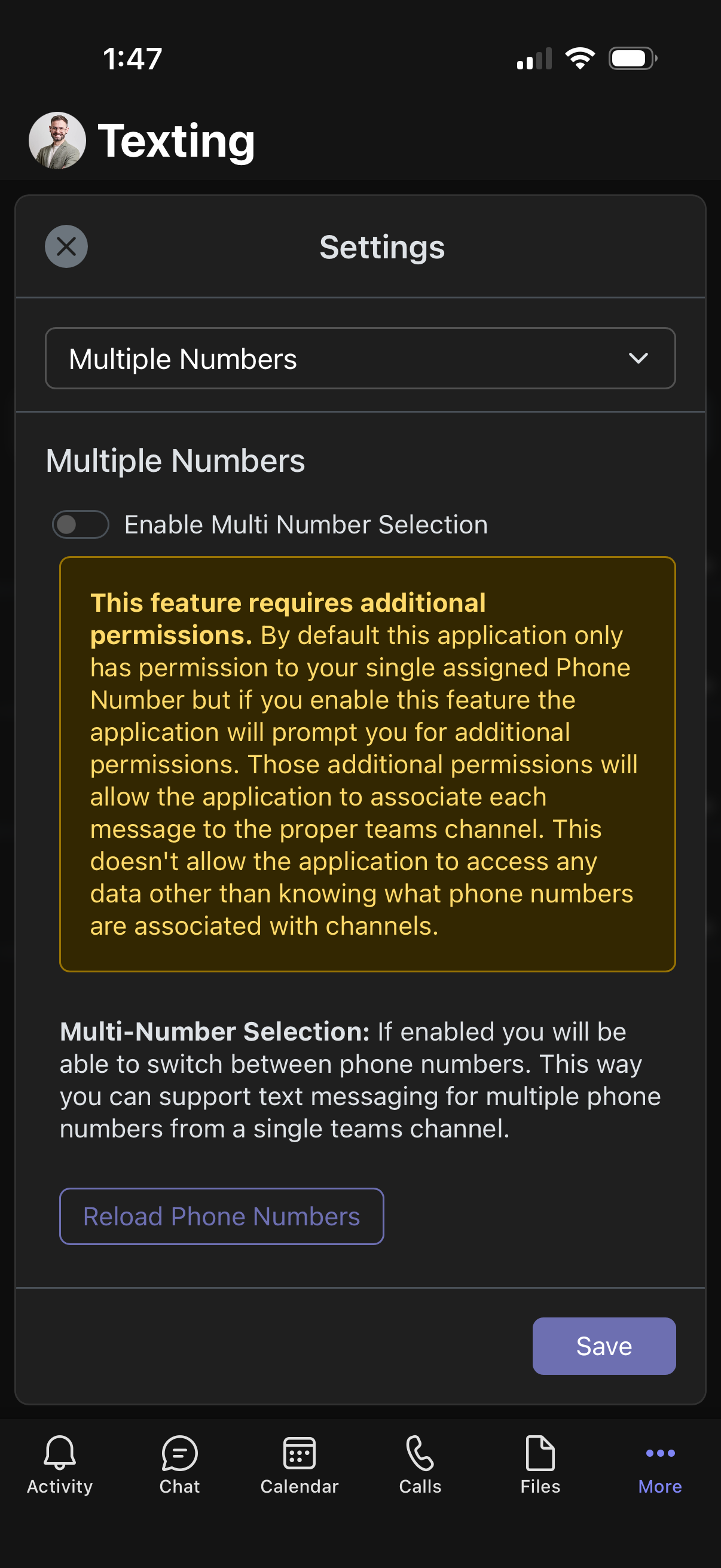
- Multiple Numbers — When enabled, you can choose from multiple configured numbers.
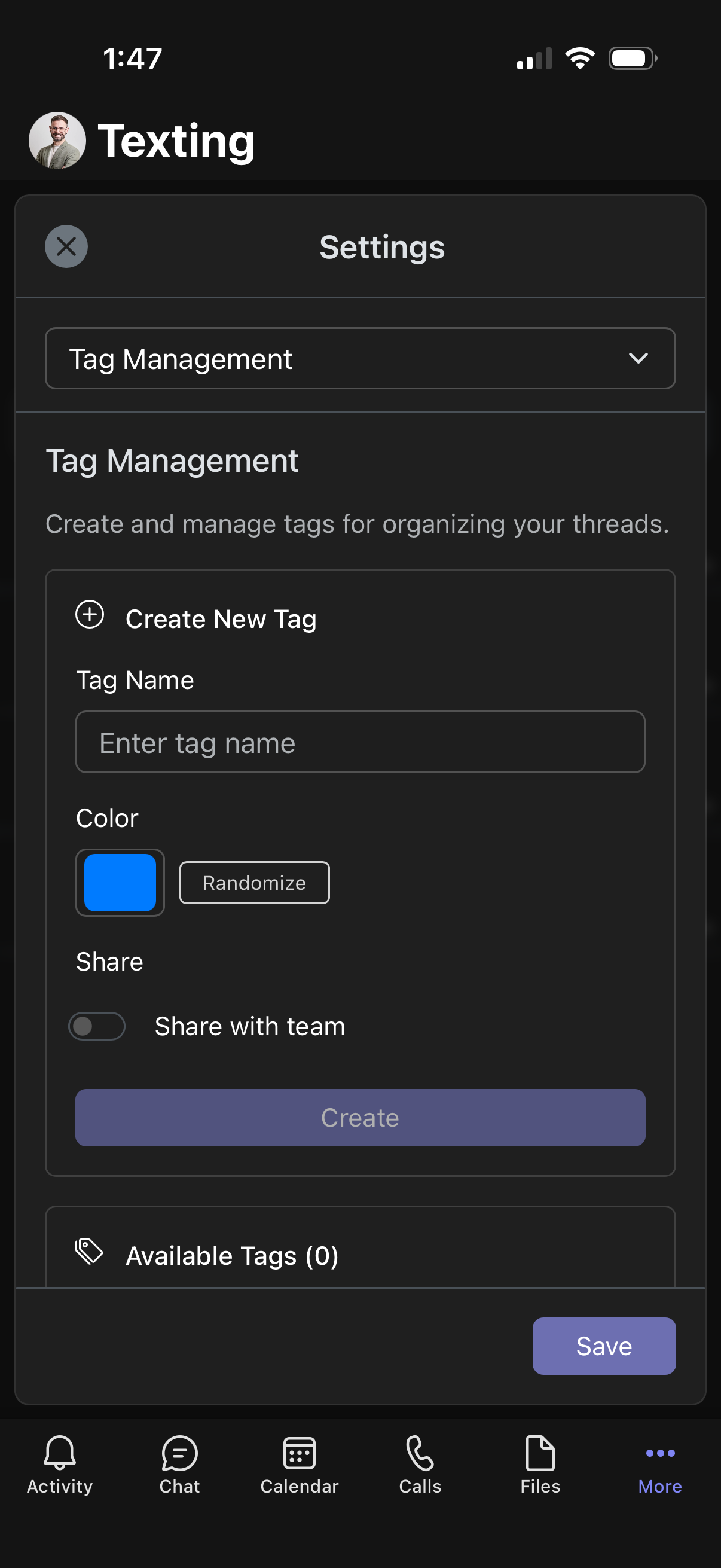
- Tag Management — To organize your message threads, tap Create New Tag. Enter a tag name, choose a color, and toggle Share to share the tag with your team. Tap Save.
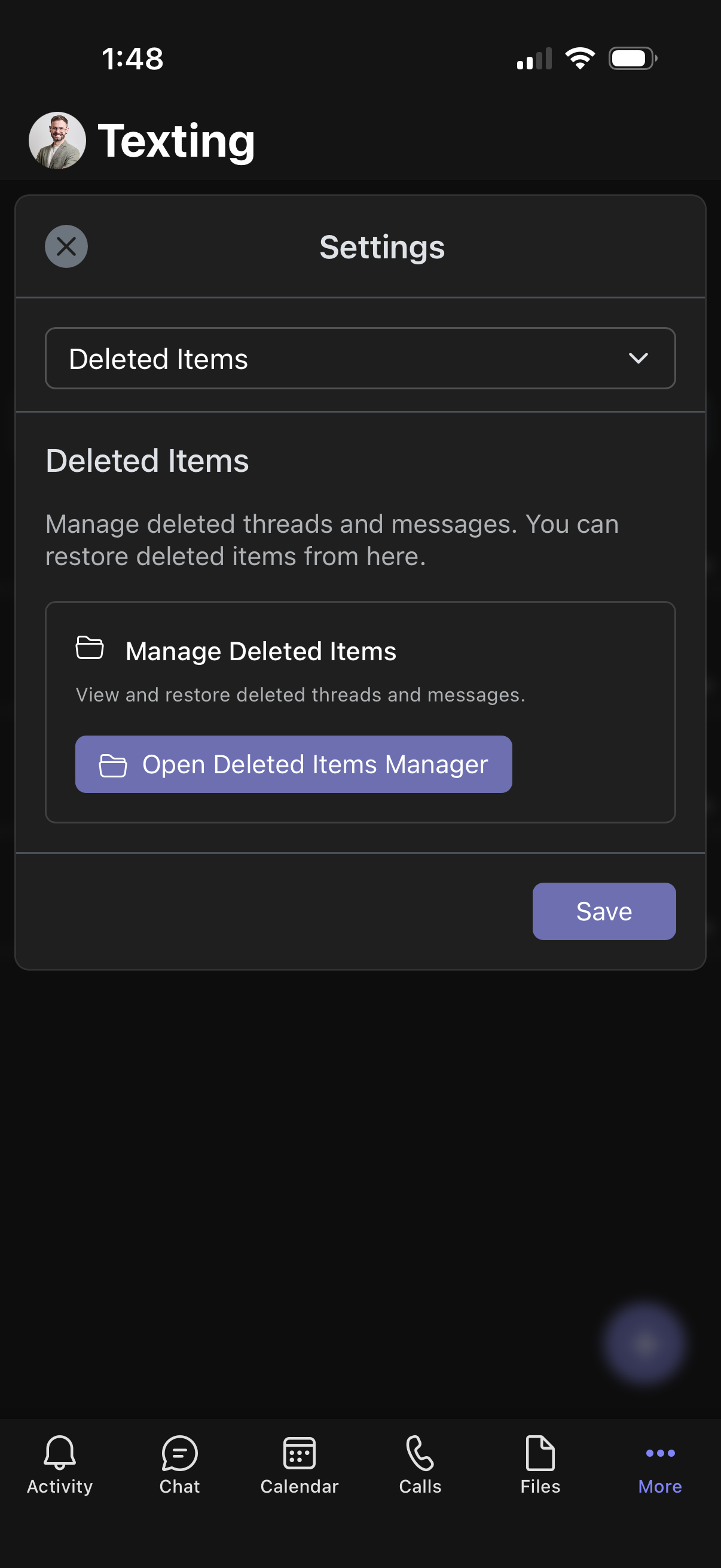
- Deleted Items — Tap Open Deleted Items Manager to view or restore deleted items.
Manage notification settings in Teams
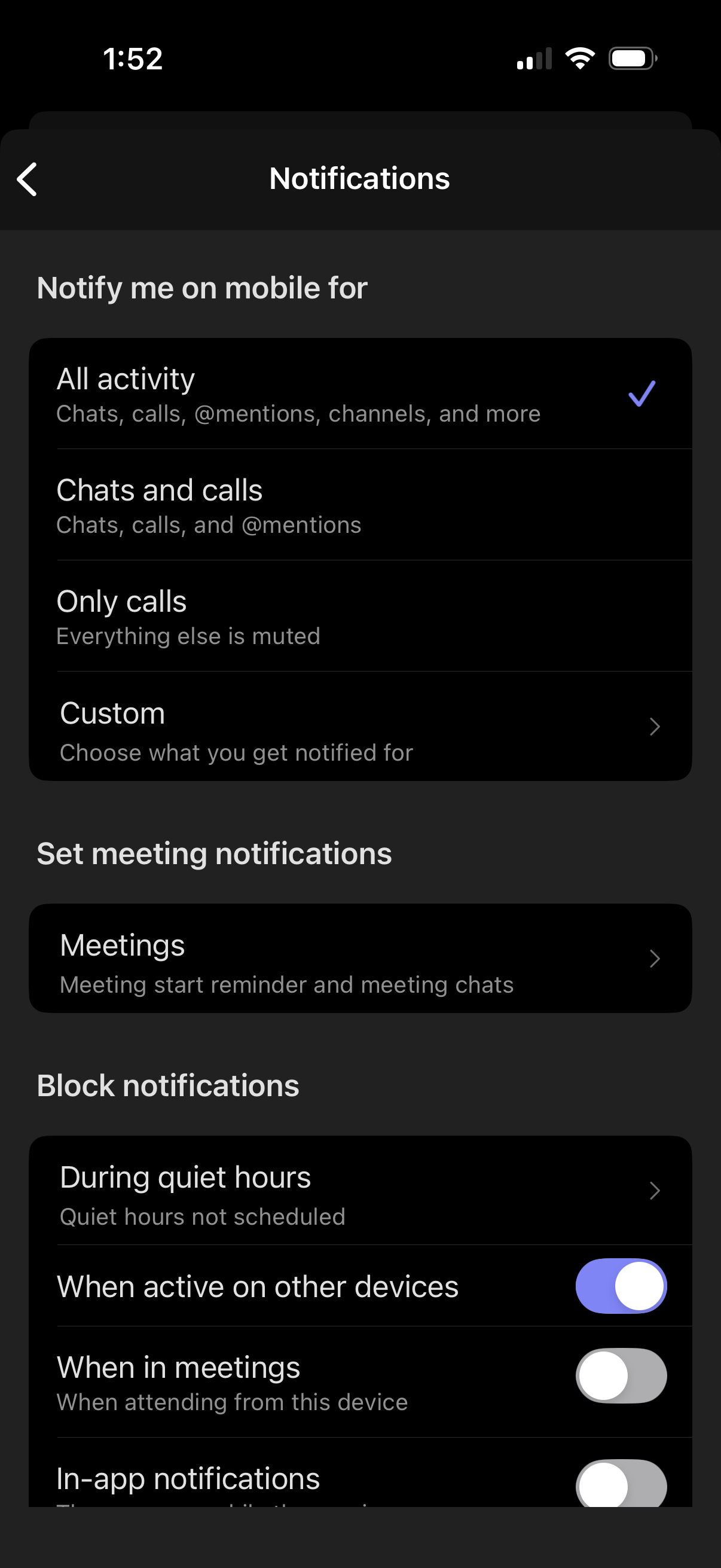
- Tap your profile icon.
- Tap Settings.
- Select Notifications and ensure that your general notifications are configured. Note: If you are getting other Teams notifications, this is likely correctly configured.
Adjust device notification preferences
It's important to ensure that your device has the proper notifications turned on. The following example covers iOS. Android follows similar steps.
- Open your device's system settings.
- Go to Notifications.
- In the list of apps, tap Microsoft Teams.
- Make sure Allow Notifications is toggled on.
- Choose your preferred alert style and confirm that sounds and badges are enabled, if desired.
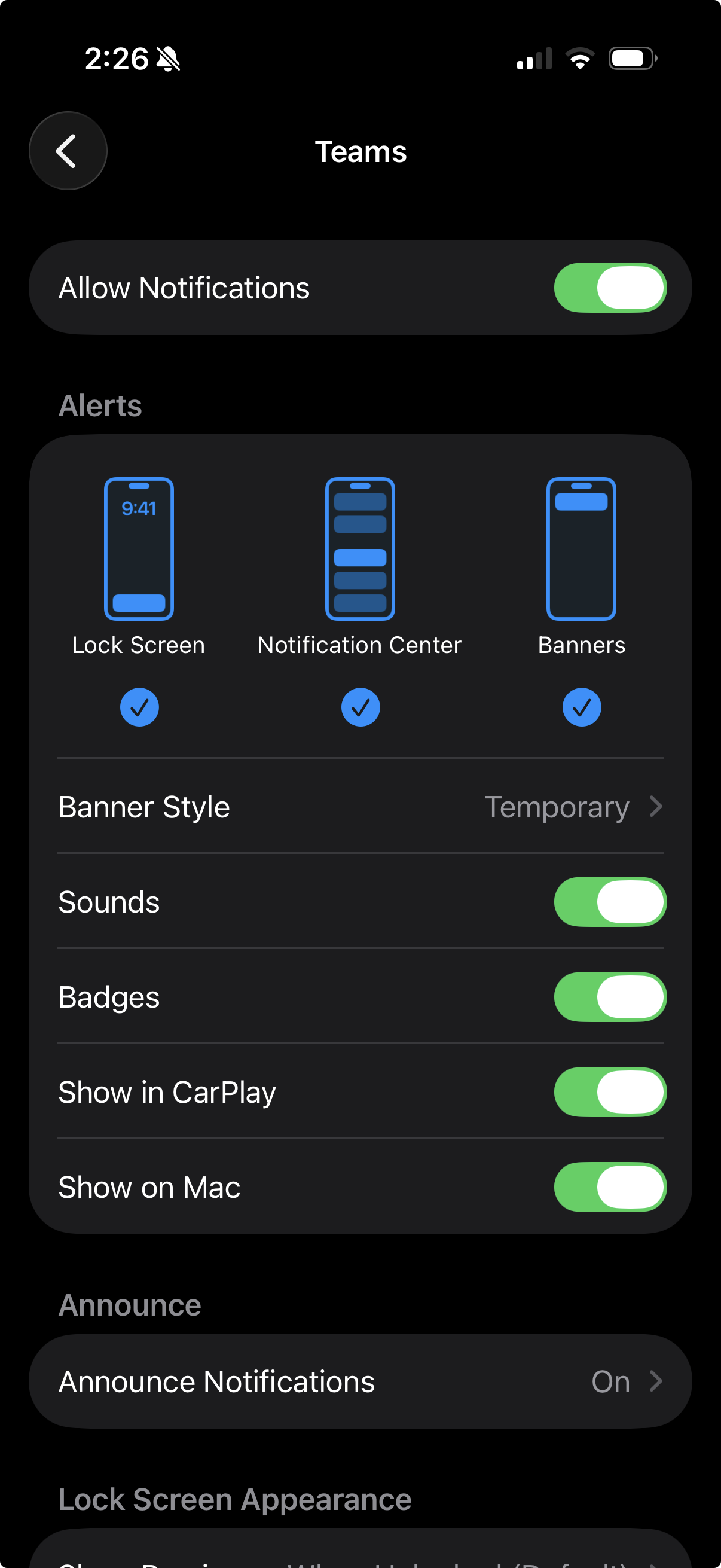
Ensure that your notifications are on for the Teams app on each device you use to access your account.
4.
Send and view messages
Send a message
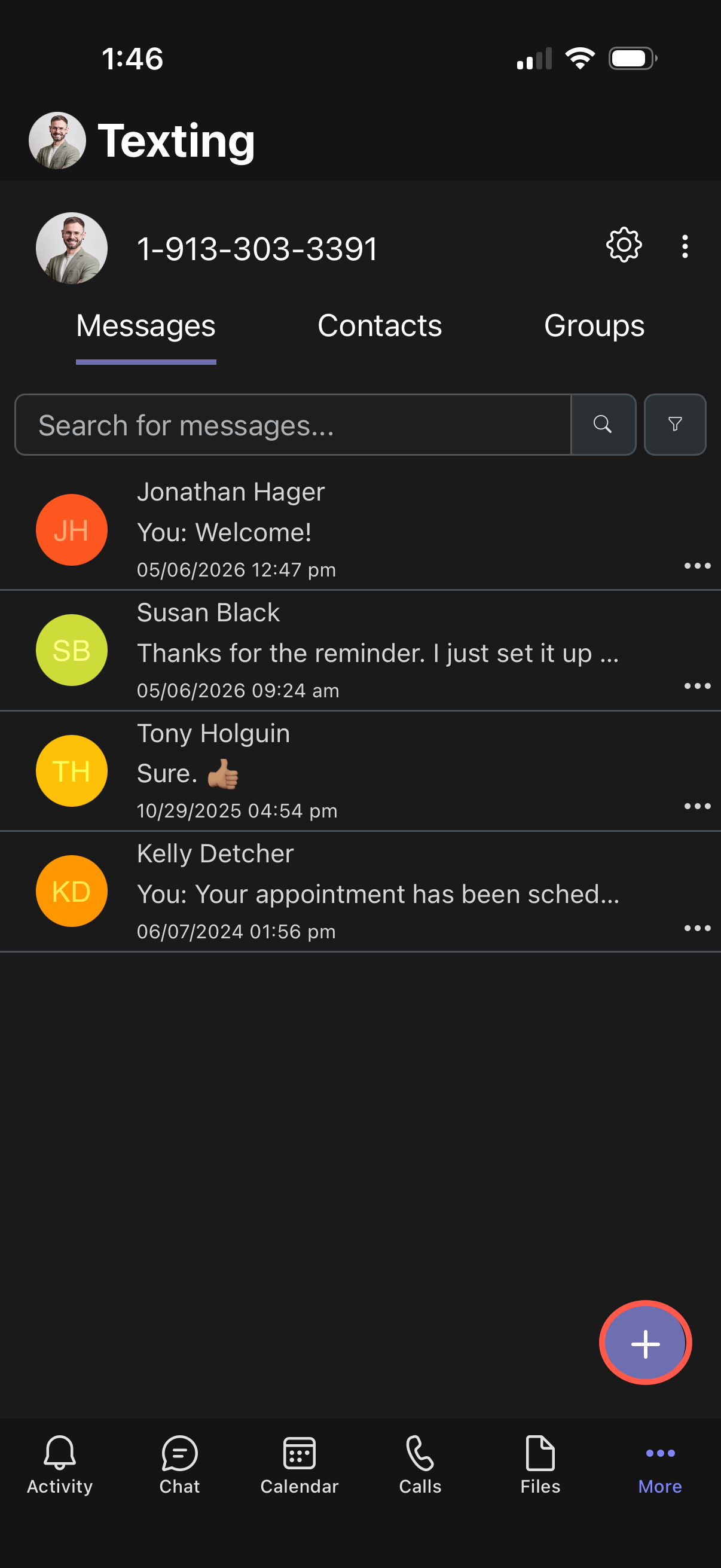
- Sign in to your Teams account and navigate to the Texting app.
- On the Messages tab, select +.
- A Send a New Message window appears. Enter the phone number of the recipient and tap Add. The default country code is +1 (US). Use the dropdown to modify if needed.
- Create your message in one of the following ways:
- Type a message to reply manually
- Use Enhance to improve your typed message with AI
- Click Generate to write your message using AI
- Use a template
- Personalize with emojis or attachments. Note: Only certain attachment types are supported by carriers. Check with your carrier to ensure compatibility before sending.
- Tap preview to view how your message appears on a mobile phone.
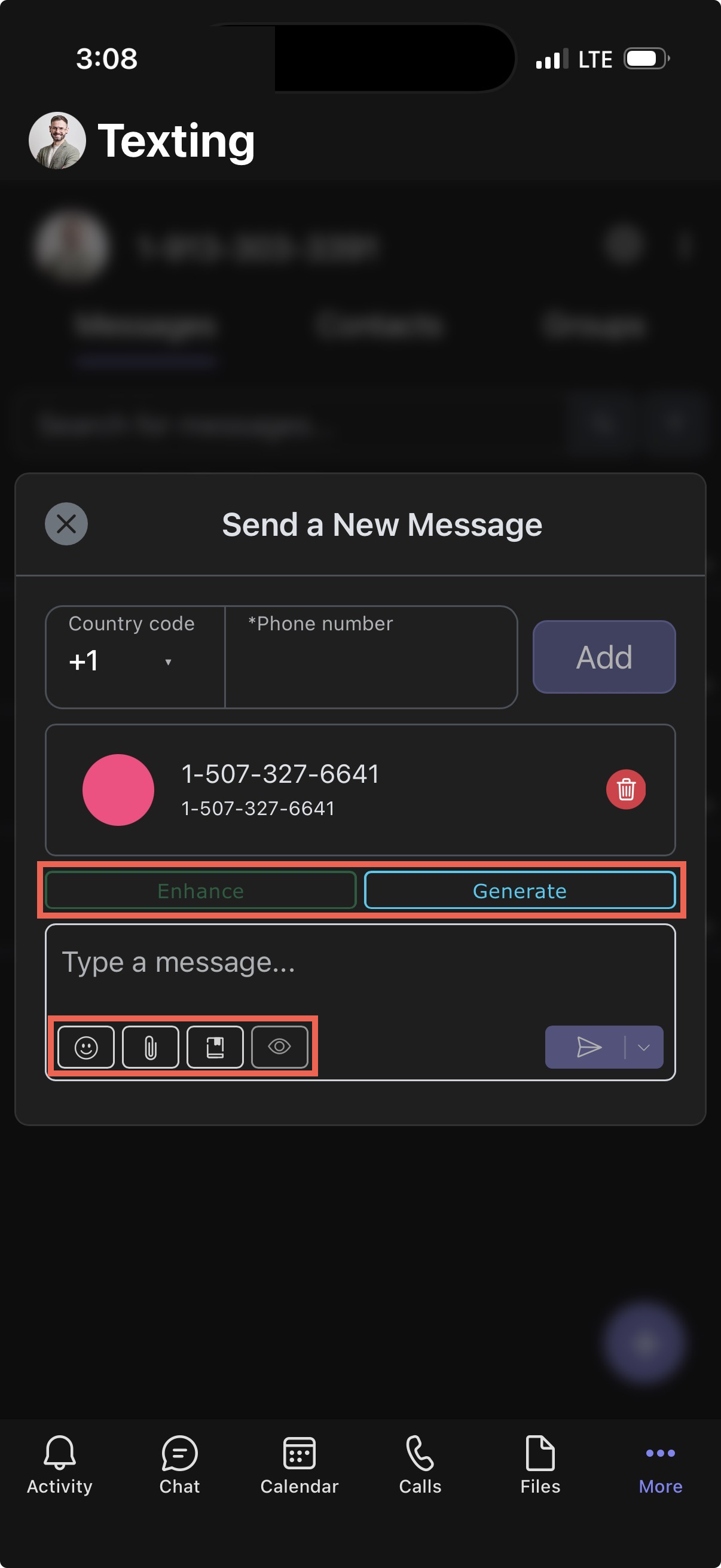
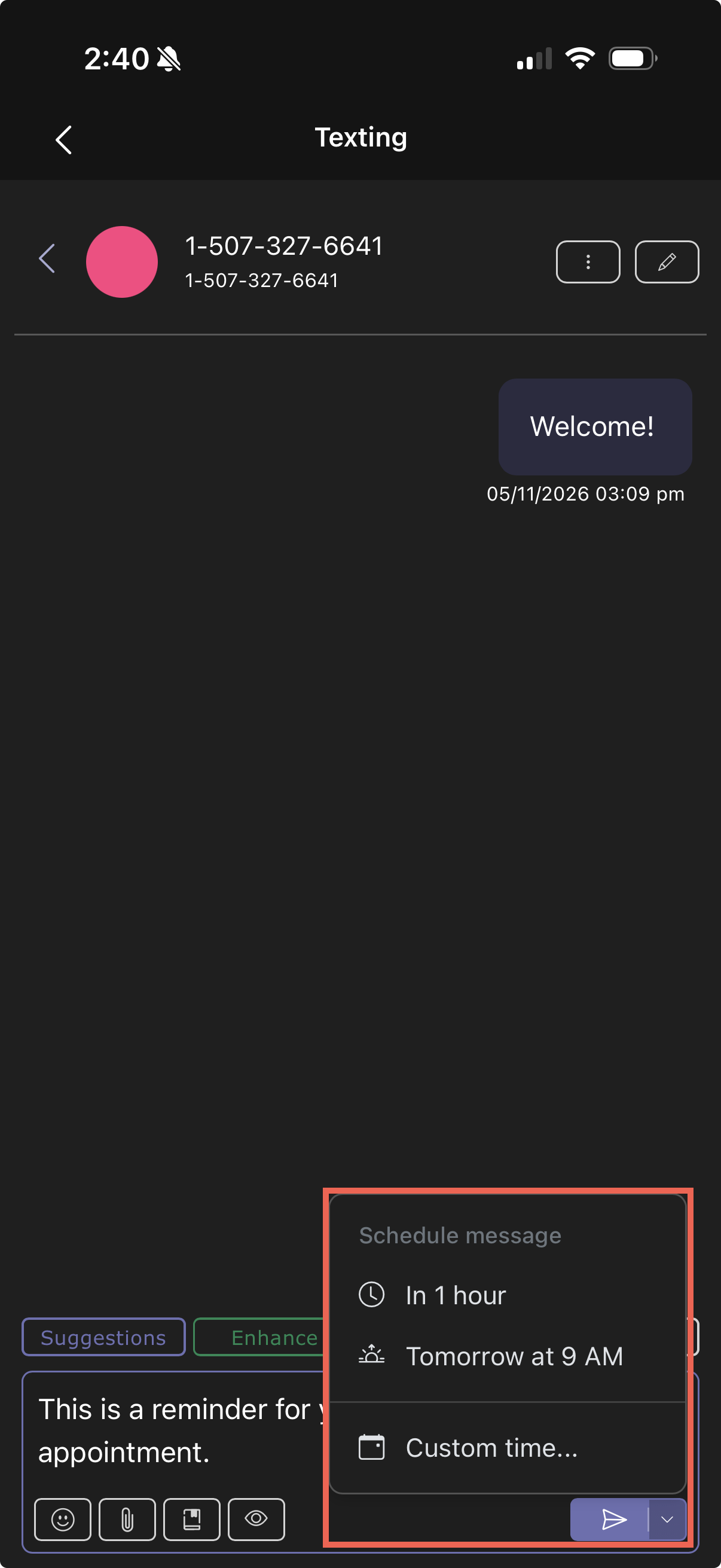
- Tap the arrow to send the message immediately. Optionally, you can click the down arrow to schedule your message. Options include:
- In 1 hour
- Suggested time
- Custom time – Set the Date and Time, then tap Schedule Message.
 Click image for large view
Once scheduled, you can Send Now, Reschedule, or Delete the message.
View a message
To view sent and received messages:
- Sign in to your Teams account and navigate to the Texting app.
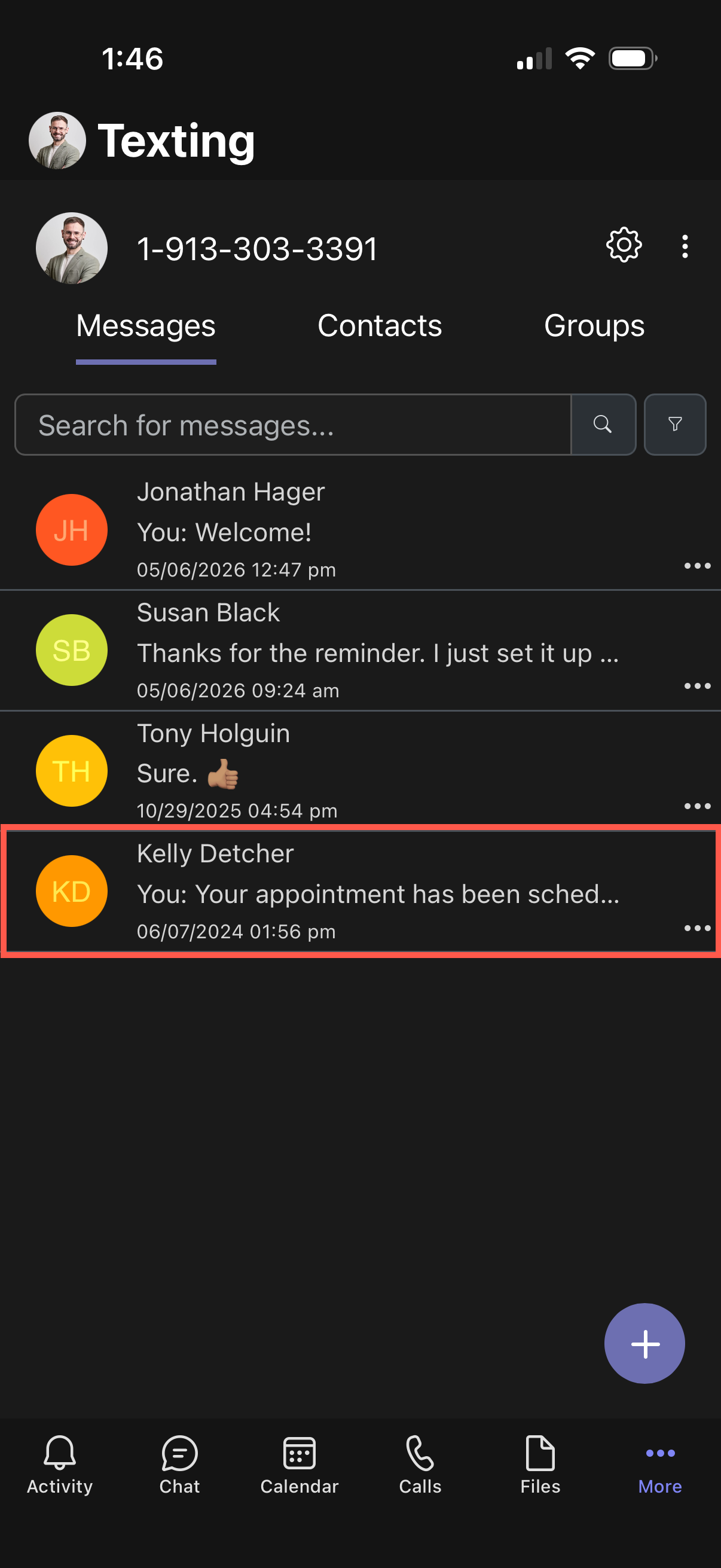
- Tap Messages. Your sent messages appear in a list, with the first line of the text displayed.
- Tap any message in the list to open it.
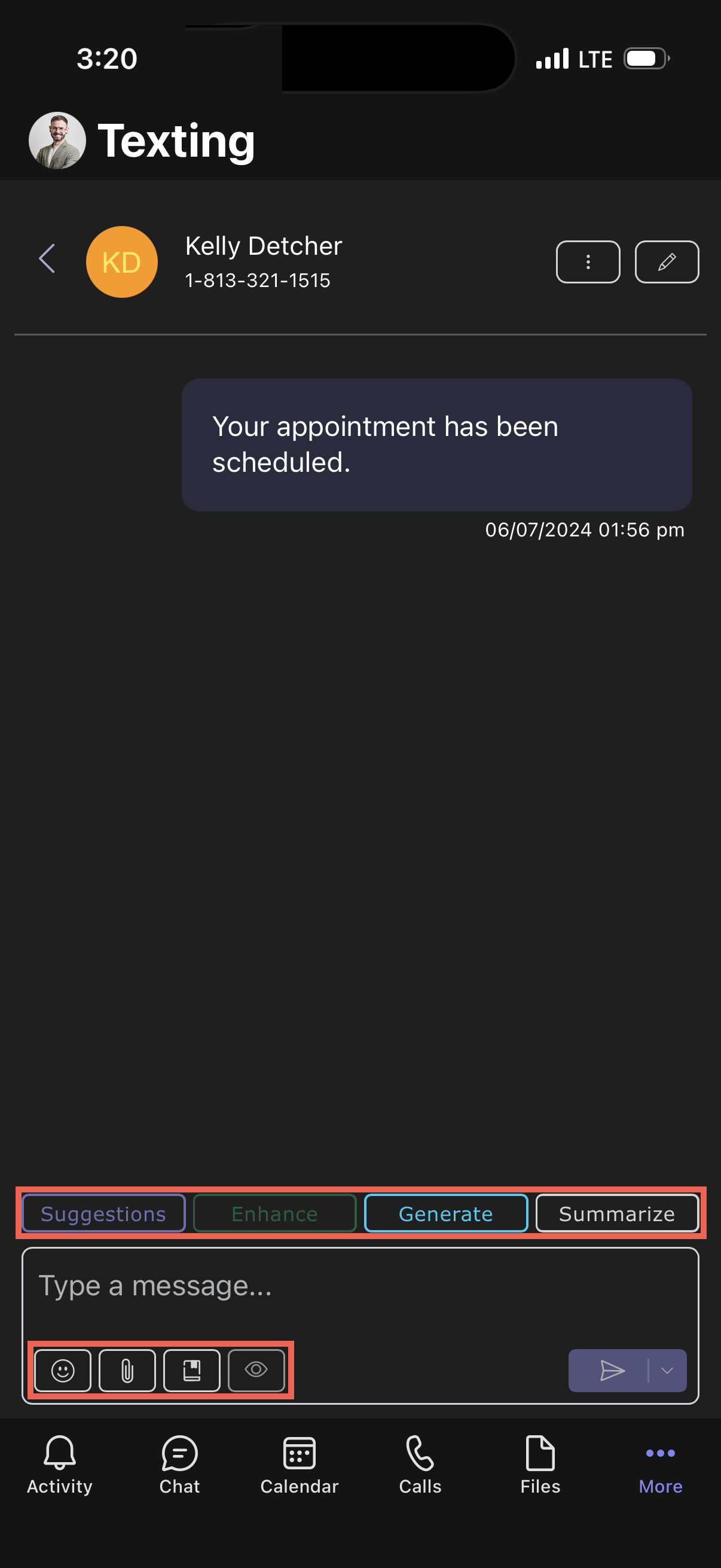
- The message view displays the complete conversation history with that phone number or group.
- You can continue the conversation with the following methods:
- Suggestions – Get AI response ideas
- Enhance – Improve your typed message with AI
- Generate – Create an AI response
- Summarize – See a conversation summary
- Type a message to reply manually
Manage a thread
- Sign in to your Teams account and navigate to the Texting app.
- Tap Messages to see your message threads.
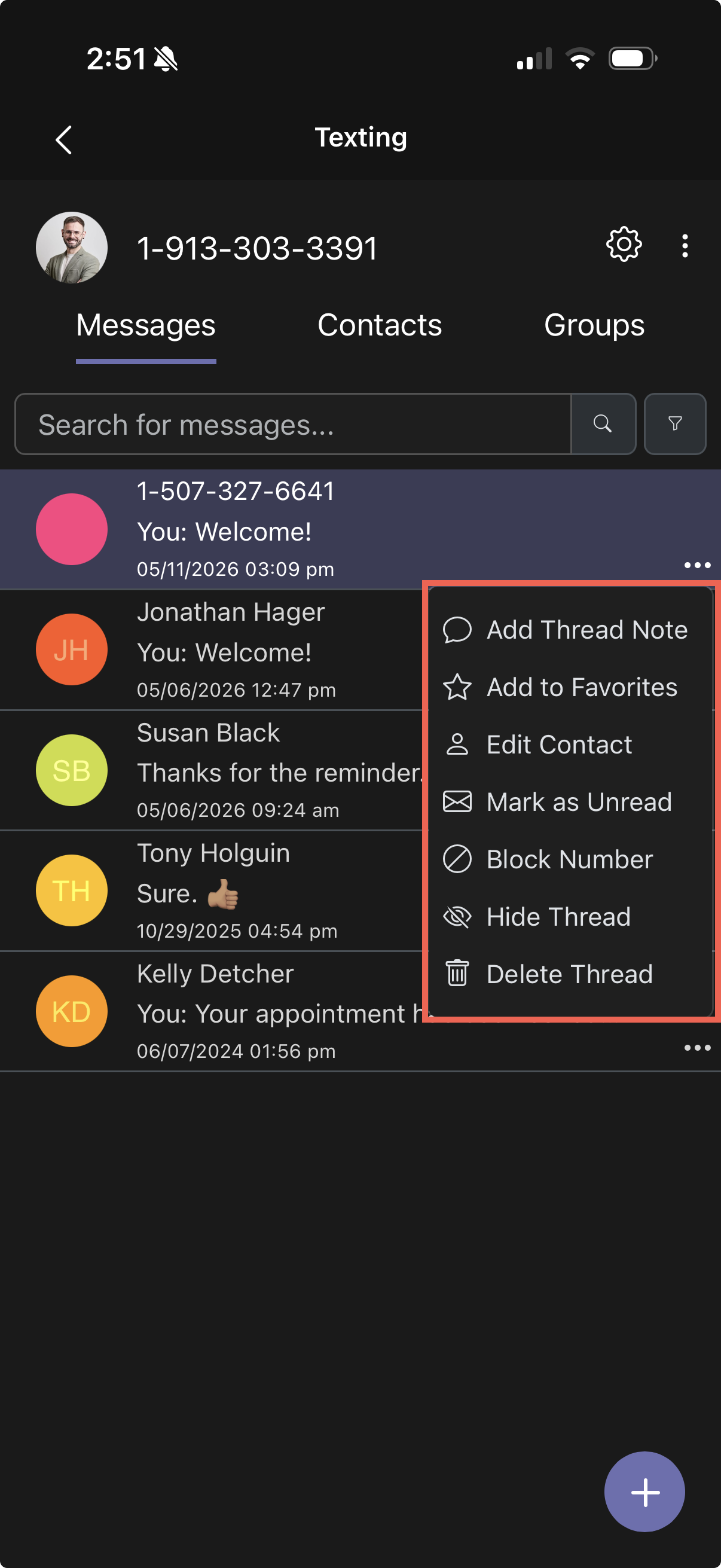
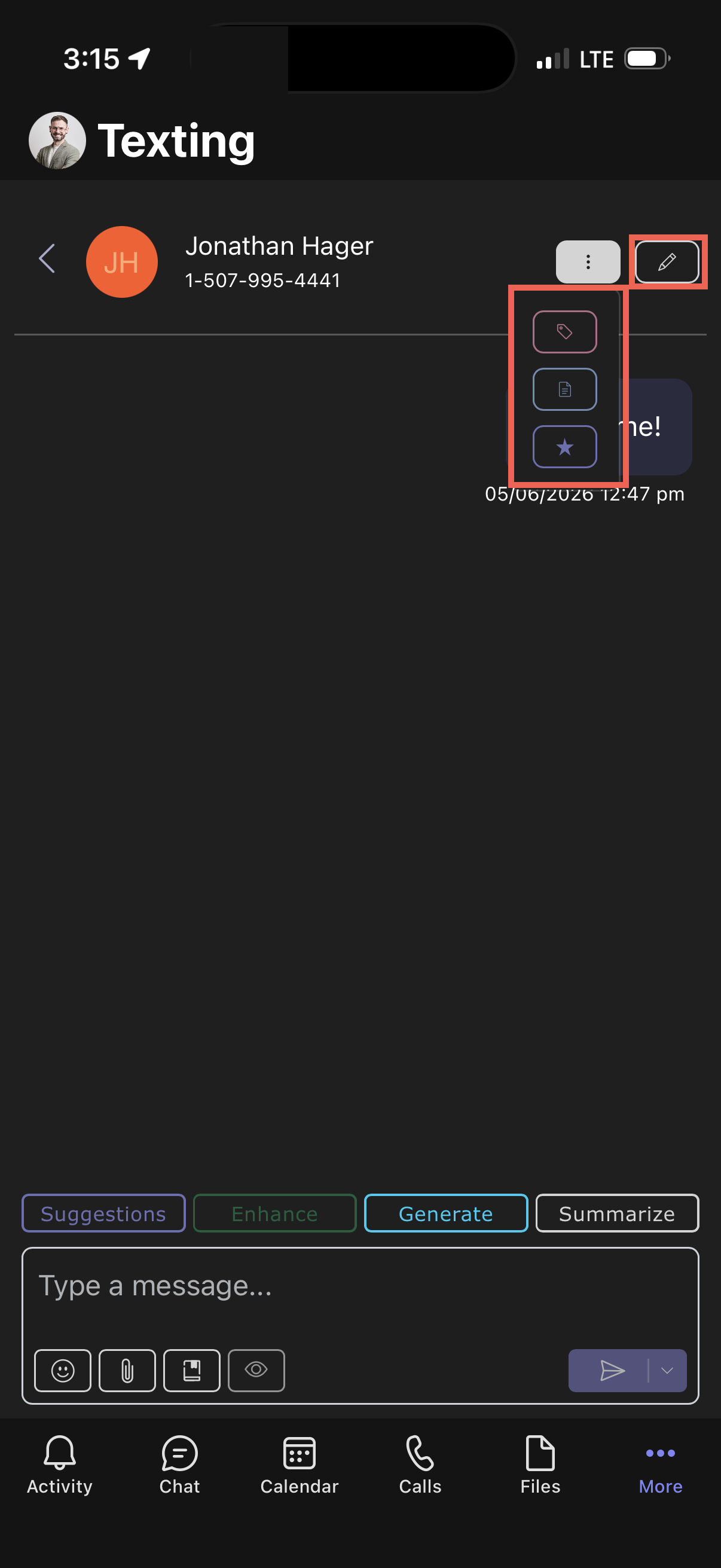
- Tap the more options icon to access the following options:
- Add Thread Note – Attach a note to the thread for reference or reminders.
- Add to Favorites – Mark the thread as a favorite for quick access.
- Edit Contact – Update the contact information associated with the thread.
- Mark as Unread – Mark the thread as unread to keep track of messages you want to revisit.
- Hide Thread – Hide the thread from your main view without deleting it.
- Delete Thread – Remove the thread completely from your Messages list.
- Tap the message thread to open it. You can manage the following:
- Add Tags – Organize threads by category, project, or priority.
- Add Notes – Include additional details or context for the thread.
- Add to Favorites – Quickly mark threads you frequently reference.
- Edit Contact – Update or correct the contact's name, number, or other details.
5.
Manage contacts
The Contacts tab populates an alphabetical list of your current contacts. The following actions can be completed within the Contacts tab.
- Search for a contact.
- Select a contact to view text message history.
- Tap on the … icon to view, edit, or delete that contact.
- Add or import contacts.
Currently, contacts are only collected and edited at the individual application level. No one else can see or edit your contacts.
Add a Contact from Messages
You can add a new contact quickly from a message thread.
- Sign in to your Teams account and navigate to the Texting app.
- Tap Messages and select a message to view.
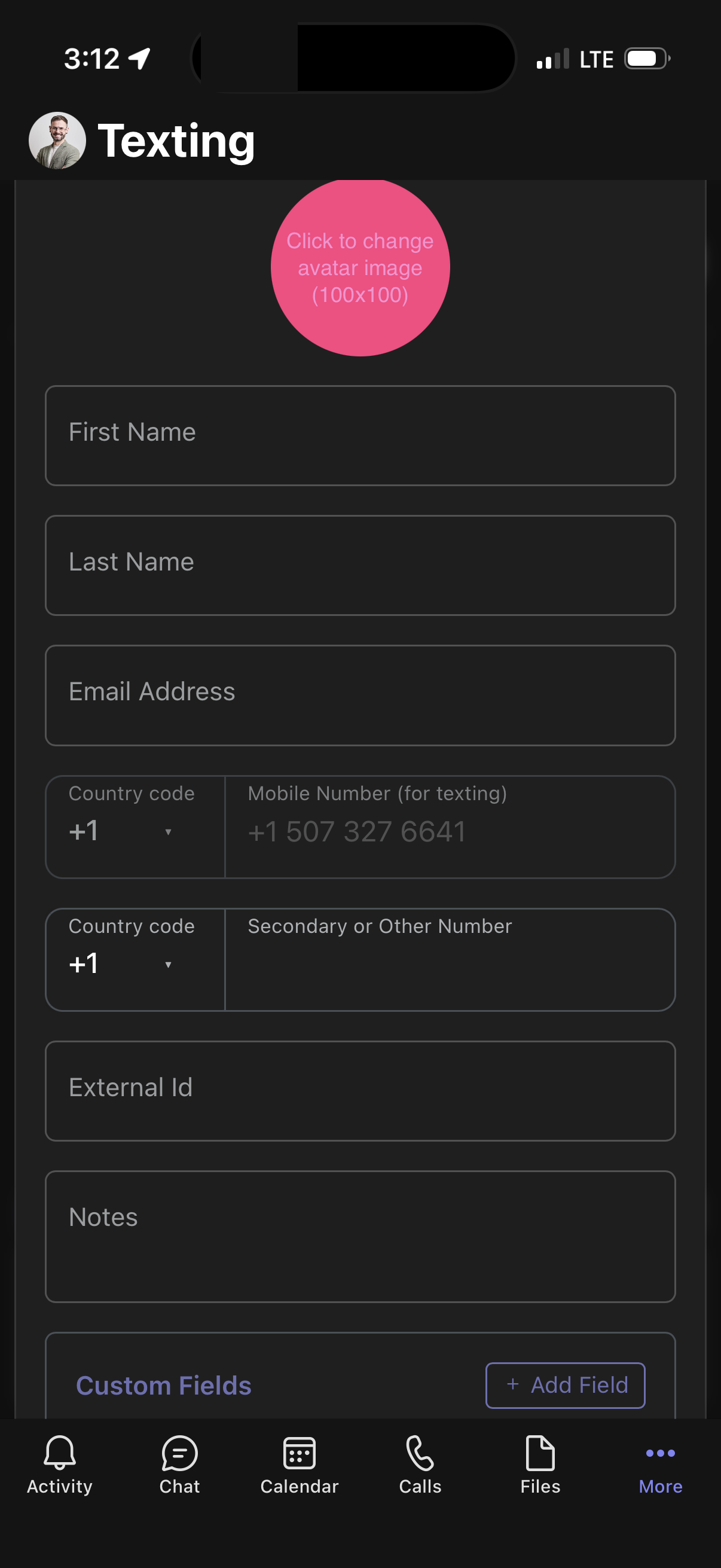
- Tap the edit icon. A contact form opens.
- The Mobile Number is required and is automatically entered.
- Optionally, you can add an image, Name, Email, External Id, Notes, and Custom Fields. Note: External Id can help link your contacts to other systems if needed later.
- Tap Save to create the contact.
Add a New Contact (Single)
You can add a new contact within Contacts.
- Tap Contacts.
- Tap the Add (+) icon.
- Tap Add Contact.
+-1.png)
- A blank contact form opens.
- The Mobile Number is required.
- You can optionally add an image, Name, Email, External Id, Notes, and Custom Fields. Note: External Id can help link your contacts to other systems if needed later.
- Tap Save to add the contact.
+-2.png)
Add contacts in bulk
- On the Contacts tab, tap +.
- Choose Import Contacts.
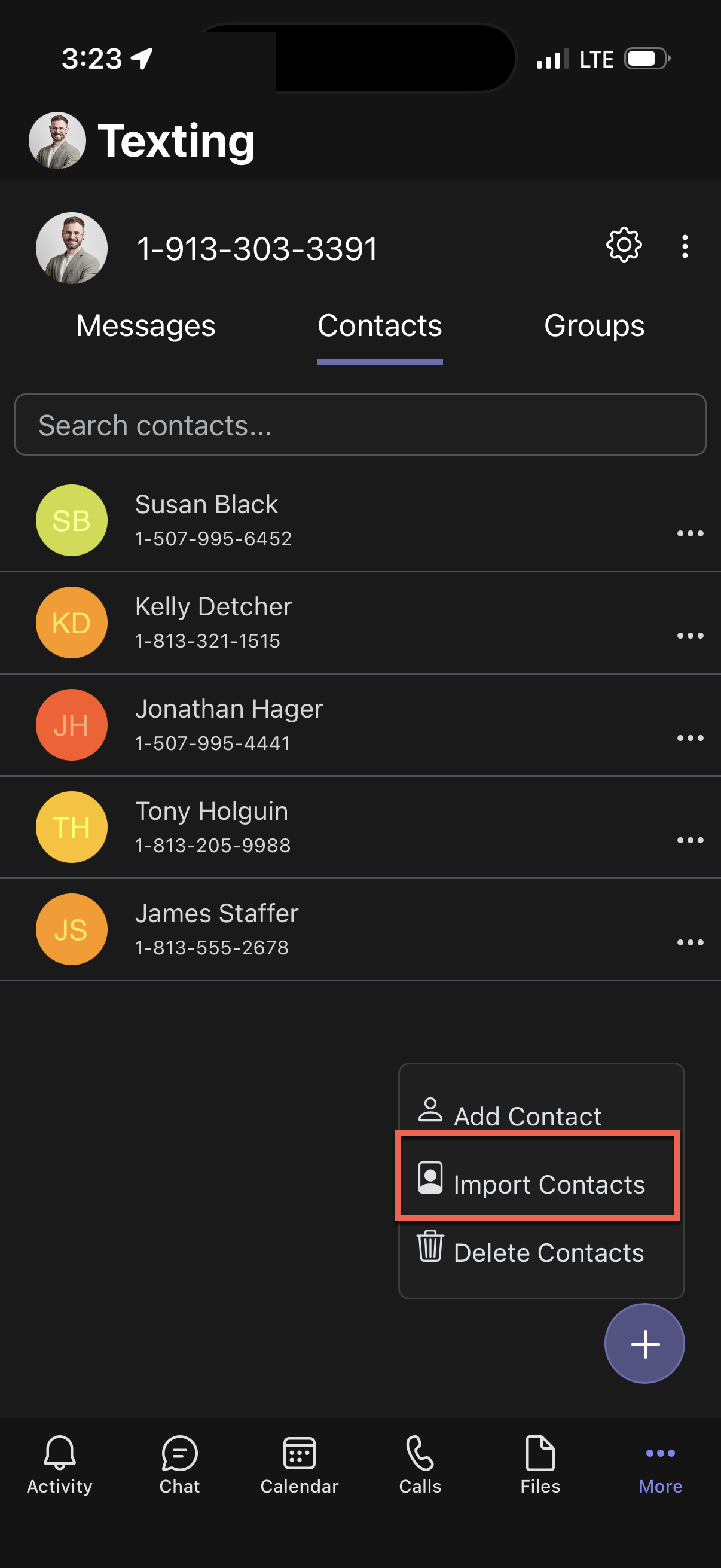
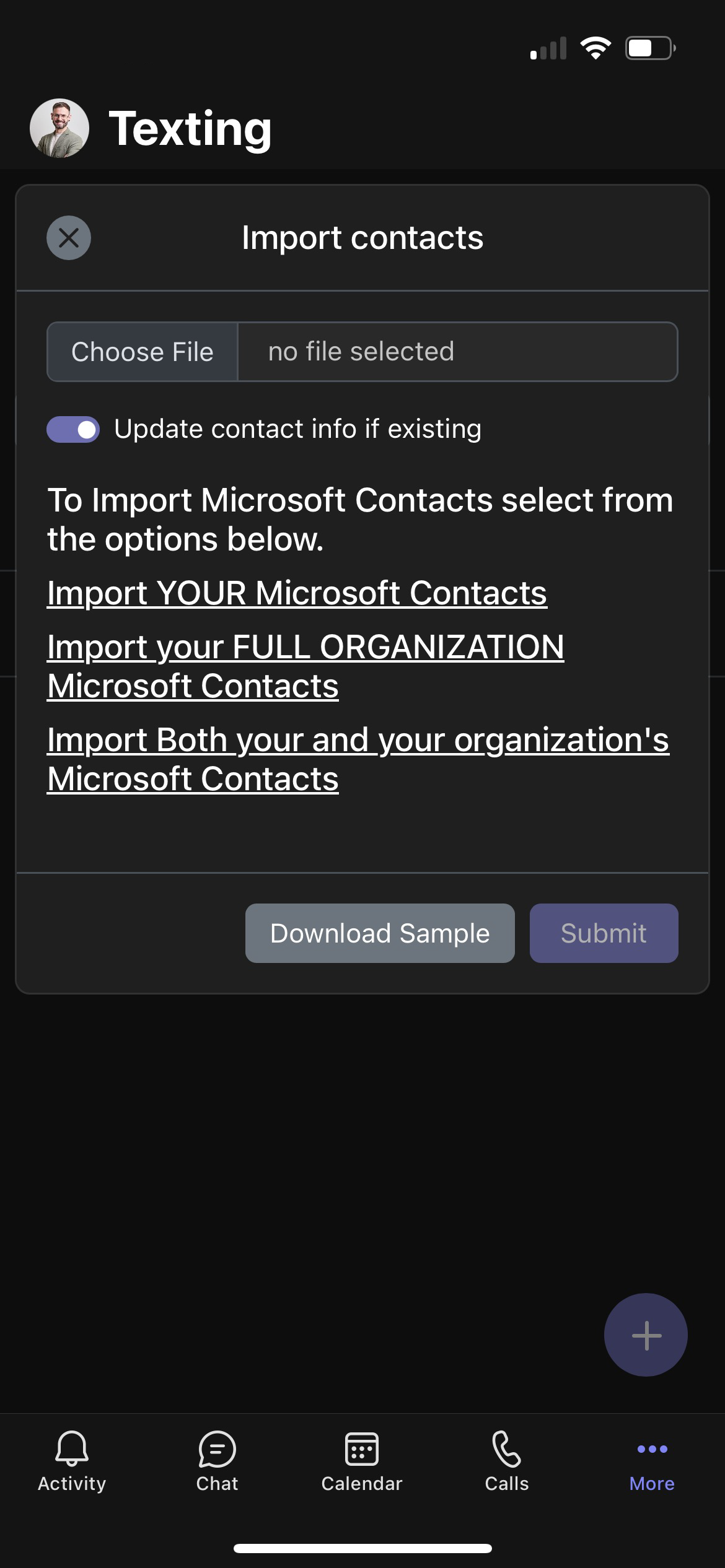
- Tap Download Sample to get a CSV file template. This ensures the correct column formatting.
- Open the file and enter your data:
- Mobile number is required (10-digit format with no dashes or spaces).
- Optional fields include: Name, Email, External ID (helpful for linking to other systems), and Notes.
- Save the file locally to your device as a .csv file.
- Return to Teams and tap Choose File to upload your saved CSV file.
- Toggle on Update contact info if existing if you want the upload to overwrite any existing contacts already in your Texting contacts.
- You can also choose to import your Microsoft Contacts from the following options:
- Import YOUR Microsoft Contacts
- Import your FULL ORGANIZATION Microsoft Contacts
- Import both your and your organization's Microsoft Contacts
- Review the contact list and tap Submit.
- Once complete, the new contacts appear in Contacts.
If you are using the Download Sample:
- Add your data to the columns, ensuring that you clear the data points provided in the sample.
- The Mobile column must be completed with just a 10-digit string of numbers. Note: Do not reformat the Mobile column in any way; the system automatically adds a "1."
- All other data points are optional.
- The External ID allows the contact to be tied to your existing internal application. This may be useful if you plan to pull data into a CRM or tie your information to any other data systems.
Edit a contact
- Sign in to your Teams account and navigate to the Texting app.
- Tap Contacts.
- Next to the contact you'd like to update, tap the more options icon.
- Tap Edit Contact.
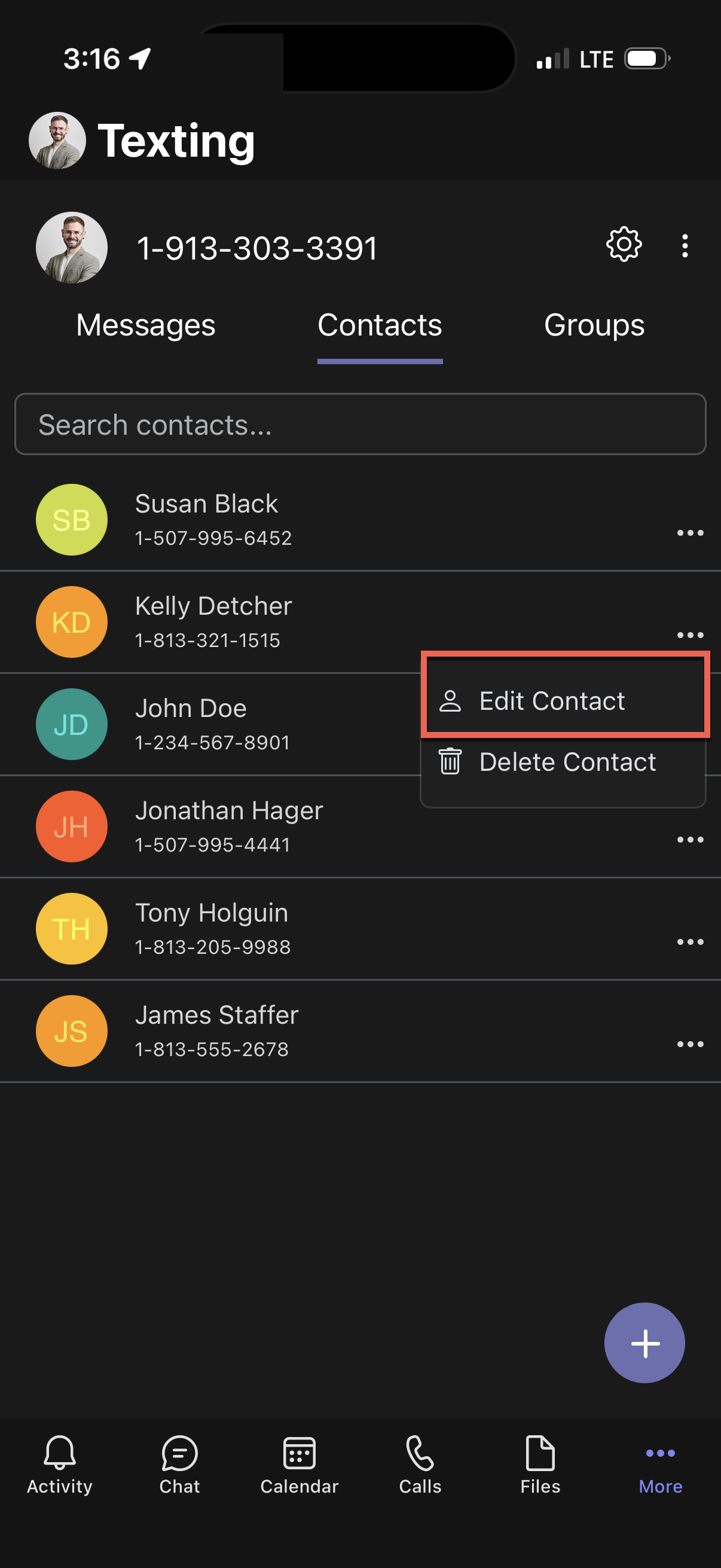
- The following fields can be modified:
- Image – Tap to add an image or avatar to help visually identify the contact.
- First Name – Update the contact's first name.
- Last Name – Update the contact's last name.
- Email Address – Add or modify the contact's email address.
- Mobile Number – This is the primary number used for texting. It is required and must be in 10-digit format with no dashes or spaces.
- Secondary or Other number – Use this for an alternate number.
- External Id – A unique identifier from your internal system, useful for integrating contact data with a CRM or other platform.
- Notes – Add relevant information or context about the contact.
- Custom Fields – Tap Add Field to create custom properties for the contact.
- If changes were made, tap Save.
Delete a contact
- Tap Contacts.
- Next to the contact you'd like to update, tap the more options icon.
- Tap Delete Contact to remove the contact.
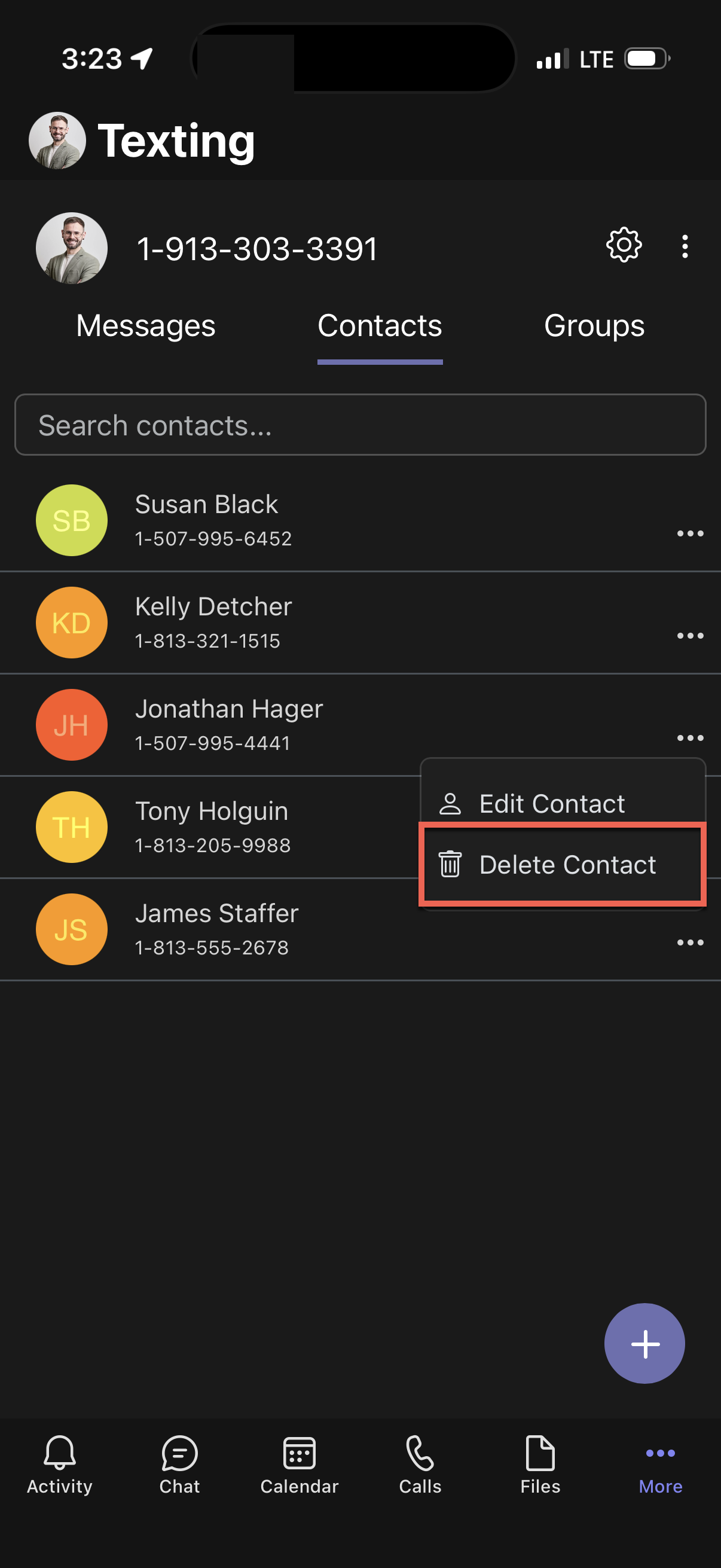
- Confirm that you wish to delete the contact by tapping Delete.
The contact is removed from your contact list, and the message thread is no longer accessible in your inbox. Your message history is not lost—it's securely stored in the background for future reporting or validation needs.
Note: If a deleted contact sends a new message, the previous message thread automatically reappears. The phone number is visible, but previously saved contact details aren't restored unless you re-add the contact.
6.
Access Reports
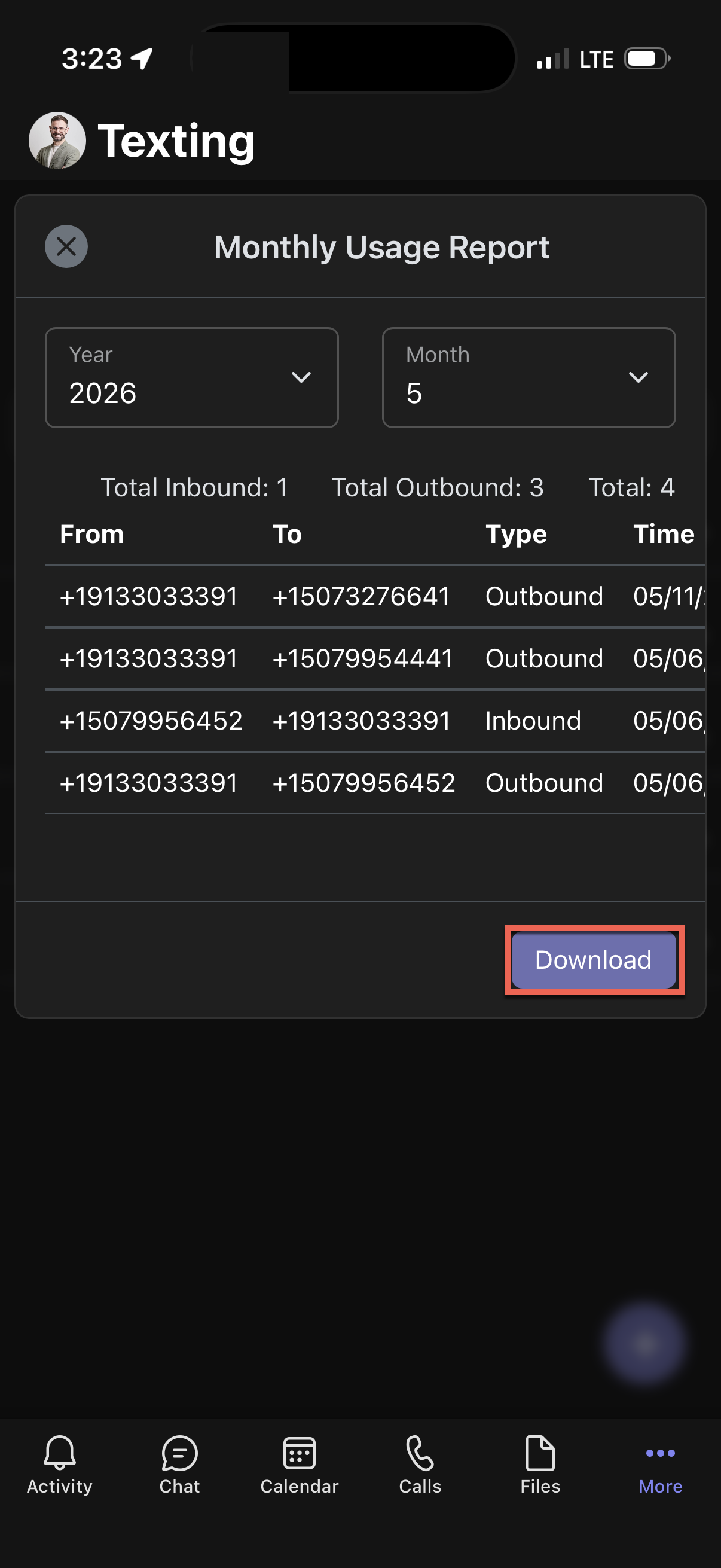
Reports give you a quick view of your text message activity, including how many messages you've sent and received. They provide a simpler way to track usage, monitor communication, and ensure everything is running smoothly.
To view your message reports:
- Sign in to your Teams account and navigate to the Texting app.
- Tap the more options icon next to the phone number you want to check.
- From the dropdown menu, tap Reports.
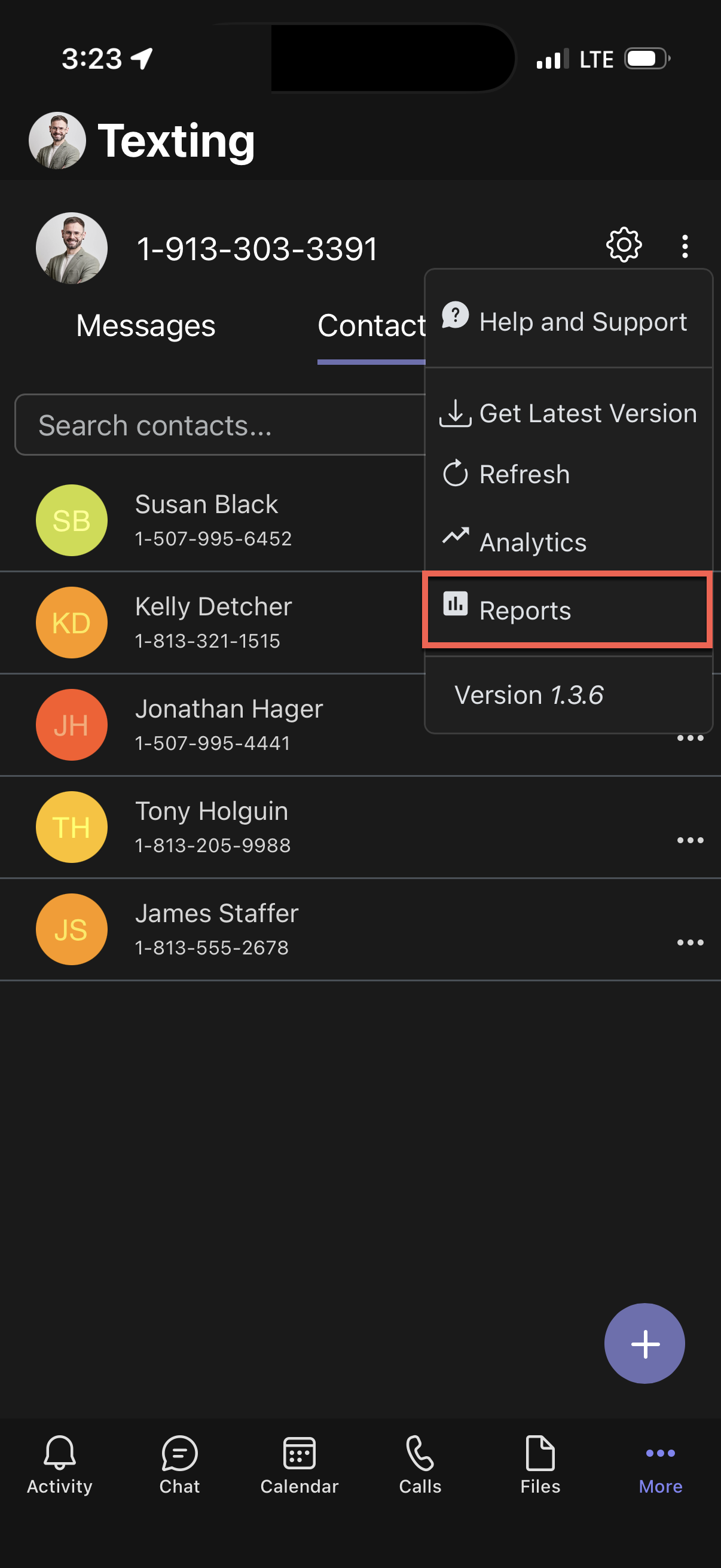
- The Monthly Usage Report opens.
- Use the dropdowns to choose the Year and Month you wish to view.
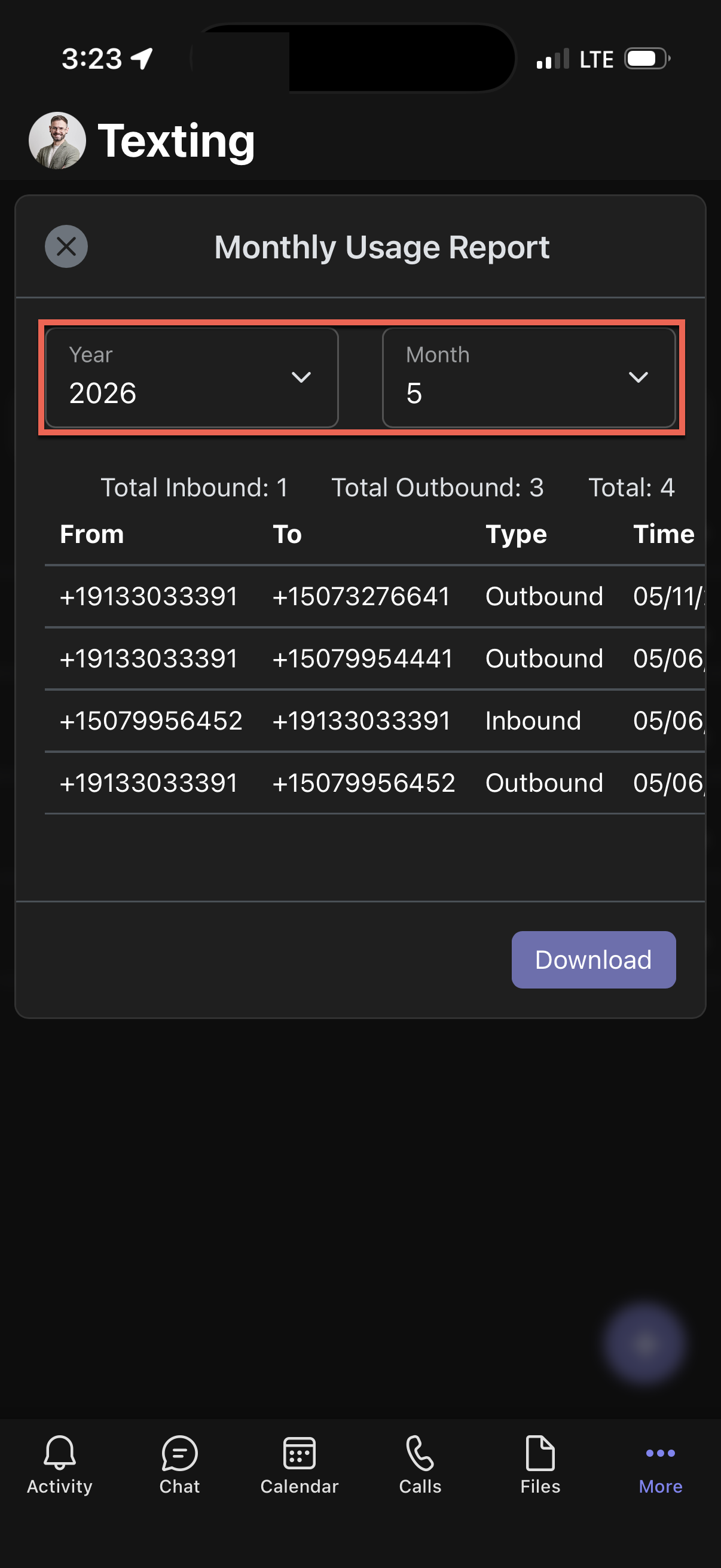
- The report shows:
- The number of messages you sent.
- The number of messages you received.
- The total number of messages.
- The phone numbers that sent or received the messages.
- The date and time each message was sent.
- Tap Download to save the report.