

Introduction
Alternate Numbers allows up to ten additional phone numbers or extensions to be assigned in addition to your primary number and extension. All additional numbers and extensions ring your phone(s) in the same way as your primary phone.
Add and edit alternate numbers
Administrators can add and edit alternate numbers assigned to a user. To add and edit alternate numbers, follow these steps:
-
- From the dashboard, under Users, select your desired user.
- Within the Menu, select User Service Settings.
- From the list, click Alternate Numbers.
- To modify the Distinctive Ring Enabled setting, click the Edit icon. Modify as desired and click Save.
- To add and edit Alternate Entries, select the row (1-10) in which you’d like to add or edit and complete the following fields.
- Phone Number - Choose a phone number from the populated list. If you enter a phone number, the extension for that number automatically populates.
- Extension - Enter an extension number.
- Ring Pattern - If desired, choose a ring pattern to help distinguish calls coming in from this alternate number.
- When complete, click Save. The alternate number now appears and is assigned to the user.
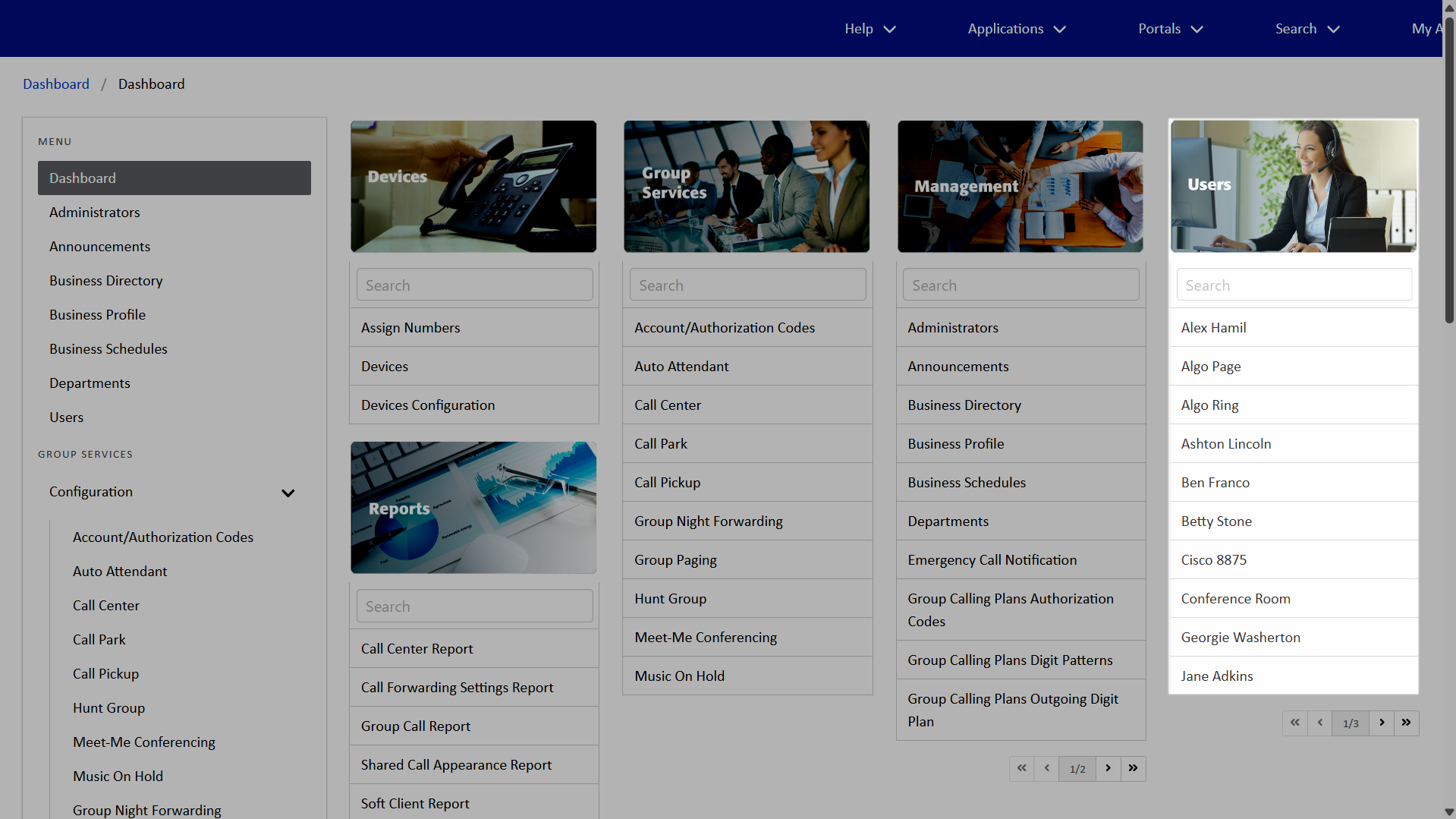 Click image for large view
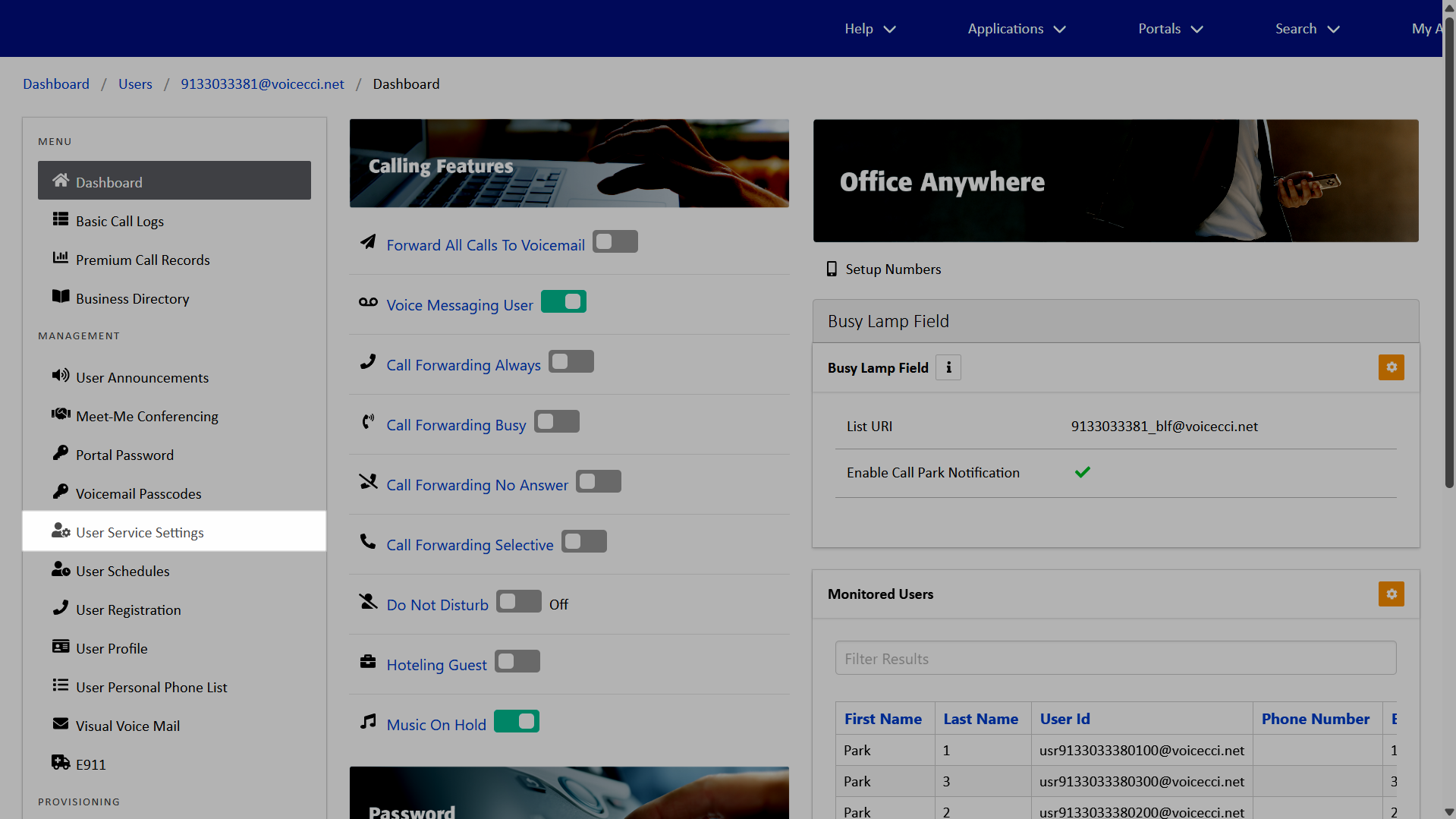 Click image for large view
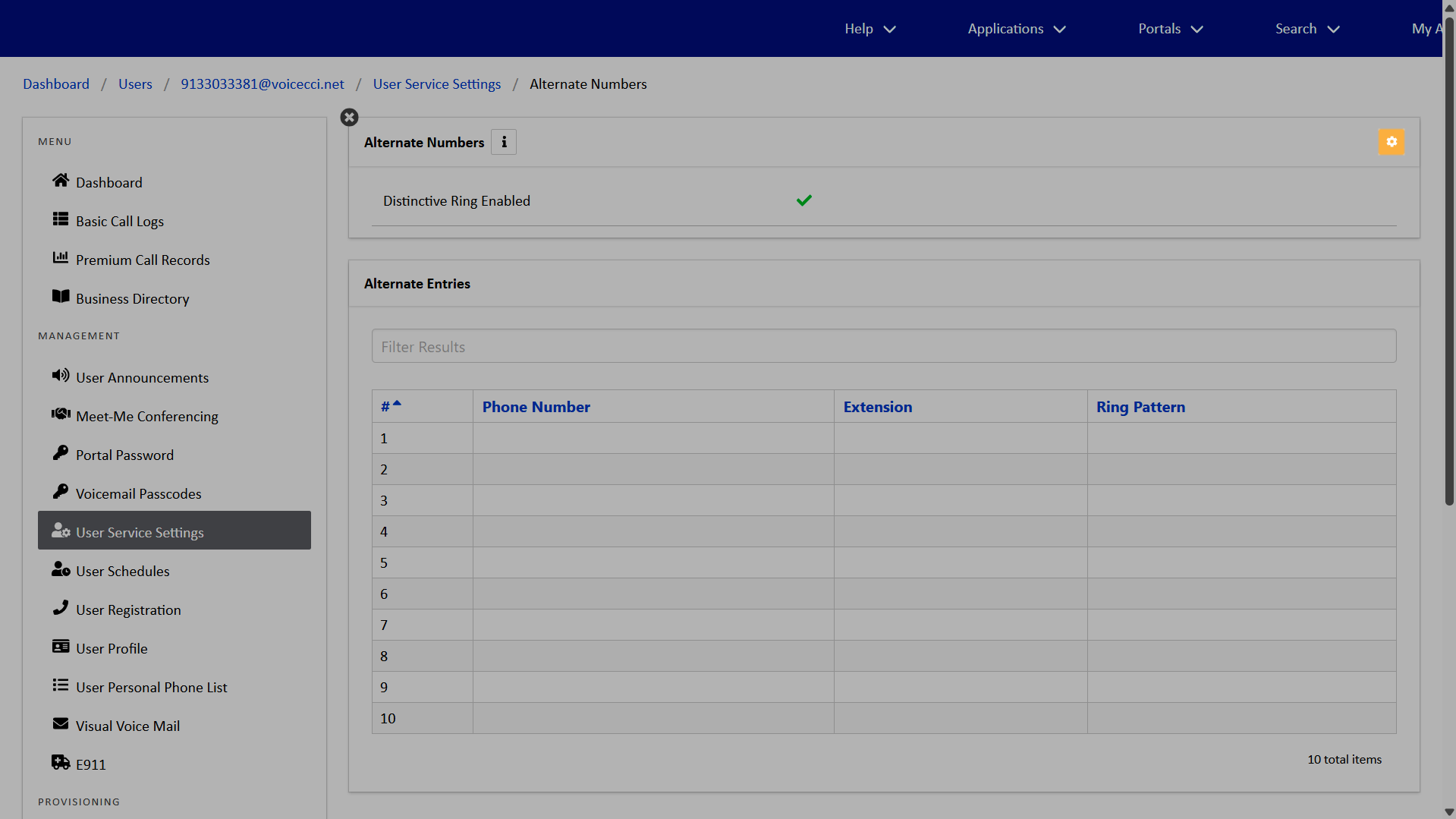 Click image for large view
Note: You can enter either a phone number or an extension; both are not required.
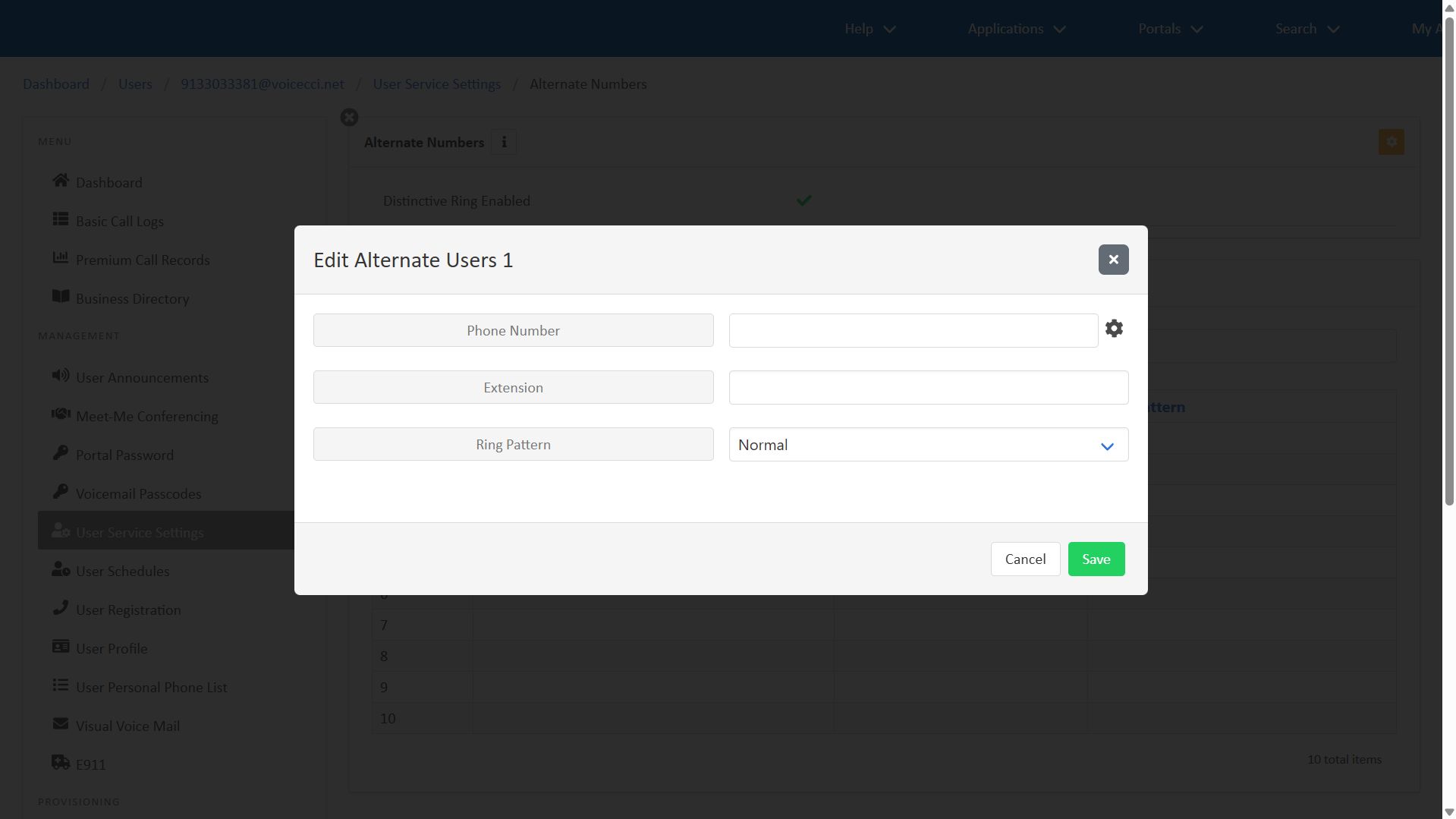 Click image for large view