What you need to know:
ProConnect's Business Call Center is a carrier-class communications management product fully integrated that provides Automatic Call Distribution functionality.

1.
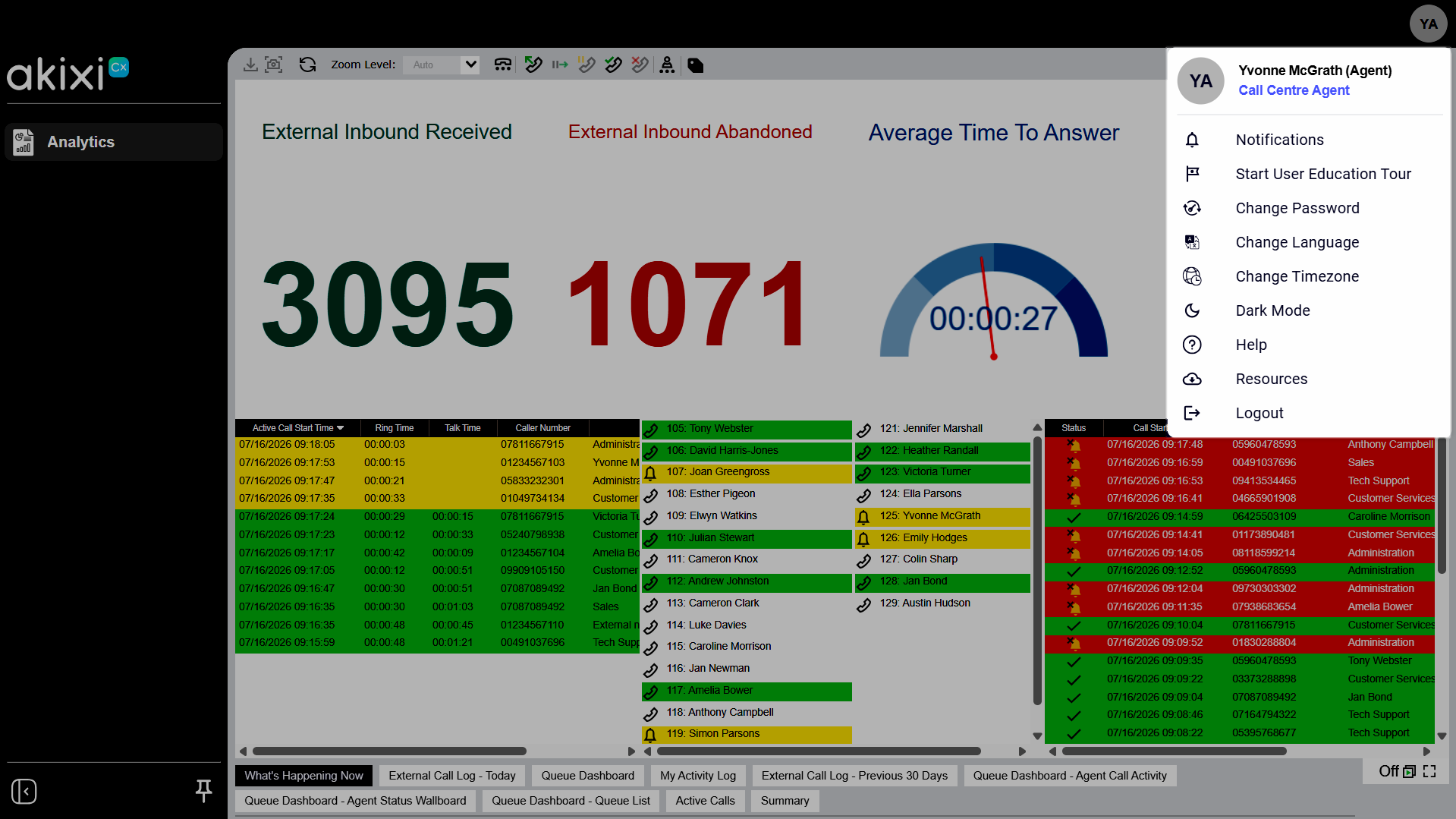
Account settings
Click your profile icon to access account options and settings.
- Notifications - Manage your system settings and preferences.
- Start User Education Tour - Launch a guided walkthrough of the reporting interface.
- Change Password - Update your account password.
- Change Language - Set your preferred interface language.
- Change Timezone - Adjust how dates and times appear throughout your reports and dashboard.
Note: On sign-in, if your computer's time zone differs from the server's default, you're prompted to switch to local time. Accepting shifts every report timestamp accordingly — a call at 11:00 AM Central shows as 12:00 PM Eastern. - Dark Mode - Switch the interface between light and dark display modes.
- Help - Open the online help resources.
- Resources - Open additional Akixi resources and links.
Select Logout to securely end your session.

2.
Navigate Reporting
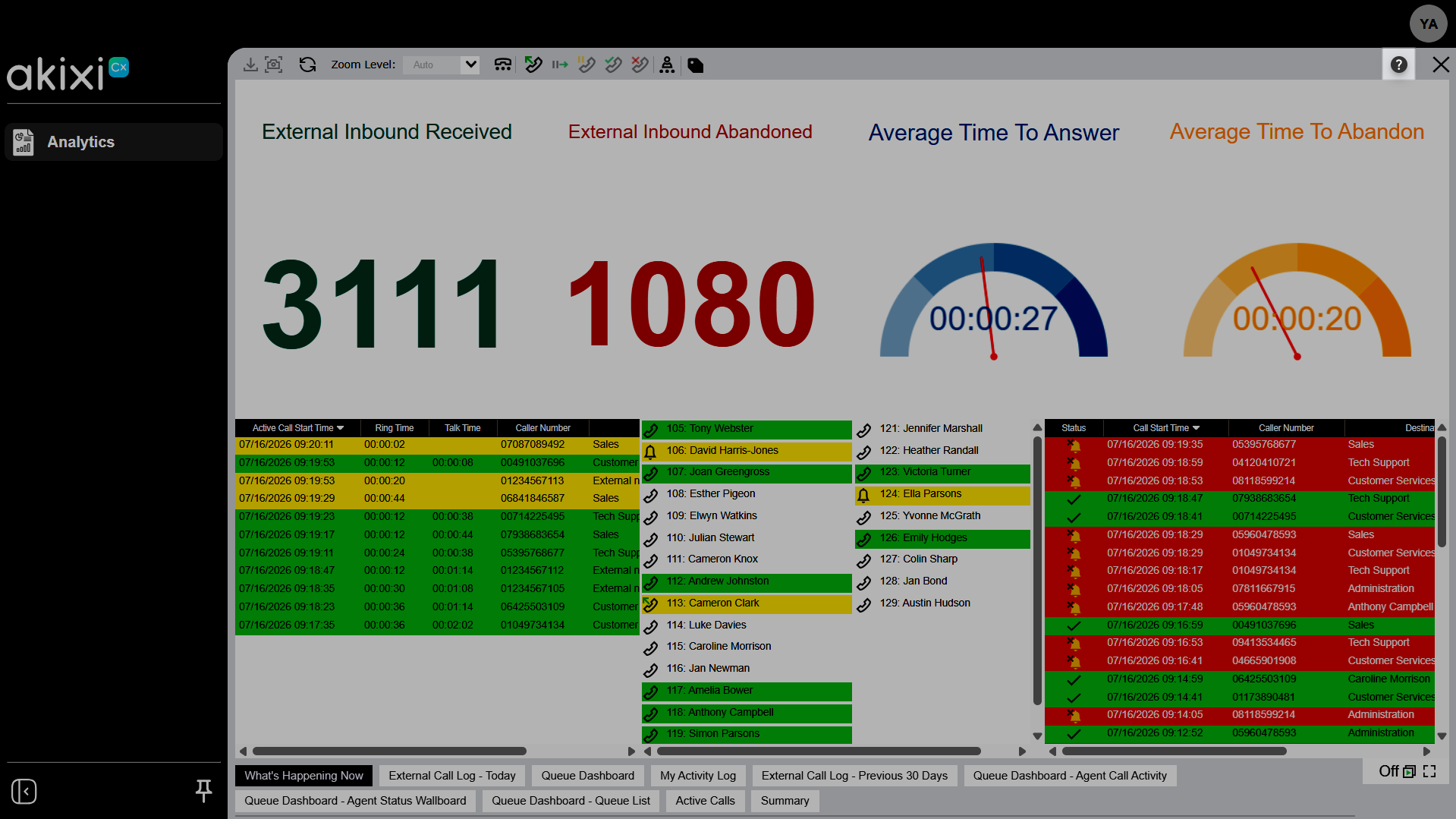
To open help, click the help icon or press F1. Help has been rebuilt for faster, more searchable answers.
- Context-sensitive help - Press F1 with a report open to jump to that report style's topic.
- Search and Ask - Search conversationally by keyword, or use Ask for a guided answer.
- More - Filter a topic by keyword, view platform callouts (e.g., BroadWorks vs. Webex), and export any article to PDF.
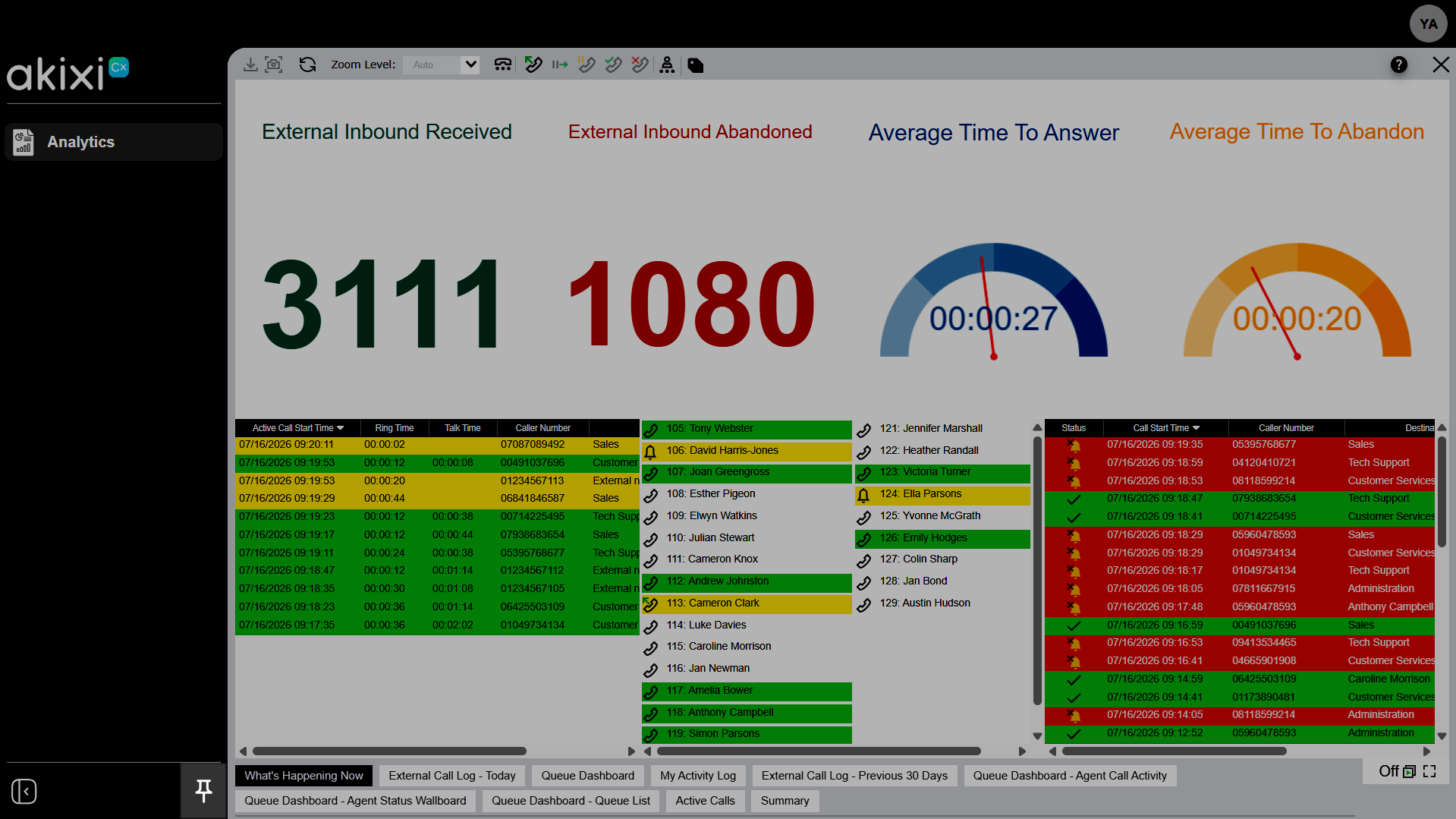
Use the Pin menu icons to lock the reporting sidebar on your screen. Collapse the sidebar to icons to free up space, then hover over an icon to see its label. Expand it again at any time. Add frequently used reports to Favorites for quick access from the top of the menu.
3.
Report types
From the menu, select Analytics to view reports in your existing report library.
All agents are provided with the following reports:
- Sub Report Details
- External Call Log - Previous 30 Days
- External Call Log - Today
- My Activity Log
- Queue Dashboard
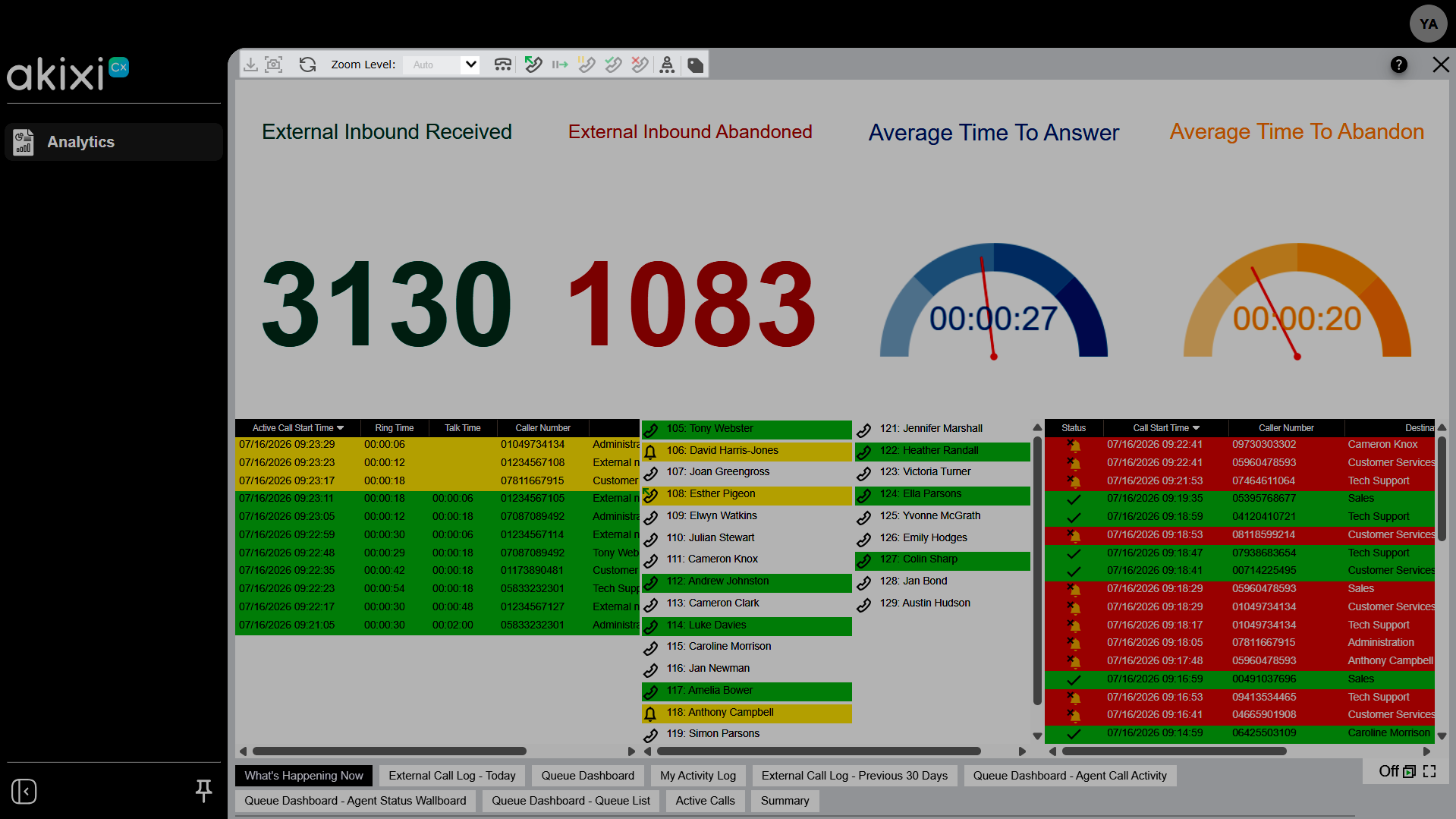
- What’s Happening Now
The active reports bar lists your active reports. Select a report to view it, or drag and drop reports to reorder them.
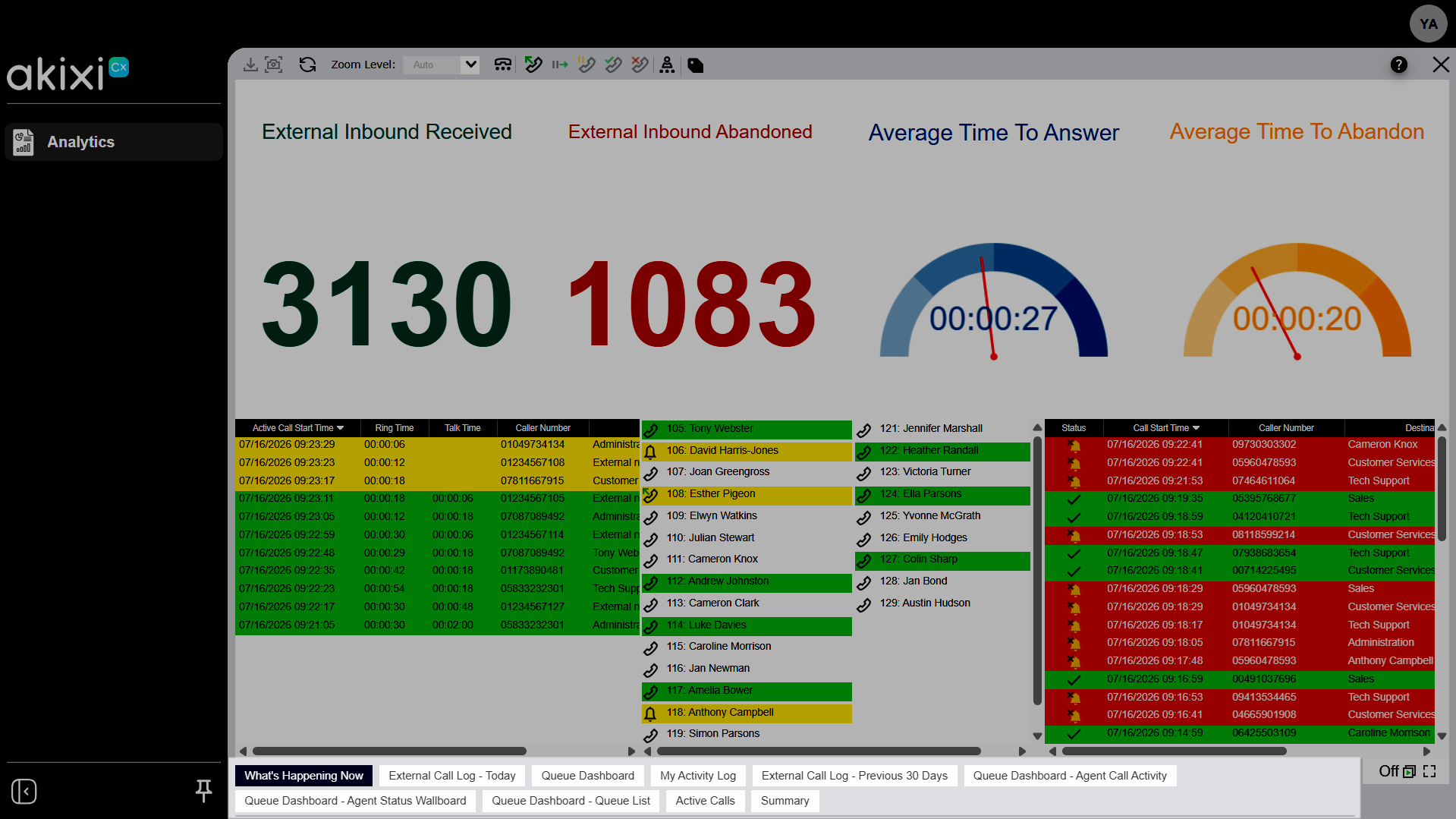
The icons in the report toolbar allow you to:
- View a Snapshot of the report’s content in a new browser window.
- Re-run the report or apply newly specified filters.
- Adjust the Zoom Level for the selected report.
- Show all personal call control options.
- Show all available agent controls.
- Set account codes for a call.
4.
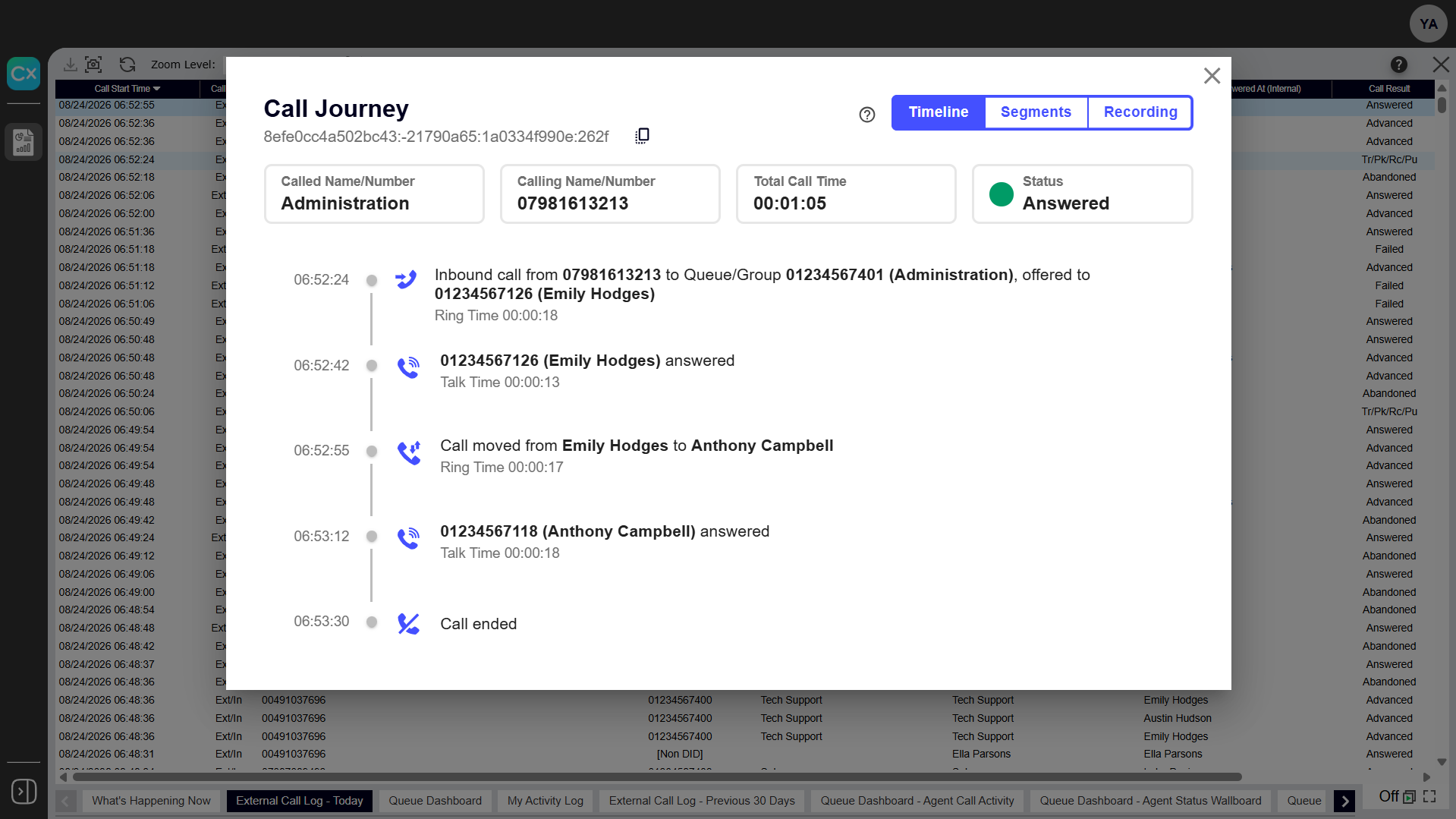
Call Journey
Call Journey displays a time-stamped visual map of everything that happened during a call — who called, who answered, wait times, holds, and transfers. It presents the entire call journey in a single view, making it faster to investigate a specific call or complaint without piecing together details from multiple report columns.
To access a Call Journey for a call:
- Click on any call record in the Historic Call Log, Unreturned Lost Calls, Active Call List, or Agent/Extension Report.
- You can switch between the new Timeline view or the classic Segment view at any time, and access the call Recording if available.