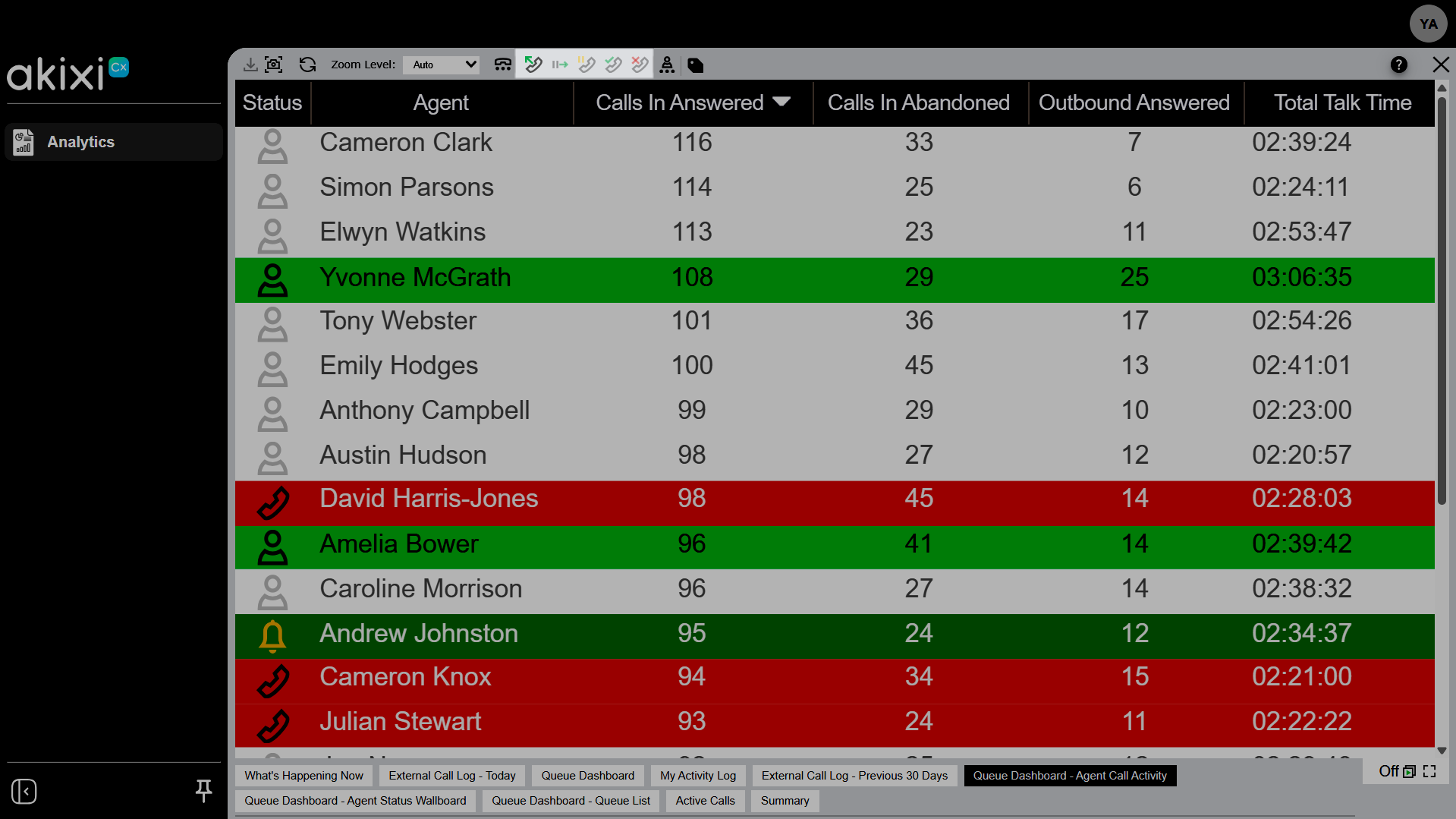
What you need to know:
ProConnect's Business Call Center is a carrier-class communications management product fully integrated that provides Automatic Call Distribution functionality.

1.
Call control
You can perform call control actions directly from certain real-time reports. Depending on the action, it applies either to your own assigned endpoint or to the device shown in the selected report row.
2.
Menu options
Left-click a row in a supported report to open the call control menu. This menu displays context-sensitive actions for the call, device, ACD agent, or telephone number in that row.
Note: Some actions may be unavailable depending on your telephone system's capabilities or your account settings.
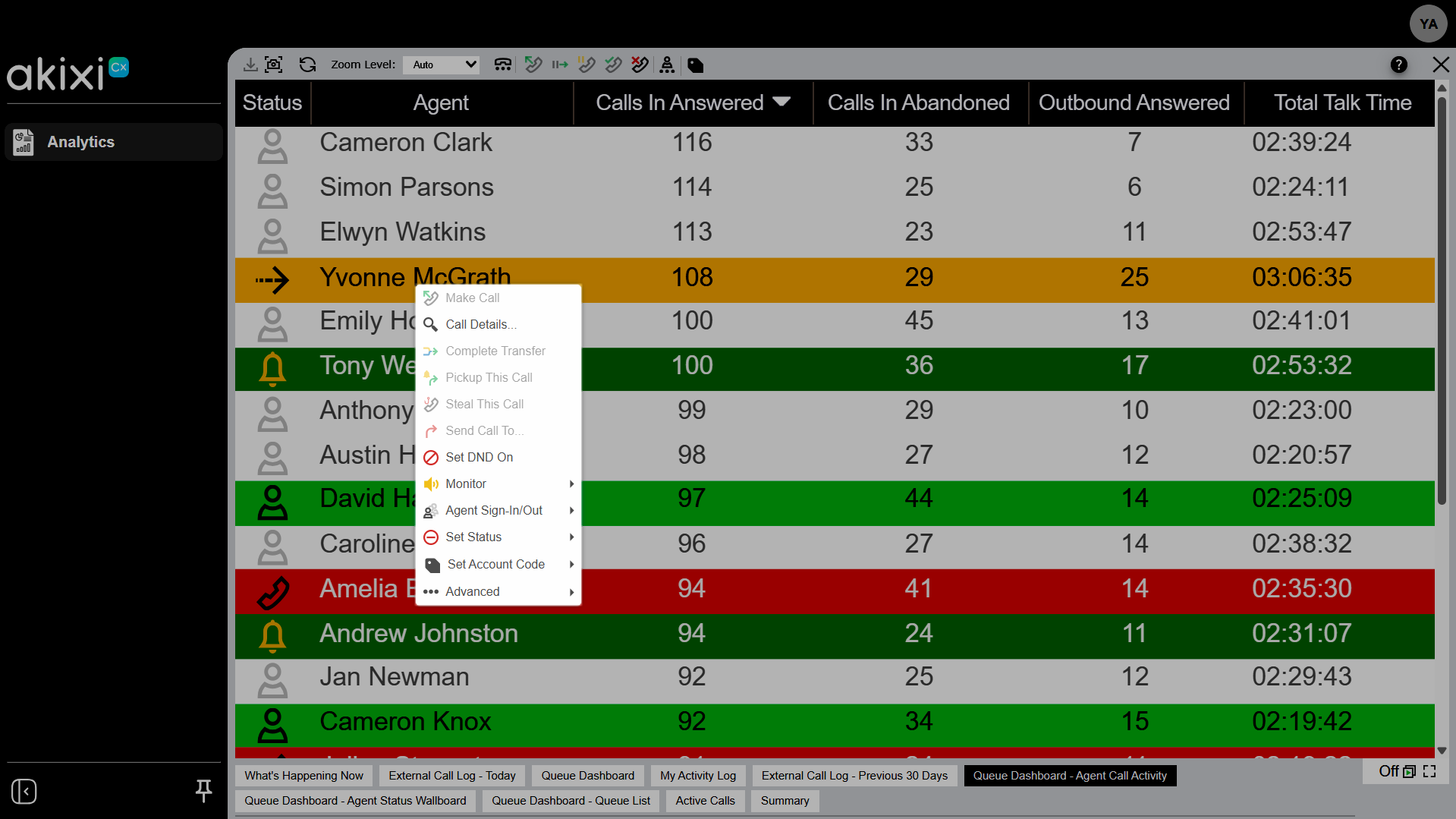

To access call controls:
- Select a report to open it.
- Click a specific user.
- The call control menu appears with the following options:
- Make Call - Place a new call from your extension to a specified destination. If you're on an active call, this option displays as Inquiry Transfer To... instead — it places your current call on hold and immediately dials the new destination. After you click this option, the Telephone Number Destination window opens. Enter the number you want to dial, or select an internal device from the drop-down list.
- Call Details - Opens the call item details window, which shows all information stored for the selected call. If audio recording playback is enabled for your telephony environment, you can also play back recordings of previous call segments from this window. This option is only available on Active Call/Contact List and Unreturned Lost Calls/Contacts reports, and on real-time ACD Agent List and Extension List reports.
- Complete Transfer - Completes an inquiry transfer that you previously initiated. This option is only enabled when your device has a call on hold plus an active outbound call to the device shown in the selected row. When completed, the held call is transferred to that destination.
- Pickup This Call - Uses the telephone system's Directed Call Pickup feature to move the ringing call to your extension and answer it in a single step.
- Steal This Call - Attempts to move the call ringing at the selected device to your extension. If successful, the call rings at your extension instead.
Note: You can only steal ringing calls — this option is not available for answered calls. - Send Call To - Attempts to move the call at the selected device — whether queuing, ringing, or answered — to a new destination that you specify. After you click this option, the Telephone Number Destination window opens. Enter the number you want to send the call to, or select an internal device from the drop-down list.
- Set DND On/Off - Toggles the selected device's do-not-disturb (DND) feature. The menu caption changes based on the device's current DND state. On most telephone systems, turning DND on blocks inbound calls to the device; turning it off makes the device available again.
Note: Even with DND turned off, a device may still be unable to receive calls if another feature is active, such as forwarding, find-me, or ACD Not-Available. - Monitor - Opens the call monitor sub-menu.
- Silent Monitor - Listen in on the call answered at the selected device without being heard.
- Forced Intrude - Join the call answered at the selected device as a full participant.
- Agent Sign-in/Out - These options aren't supported on the Webex Calling platform, where they're automatically hidden.
- Sign In - Opens the Set ACD Status window for the selected device, with the ACD Operation setting preset to sign in as an ACD agent.
- Sign Out - Only enabled when the selected device is already signed in as an ACD agent. Opens the Set ACD Status window preset to sign the agent out when you click OK. If your telephone system supports it, you can also choose the specific ACD group to sign out of.
- Set Status - Set the ACD status for the selected agent. Choose from: Available, Wrap-up, or Not Available. If selecting Not Available, choose a reason from the list.
- Set Account Code - Set an account code for this call.
- Advanced - Opens the advanced options sub-menu.
- Answer Call - Answers the call ringing at the selected device.
- Clear Call - Ends the call at the selected device.
3.
Endpoint location
If your administrator has associated your account with an endpoint where you make and receive calls, you can use the call control buttons on the report toolbar to place, answer, and hold calls. Some buttons may be grayed out or unavailable depending on your current call state or your account configuration.
Note: Call control toolbar buttons only appear on reports set to the Real-Time duration option.