
Skip to content
Image
  • Administrators
    • Administrators Hub
    • Getting Started
    • Admin Portal Video Library
    • Admin Portal Guide Library
    • Router, Switch, Phone Requirements
  • End Users
    • End Users Hub
    • Getting Started
    • User Portal Video Library
    • User Portal Guide Library
  • Business Apps
    • Call Center
    • Broadsoft Thin Client
    • Webex App
    • SMS/MMS
    • Reception Client
    • Business Integrator
    • Advanced Call Reporting
    • Call Recording – Dubber
  • Phones & Voicemail
    • Cisco Phones
    • Poly Phones
    • Voicemail
  • Downloads & Links
  • Webinars
  • Contact Us

Consolidated is now Fidium. Access the latest versions of the portals here.

Set your ACD state – Agent – Enhanced Call Center Reporting

Thomas McClatchieSeptember 17, 2026Call Center Agent - Enhanced Call Center Reporting

  1. Home|
  2. Home|
  3. End Users Hub|
  4. Business Apps|
  5. Call Center Agent Guides|
  6. Set your ACD state - Agent - Enhanced Call Center Reporting

What you need to know:

ProConnect's Business Call Center is a carrier-class communications management product fully integrated that provides Automatic Call Distribution functionality.

MENU


  • Set your ACD state

Print Friendly, PDF & Email

1.

Set your ACD state

You can view or change your ACD state by following these steps:

  1. Within the report toolbar, click the agent controls icon.
  2. Select Set Status and choose one of the following:
    • Available - You're ready to accept ACD calls and other interactions.
    • Wrap-up - You're completing work from your previous interaction and unavailable to answer ACD calls.
    • Not Available - You're unavailable to accept ACD calls. You can select a reason code: No Reason, Lunch, or Meeting.
      Note: Before you can use Not-Available codes, your administrator must configure the list of code values in the telephony platform and set up the associated phone endpoints.
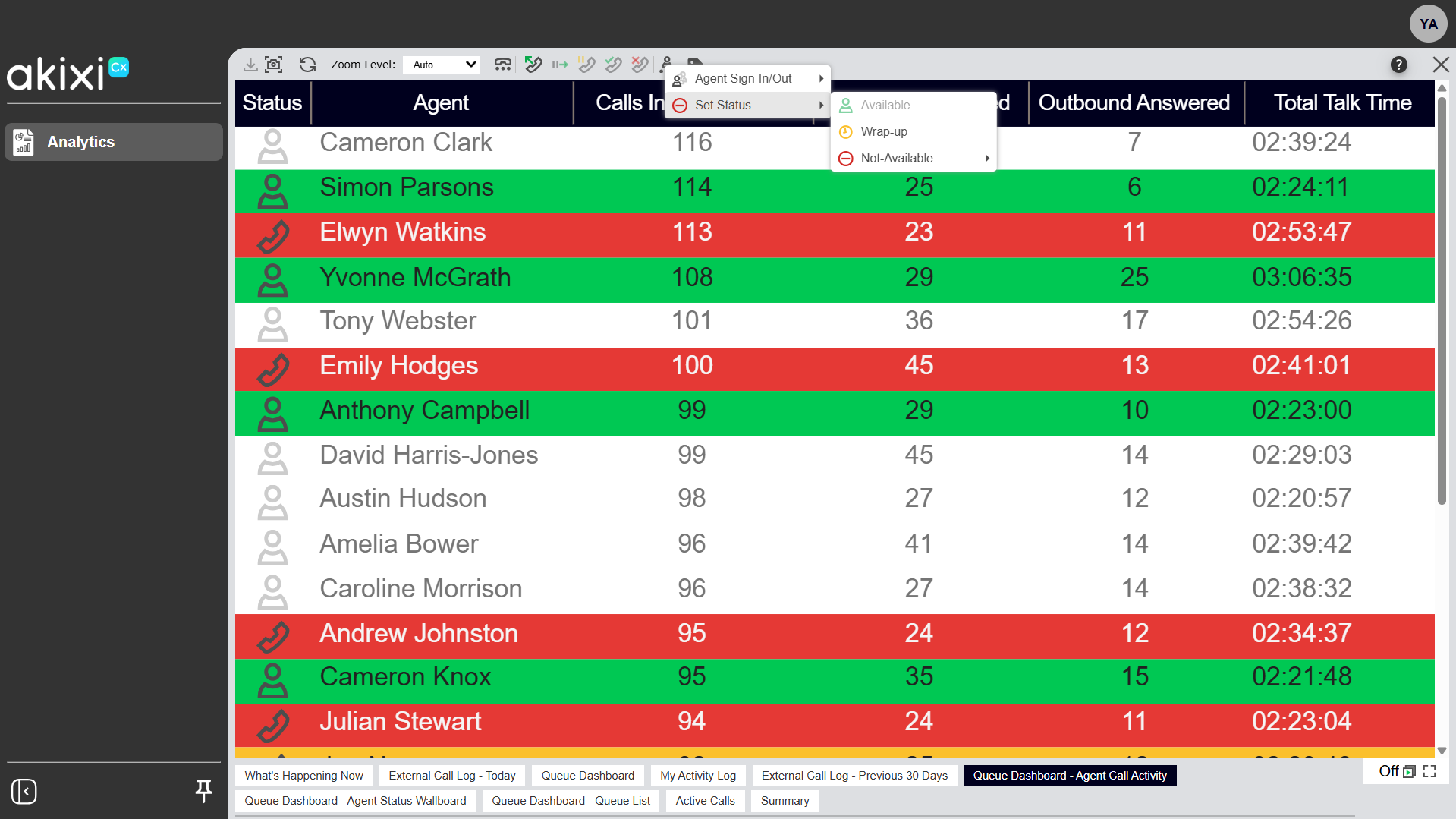
Click image for large view

You can also change your own availability status using keyboard shortcuts. Use Ctrl+Shift+A to set yourself as available, or Ctrl+Shift+U to set yourself as unavailable.

Tags:agent, Akixi, call, Call Center, Call center agent, console, controls, Getting Started, Introduction, logo, panel, states, workspace

Privacy Policy, Do Not Sell or Share My Personal Information, Notice at Collection, Broadband Consumer Labels and other Terms & Policies. © Fidium. Powered by B-LYNK
  • Home
  • Getting Started
    • Administrator
    • End User
  • Help Topics
    • Administrators
    • Business Apps
    • Phones and Voicemail
  • Downloads & Links
  • Webinars
  • Contact Us