MENU

Introduction
Account codes enable call tracking by prompting users to enter a code when making calls outside the group. However, the system does not validate these codes, so calls are not blocked. Authorization codes require users to enter a valid code before the call is connected; invalid codes block the call. Both types of codes are managed by the group administrator and can be 2–14 digits long. Note: A group cannot have Account Codes and Authorization Codes enabled at the same time.
View Account/Authorization administration codes
Administrators can view Account/Authorization Administration codes. To view administration codes, follow these steps:
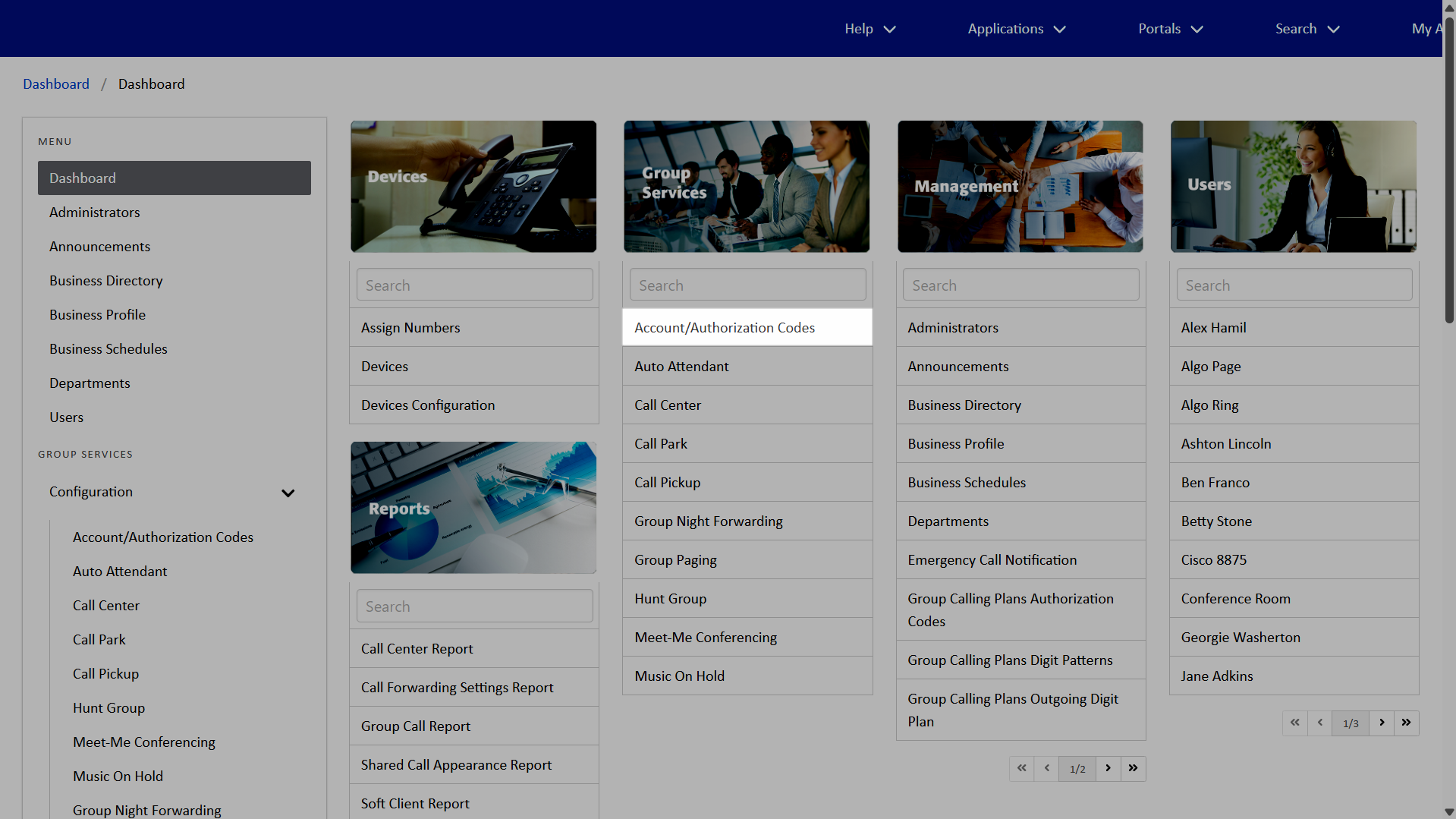
- From the dashboard, under Group Services, select Account/Authorization Codes.
- Click Account/Authorization Codes Administration.
- Review the assigned administration accounts and authorization codes as desired.
- You can manage both mandatory and optional usage users.
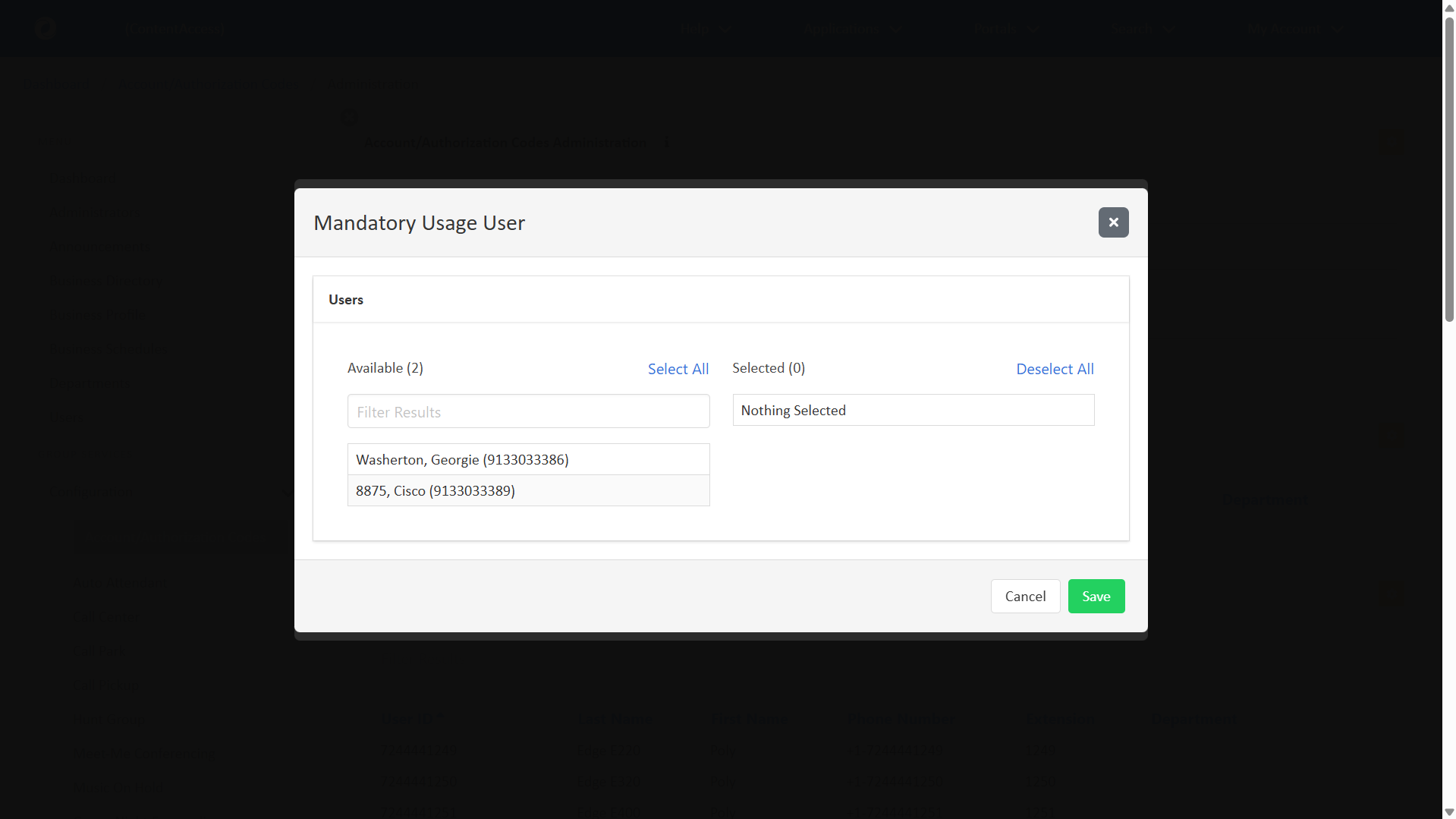
- To manage mandatory usage users, within Mandatory Usage User Table, click the Edit icon. Add Users by selecting them from the Available list. To move all users, click Select All. To remove selected users, click their name within the Selected list. To remove all selected users, click Deselect all. Click Save.
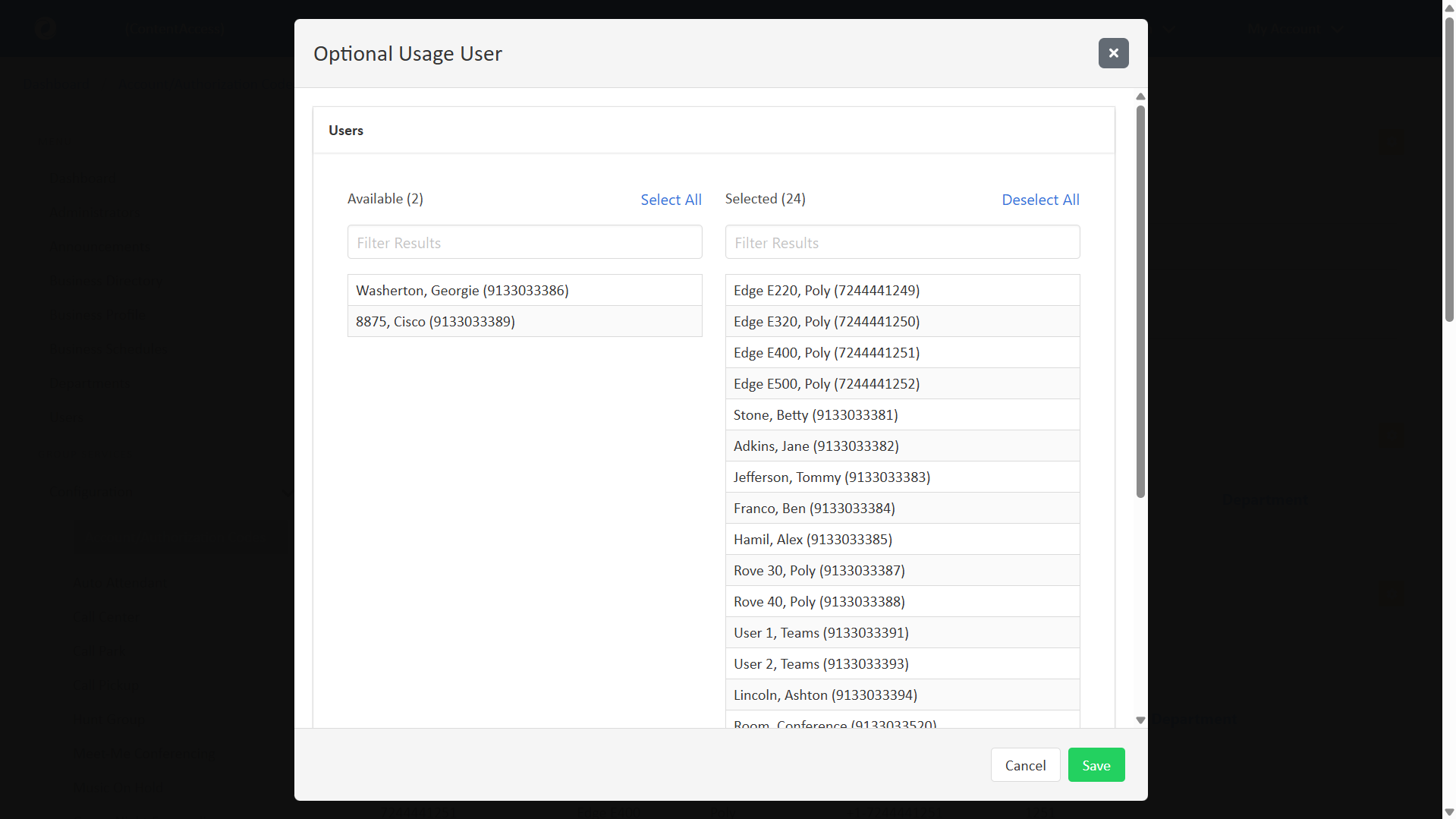
- To manage mandatory usage users, within Optional Usage User Table, click the Edit icon. Add Users by selecting them from the Available list. To move all users, click Select All. To remove selected users, click their name within the Selected list. To remove all selected users, click Deselect all. Click Save.
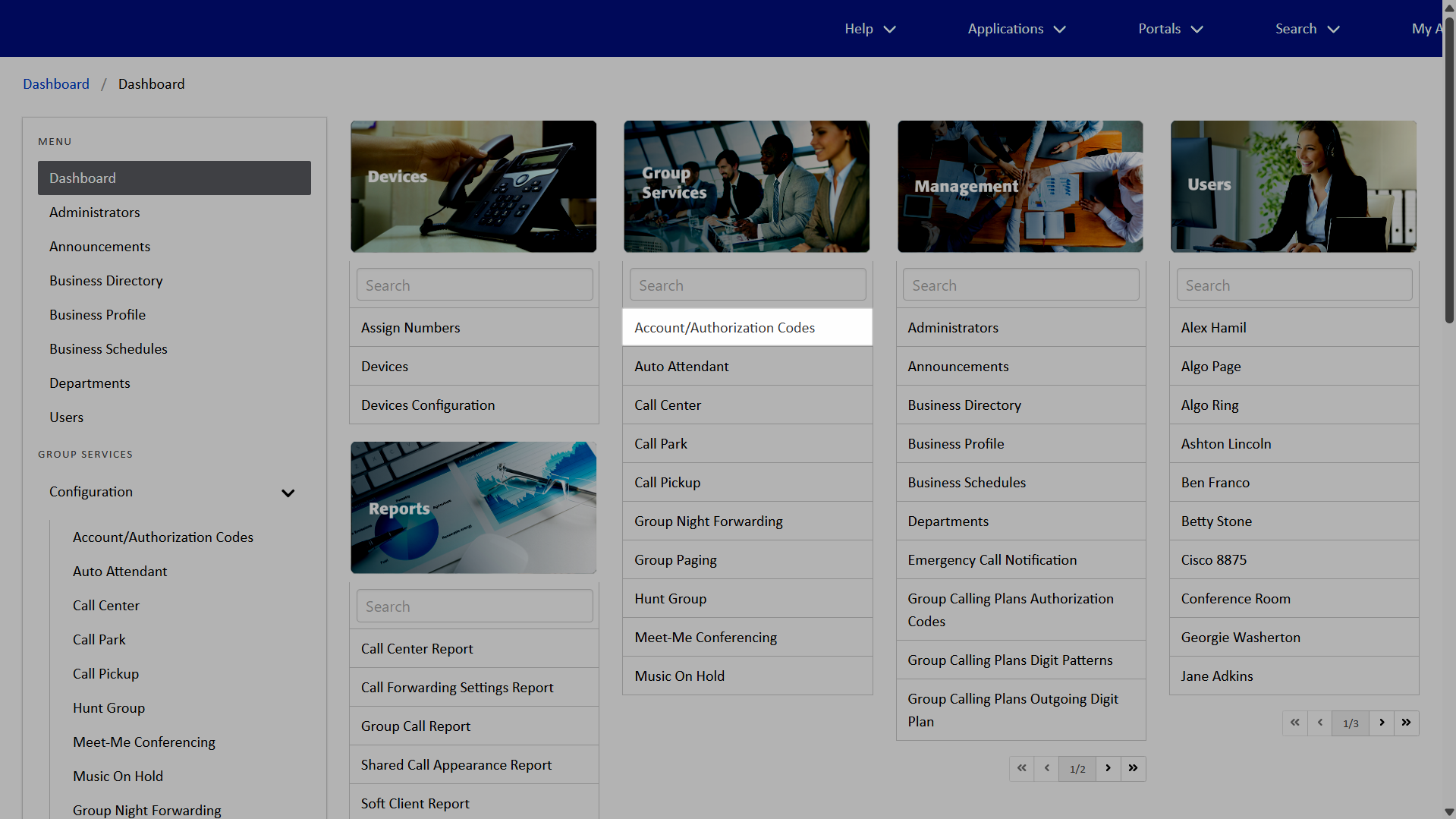
- From the dashboard, under Group Services, select Account/Authorization Codes.
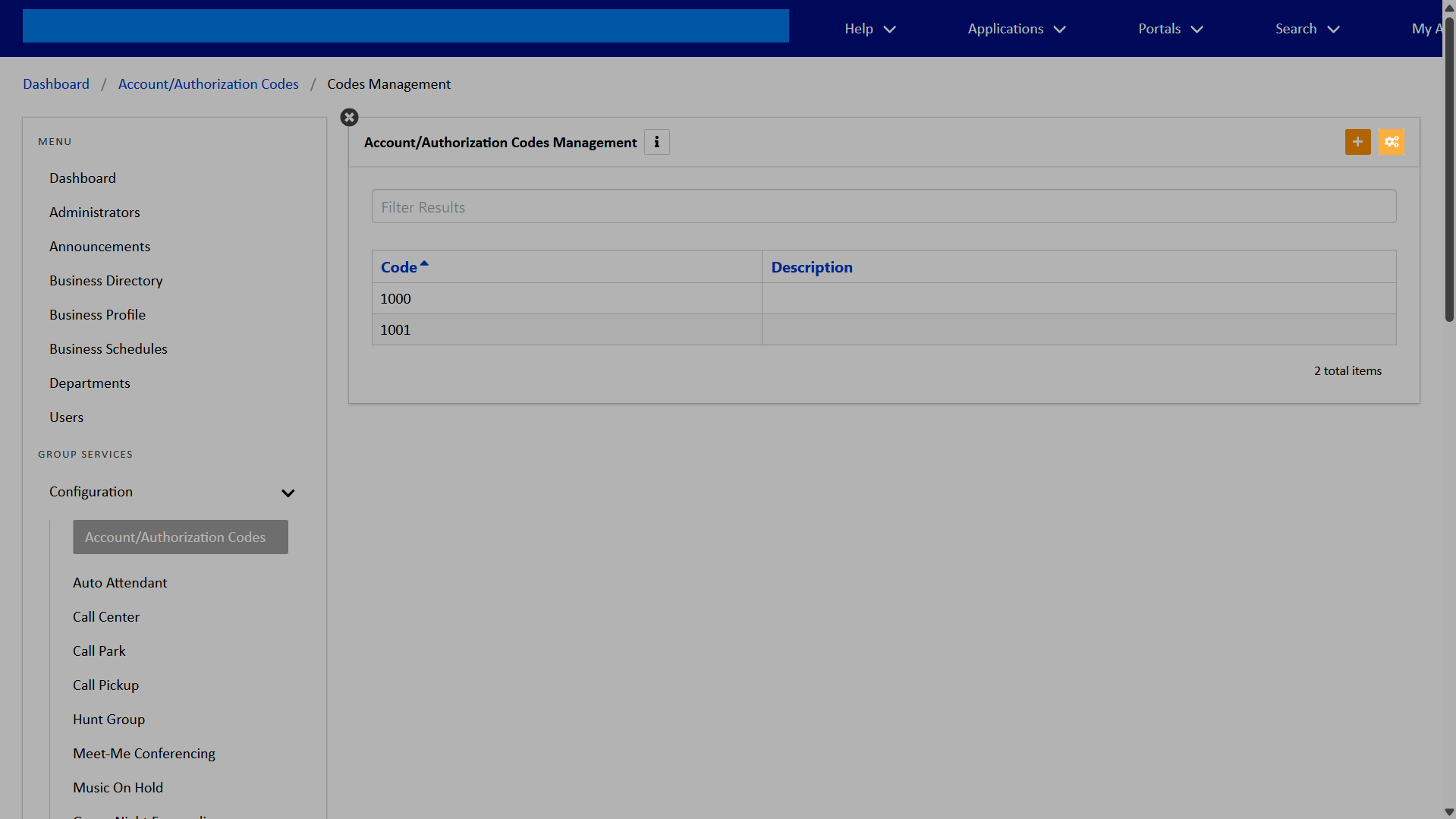
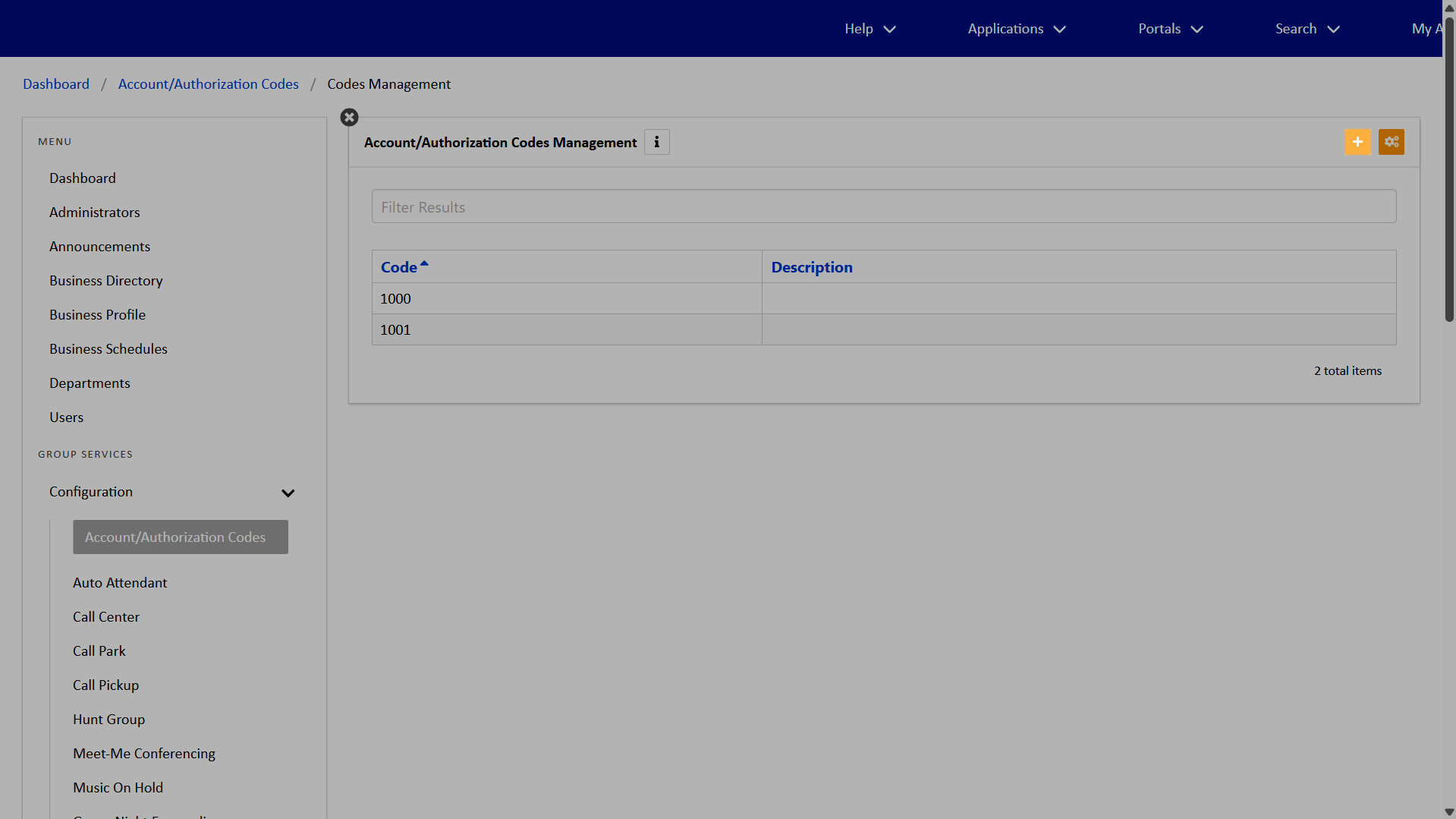
- Click Account/Authorization Codes Management.
- To add an Account/Authorization Code, click the Add “+” icon.
- Enter the Account/Authorization Code. This must be 2–14 digits long.
- Optionally, you can enter a Description.
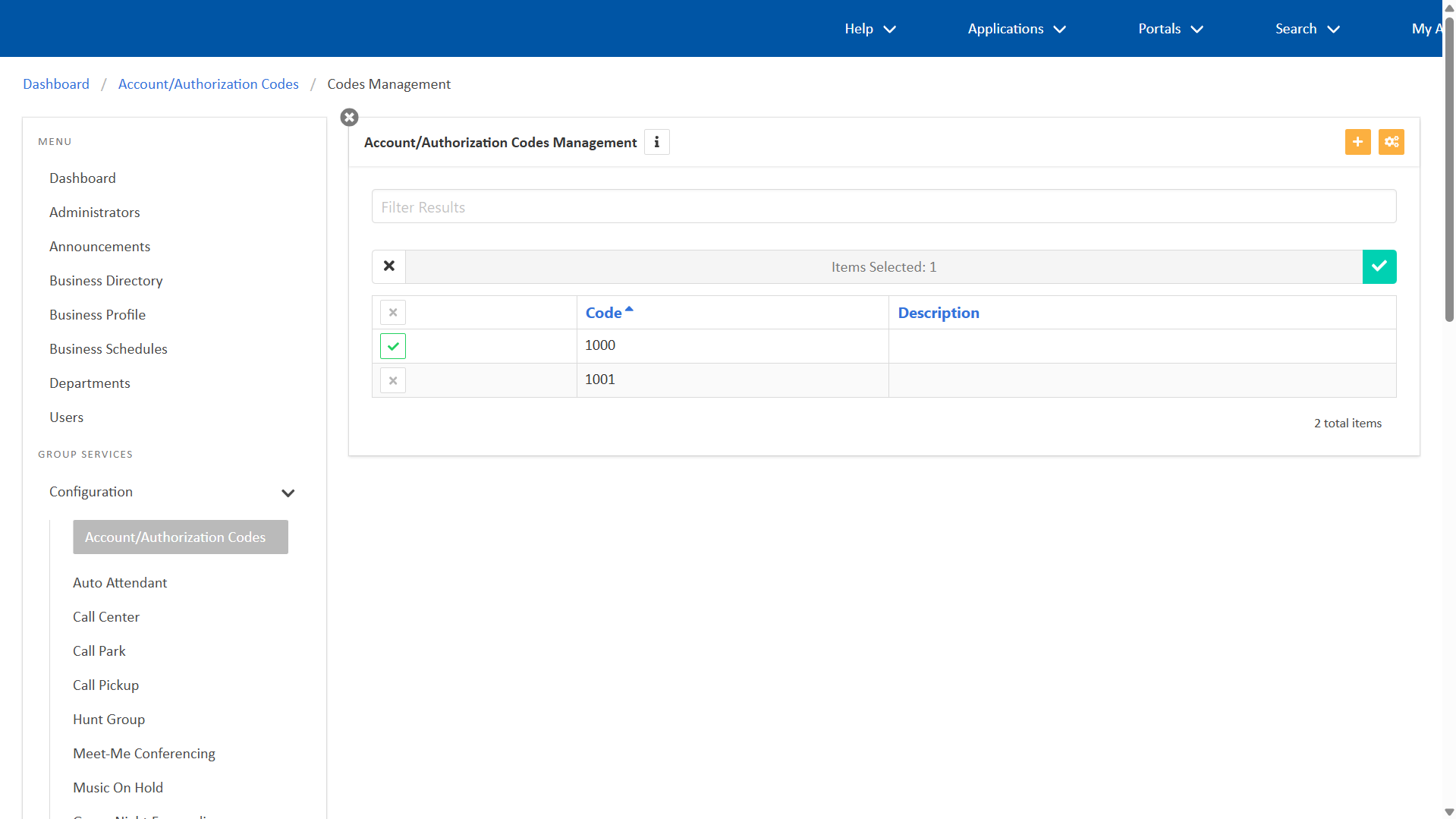
- Use the checkbox(es) to select the desired codes.
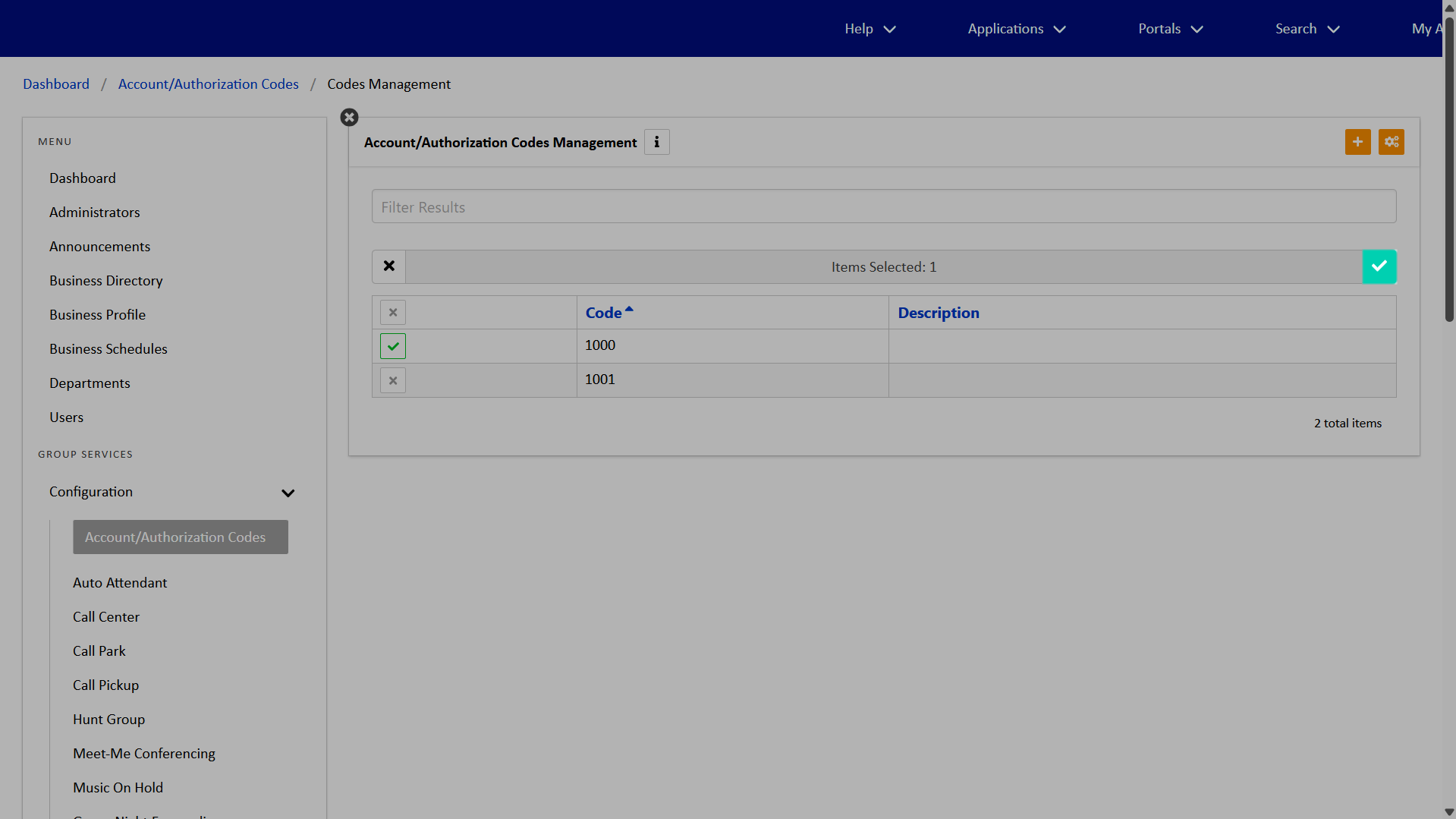
- Click the Send Selected icon.
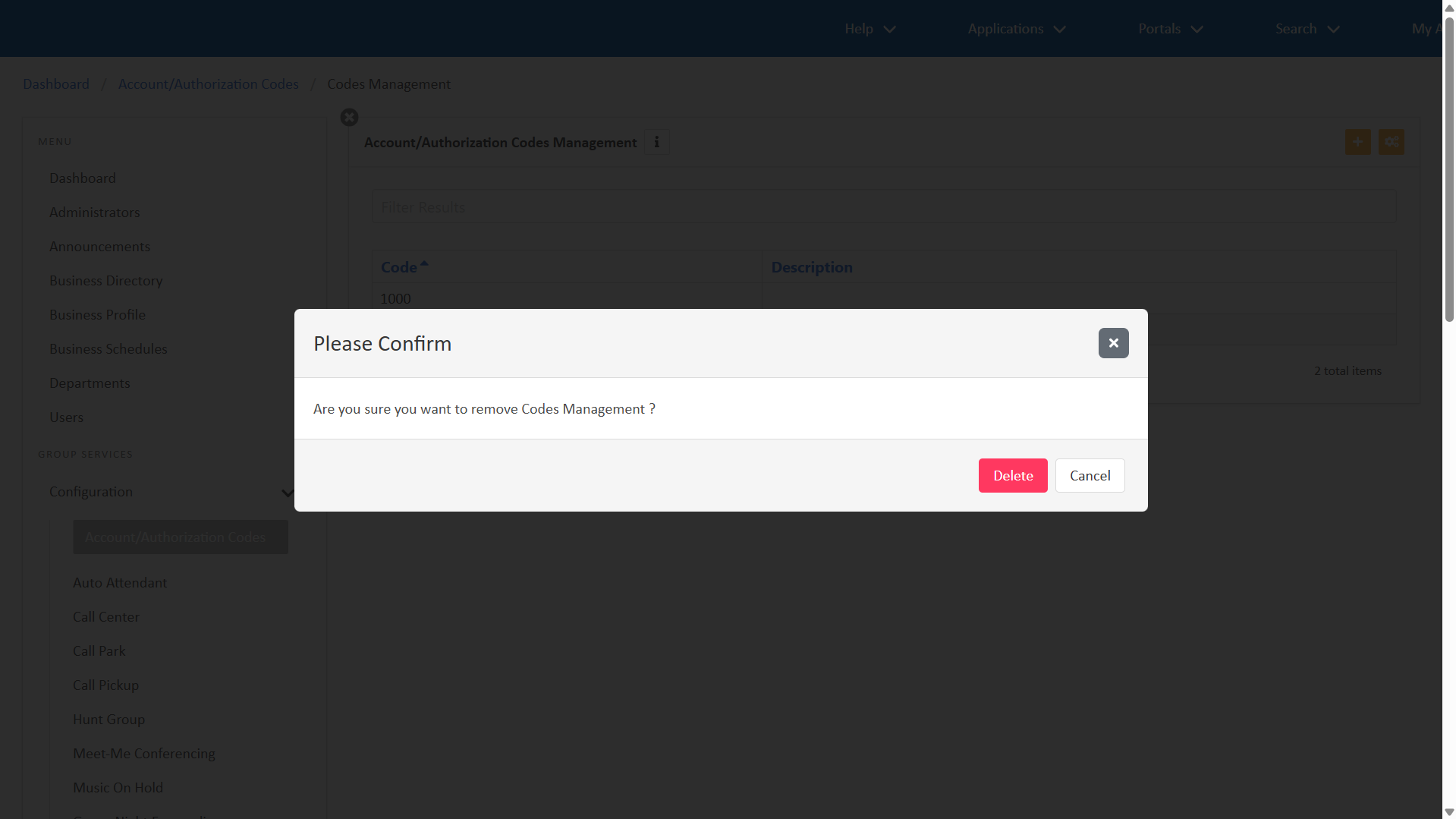
- Confirm that you wish to remove the code(s) by clicking Delete.

Manage Account/Authorization codes
Administrators can add and edit account/authorization codes. To add an account/authorization code, follow these steps:
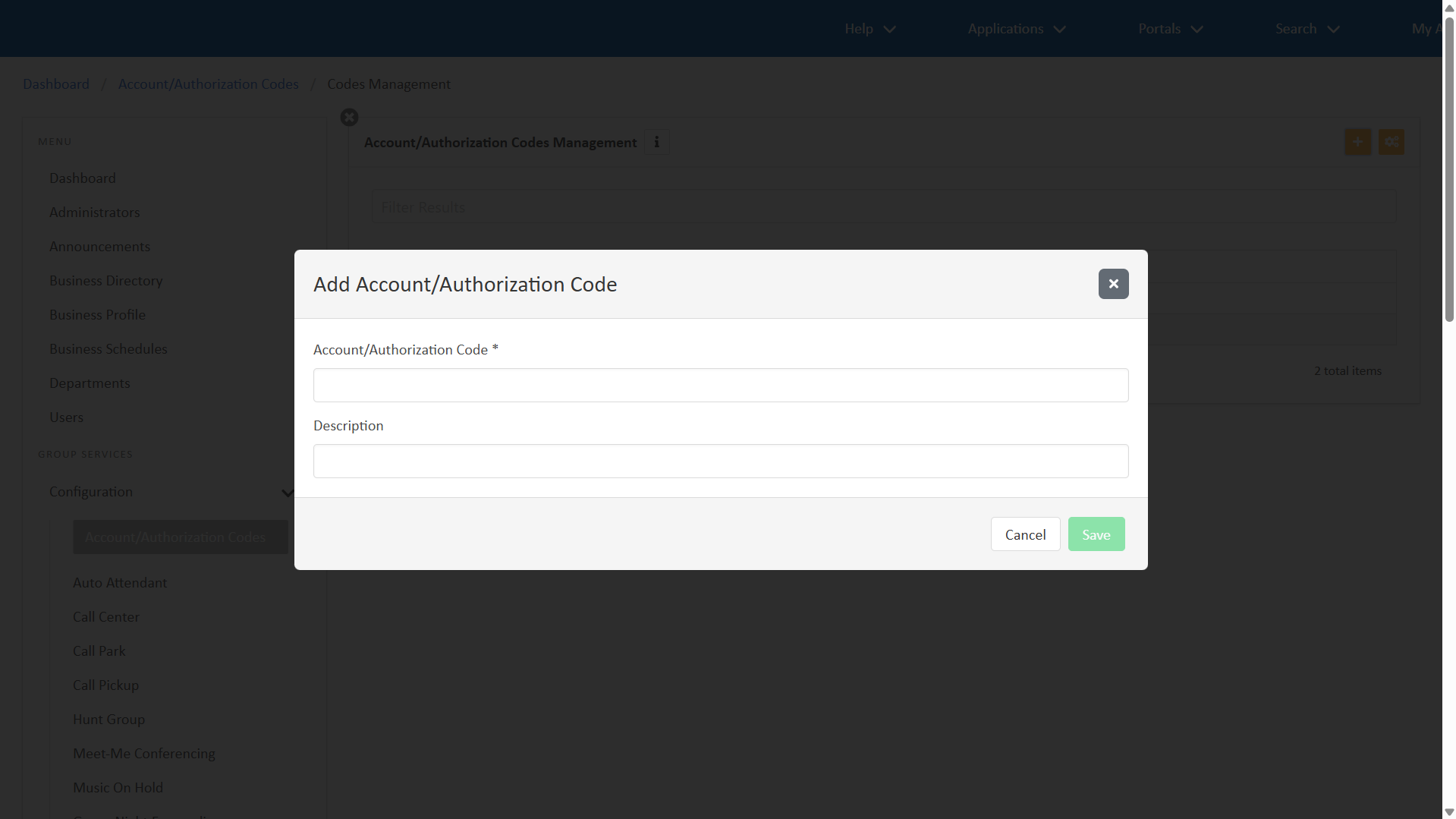
When complete, click Save. The code now appears in your list.
Edit Account/Authorization codes
Within Account/Authorization Codes Management, click the Bulk Edit icon.