
Image
  • Administrators
    • Getting Started
    • Administrators Hub
    • Admin Portal Video Library
    • Admin Portal Guide Library
  • End Users
    • Getting Started
    • End Users Hub
    • User Portal Video Library
    • User Portal Guide Library
  • Business Apps
    • Call Center
    • Broadsoft Thin Client
    • Webex App
    • SMS/MMS
    • Reception Client
    • Business Integrator
    • Advanced Call Reporting
    • Call Recording – Dubber
  • Phones & Voicemail
    • Cisco Phones
    • Poly Phones
    • Voicemail
  • Downloads & Links
  • Webinars
  • Contact Us

Consolidated is now Fidium. Access the latest versions of the portals here.

Administrators Portal – Odin – Override a user’s caller ID for outbound calls

Thomas McClatchieJuly 16, 2026Admin Portal

  1. Home|
  2. Posts|
  3. Administrators Hub|
  4. Admin Guides – Odin|
  5. Administrators Portal - Odin – Override a user's caller ID for outbound calls

MENU


  • Introduction

  • Override a user's caller ID

Print Friendly, PDF & Email

Introduction

A user's default caller ID can be overridden with a number from their designated number pool. This determines which number recipients see when the user places off-network outbound calls.

For example, an extension-only user who would normally display the group's caller ID on off-net calls can instead show a more appropriate number. Users with their own telephone number can also use this feature to display the main line or their department's number rather than their personal business number, directing callbacks to the right place.

Override a user's caller ID

Administrators can override a user's default caller ID within the admin portal. To override a user's caller ID, follow these steps:

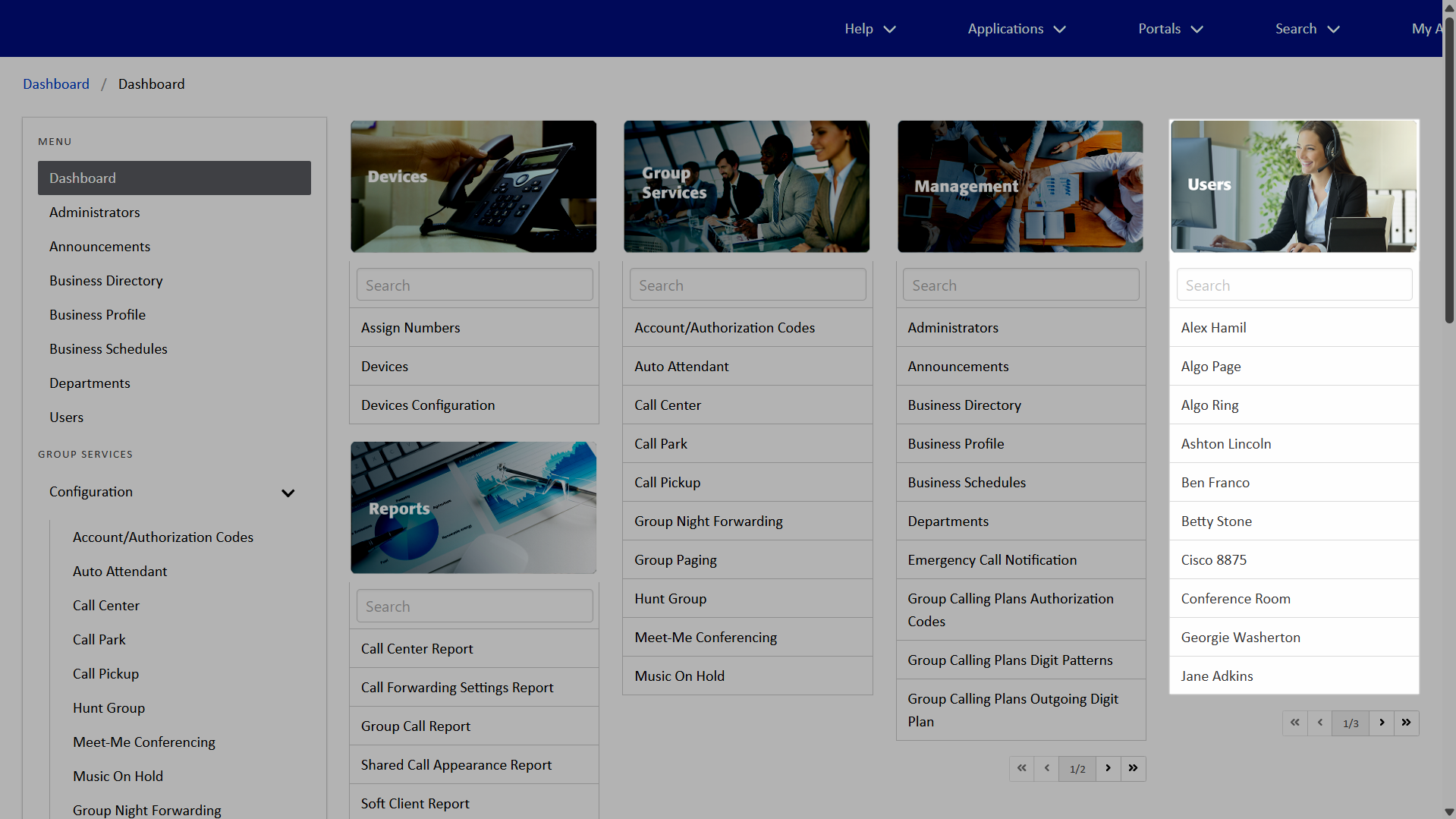
  1. From the dashboard, under Users, select your desired user.
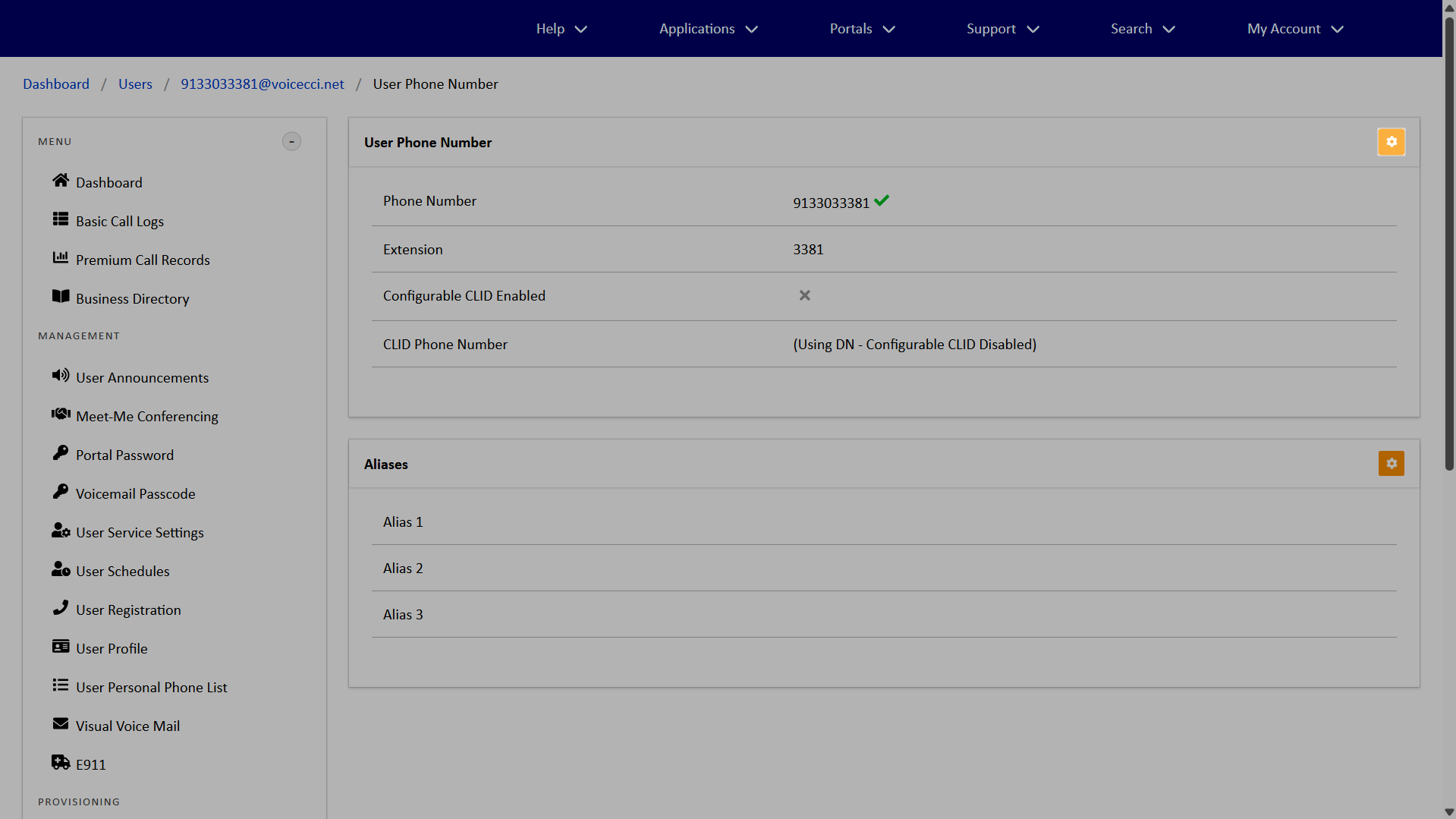
  2. Within the Menu, select User Phone Number.
  3. Within User Phone Number, click the Edit icon.
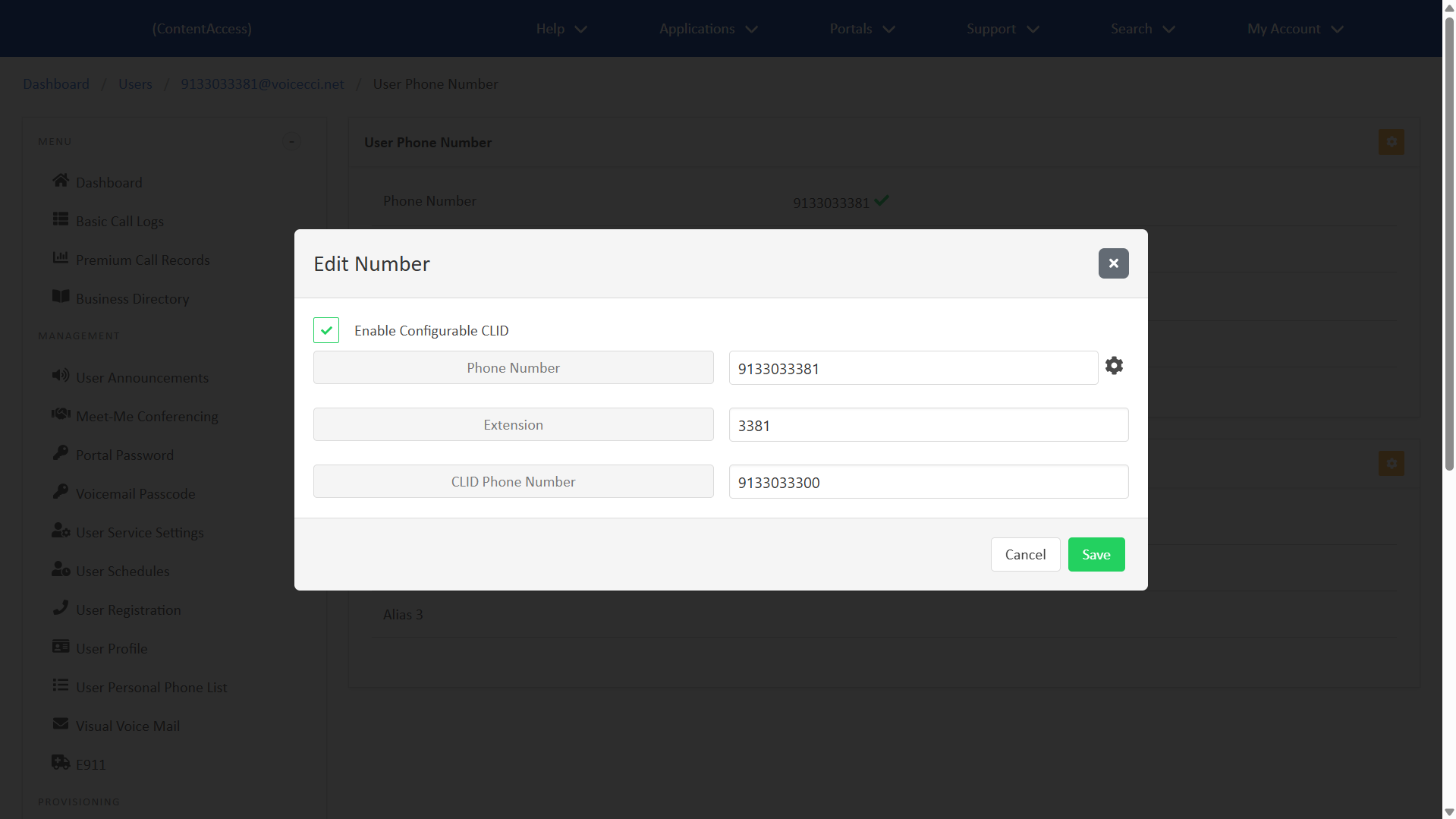
  4. Check Enable Configurable CLID.
  5. In the CLID Phone Number field, enter the CLID number you'd like to override the default.
    Note: By default, extension-only users display the group's caller ID, and users with an assigned phone number display their own.
  6. Click Save.

IMPORTANT: The override does not apply to emergency (911) calls, which always use the user's default caller ID.

Tags:additional, Admin, Admin Portal, anywhere, call, Call forwarding, CCI, Configuring, Configuring User Features, disturb, dnd, do no disturb, email, forwarding, Settings, user, user settings, voicemail

Privacy Policy, Do Not Sell or Share My Personal Information, Notice at Collection, Broadband Consumer Labels and other Terms & Policies. © Fidium. Powered by B-LYNK
  • Home
  • Getting Started
    • Administrator
    • End User
  • Help Topics
    • Administrators
    • Business Apps
    • Phones and Voicemail
  • Downloads & Links
  • Webinars
  • Contact Us