Image
  • Administrators
    • Getting Started
    • Administrators Hub
    • Admin Portal Video Library
    • Admin Portal Guide Library
  • End Users
    • Getting Started
    • End Users Hub
    • User Portal Video Library
    • User Portal Guide Library
  • Business Apps
    • Call Center
    • Broadsoft Thin Client
    • Webex App
    • SMS/MMS
    • Reception Client
    • Business Integrator
    • Advanced Call Reporting
    • Call Recording – Dubber
  • Phones & Voicemail
    • Cisco Phones
    • Poly Phones
    • Voicemail
  • Downloads & Links
  • Webinars
  • Contact Us

Consolidated is now Fidium. Access the latest versions of the portals here.

ProConnect User Portal – Call Forwarding Not Reachable

Michael HarroldSeptember 17, 2021ProConnect User Portal

  1. Home|
  2. Posts|
  3. End Users Hub|
  4. End Users|
  5. ProConnect User Portal – Guides|
  6. ProConnect User Portal – Call Forwarding Not Reachable

MENU

  • 1. Manage Call Forwarding Not Reachable

  • 2. Enable Call Forwarding Not Reachable

  • 3. Disable Call Forwarding Not Reachable

Print Friendly, PDF & Email

1.

Manage Call Forwarding Not Reachable

Call forwarding is a phone management feature that redirects incoming calls to an alternate number, such as a cell phone, home phone, or a colleague's number.

Call Forwarding Not Reachable forwards all incoming calls to a different phone number when your device is not accessible. Calls will automatically forward to the number you provide until your device becomes available again.

2.

Enable Call Forwarding Not Reachable

To enable Call Forwarding Not Reachable, follow these steps:

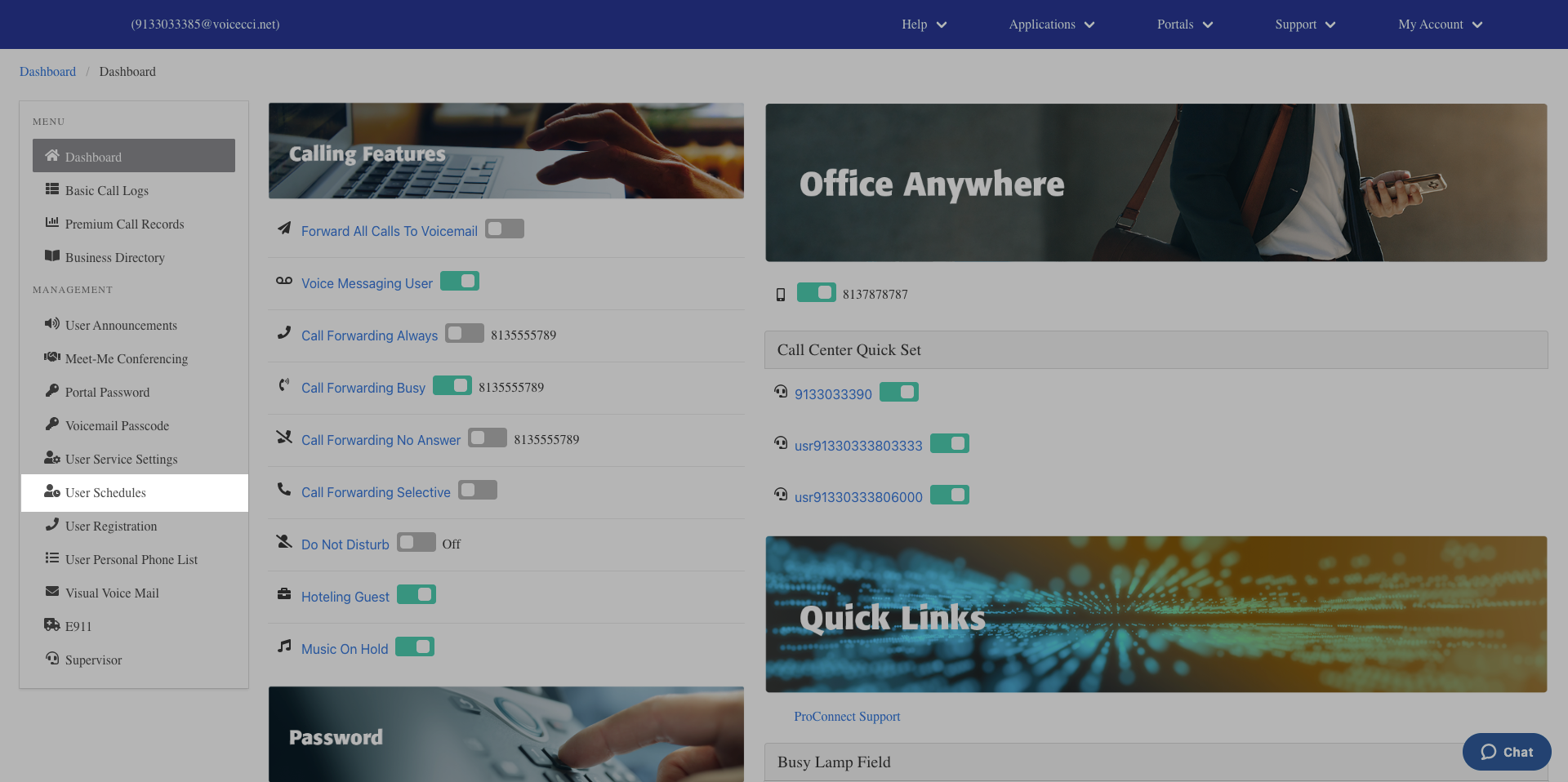
  1. From the dashboard menu, click User Service Settings.
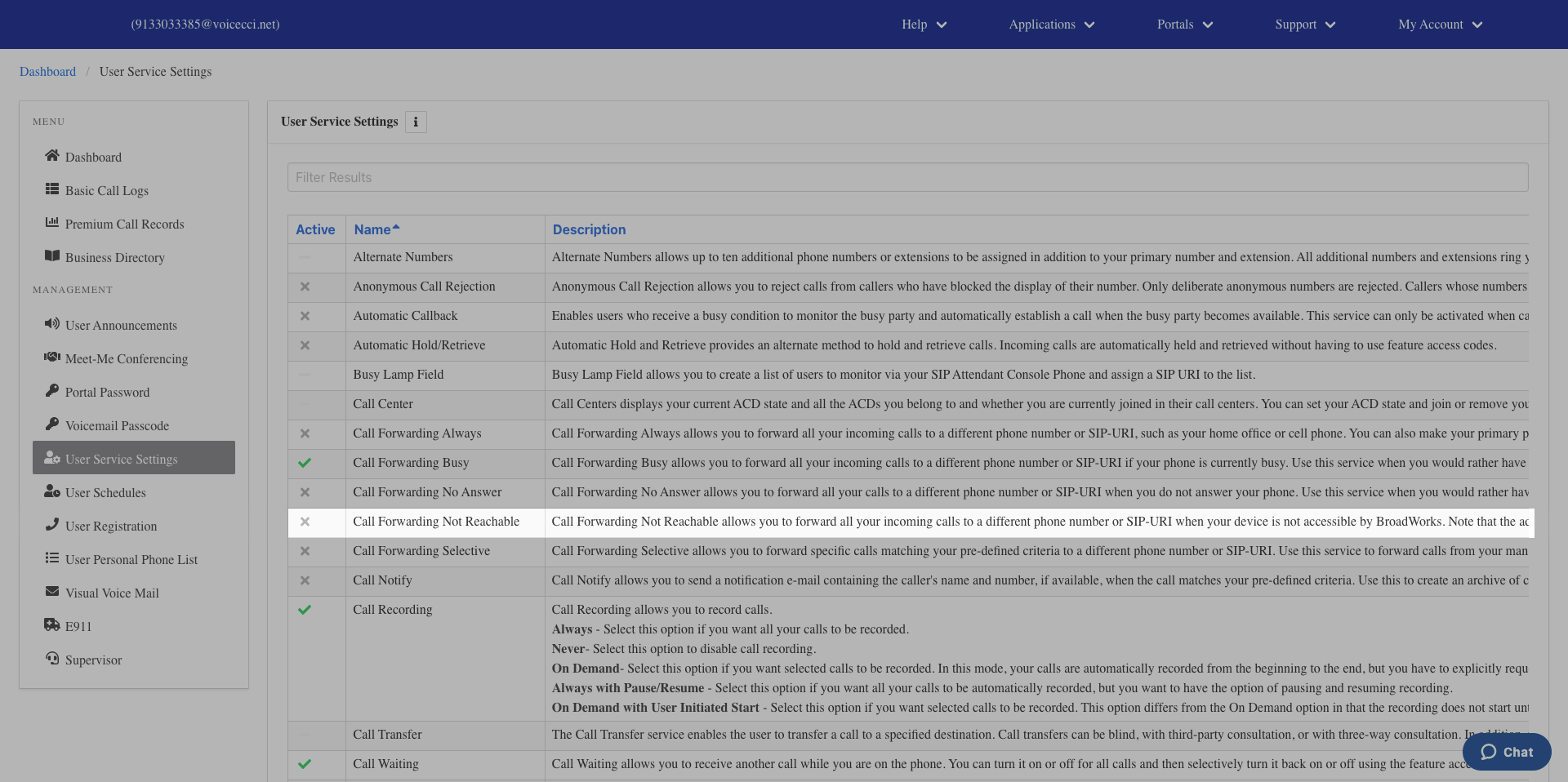
  1. On the Services page, click Call Forwarding Not Reachable.
  1. Click the Edit icon in the Call Forwarding table.
  2. Check the Is Active checkbox to activate the feature.
  3. Enter a valid 10-digit phone number to forward your calls to.
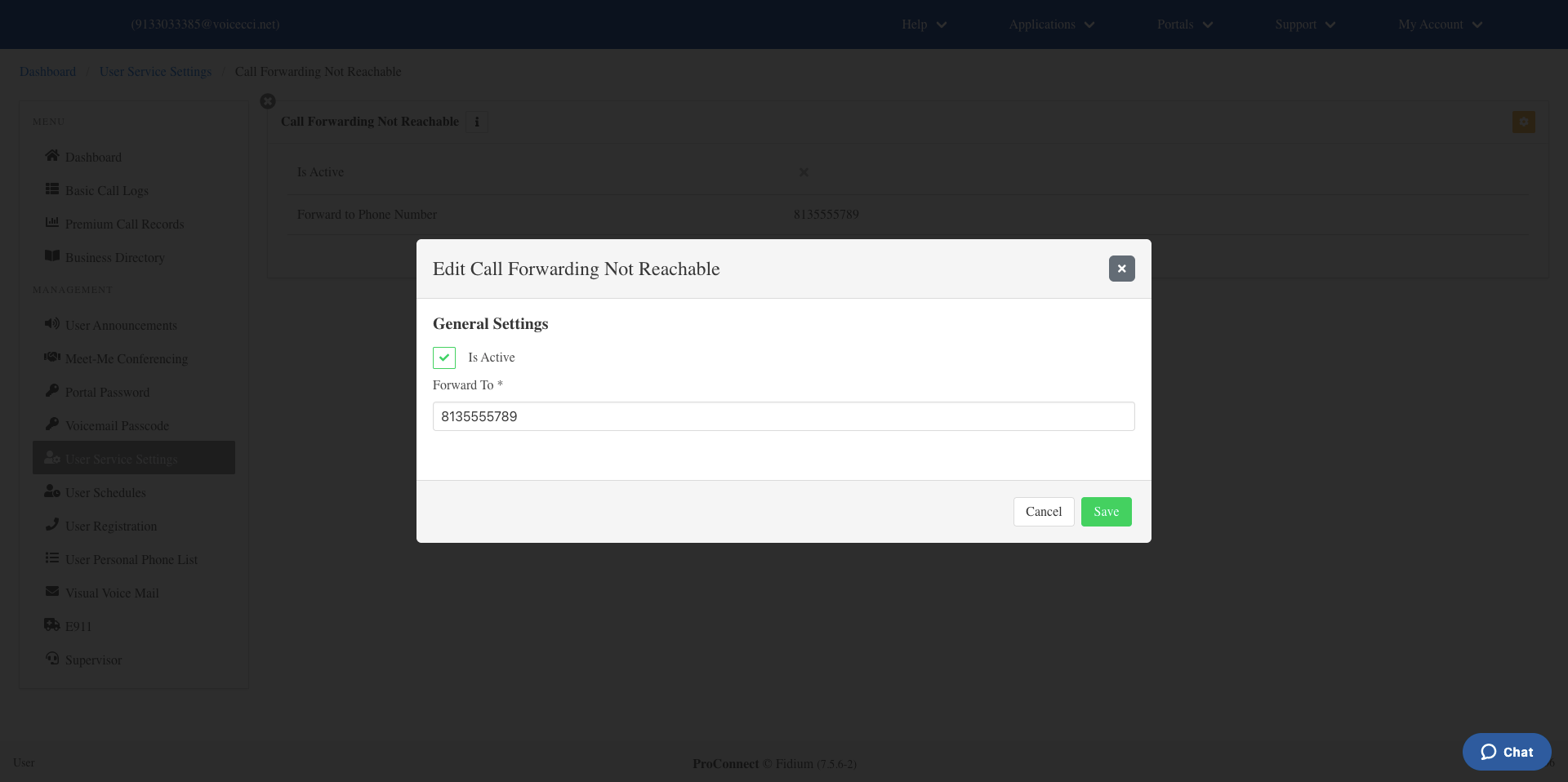
  1. Click Save.

3.

Disable Call Forwarding Not Reachable

To disable call forwarding Not Reachable, follow these steps:

  1. From the dashboard menu, click User Service Settings.
  2. On the Services page, click Call Forwarding Not Reachable.
  3. Click the Edit icon in the Call Forwarding table.
  4. Uncheck the Is Active checkbox.
  1. Click Save.

Tags:Admin, Admin Portal, Attendants, Auto, Auto Attendants, Call Center, change, conference, conferencing, holiday, Holiday Schedules, Hunt Group, login, meet, meet me, Overview, password, reset, resetting, users

Privacy Policy, Do Not Sell or Share My Personal Information, Notice at Collection, Broadband Consumer Labels and other Terms & Policies. © Fidium. Powered by B-LYNK
  • Home
  • Getting Started
    • Administrator
    • End User
  • Help Topics
    • Administrators
    • Business Apps
    • Phones and Voicemail
  • Downloads & Links
  • Webinars
  • Contact Us