

1.
Manage Meet-Me Conferencing
Meet-Me Conferencing allows you to connect multiple callers at different locations into the same live call as an alternative to face-to-face meetings. When your conference bridge is enabled, you will receive an email with your bridge information, including a direct dial number, conference ID, and moderator PIN. To join a conference, call the direct dial number and enter your conference ID and moderator PIN when prompted.
2.
Add a conference
To add a Meet-Me conference, follow these steps:
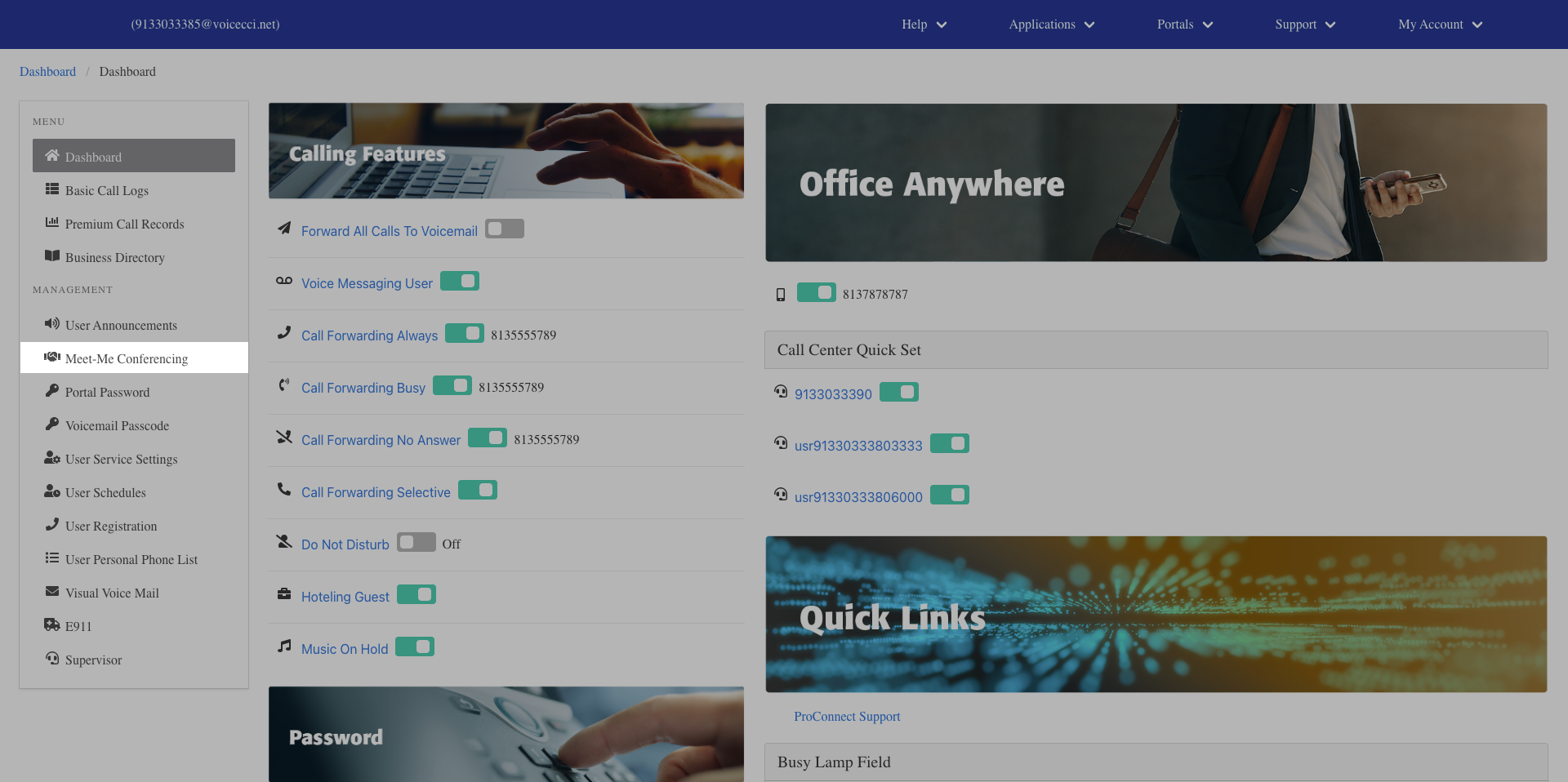
- From the dashboard menu, click Meet-Me Conferencing.
- Click the Add icon to add a new conference.
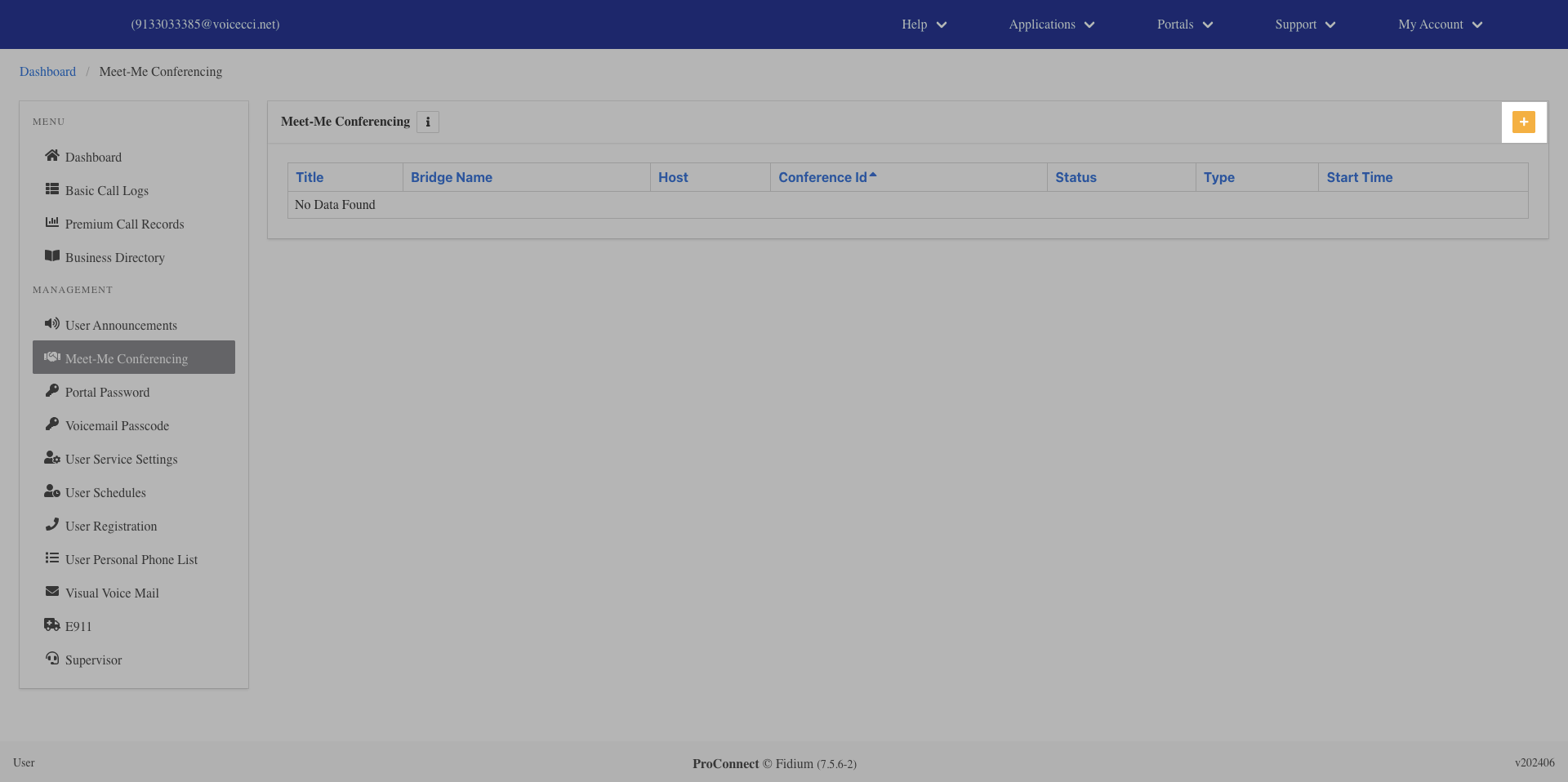
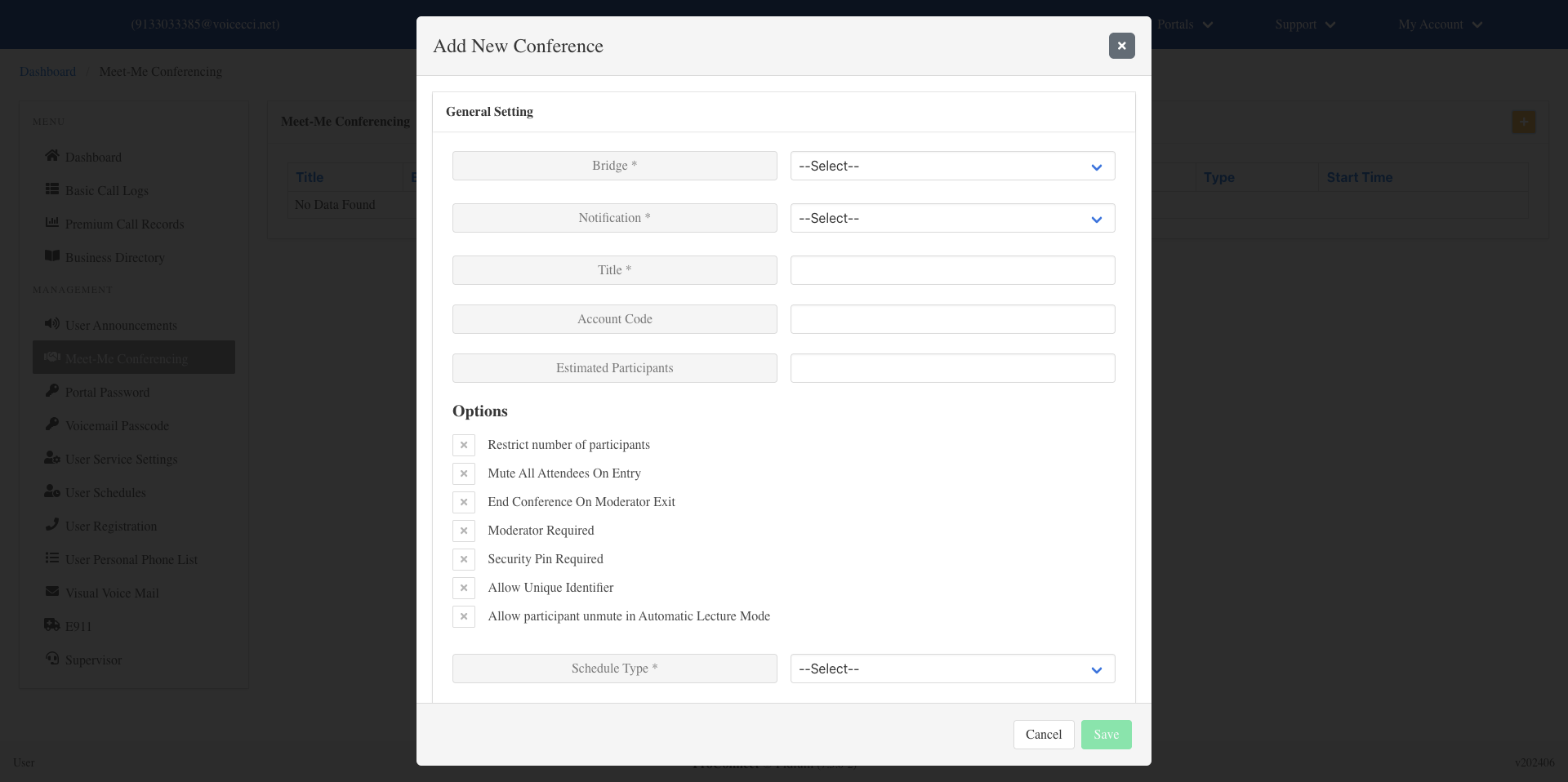
- Select an existing bridge.
- Choose the type of notification played when callers enter or leave the conference bridge:
- No notification — No notification is played.
- Play tone — A tone is played when callers enter or leave the bridge.
- Play recorded name — The caller states their name upon joining. That recorded name is played when they enter or leave the bridge.
- Enter a title or name for the conference.
- (Optional) Enter an account code and estimated number of participants.
- Select any additional options you want enabled for this conference bridge.
- For Schedule Type, choose one of the following:
- Reservationless — Enter a start and end date and time, or select no end date if desired.
- One Time — Enter a start date and set the duration in hours and minutes.
- Recurring — Enter a start date, set the duration in hours and minutes, then choose a recurrence pattern for when the schedule repeats or ends.
- Click Save. The new conference bridge details will appear in the table.