Image
  • Administrators
    • Getting Started
    • Administrators Hub
    • Admin Portal Guide Library
  • End Users
    • Getting Started
    • End Users Hub
    • User Portal Video Library
    • User Portal Guide Library
  • Business Apps
    • Call Center
    • Broadsoft Thin Client
    • Webex App
    • SMS/MMS
    • Reception Client
    • Business Integrator
    • Advanced Call Reporting
    • Call Recording – Dubber
  • Phones & Voicemail
    • Cisco Phones
    • Poly Phones
    • Voicemail
  • Downloads & Links
  • Webinars
  • Contact Us

ANNOUNCEMENT: Consolidated is now Fidium. Learn more about the transition.

ProConnect User Portal – Manage E911 information

Thomas McClatchieJanuary 14, 2026ProConnect User Portal

  1. Home|
  2. Posts|
  3. End Users Hub|
  4. End Users|
  5. ProConnect User Portal – Guides|
  6. ProConnect User Portal – Manage E911 information

MENU


  • Introduction

Print Friendly, PDF & Email

Introduction

Enhanced 911 (E911) ensures emergency responders receive accurate location information when a 911 call is placed, helping them reach you quickly and safely.

Update E911 information

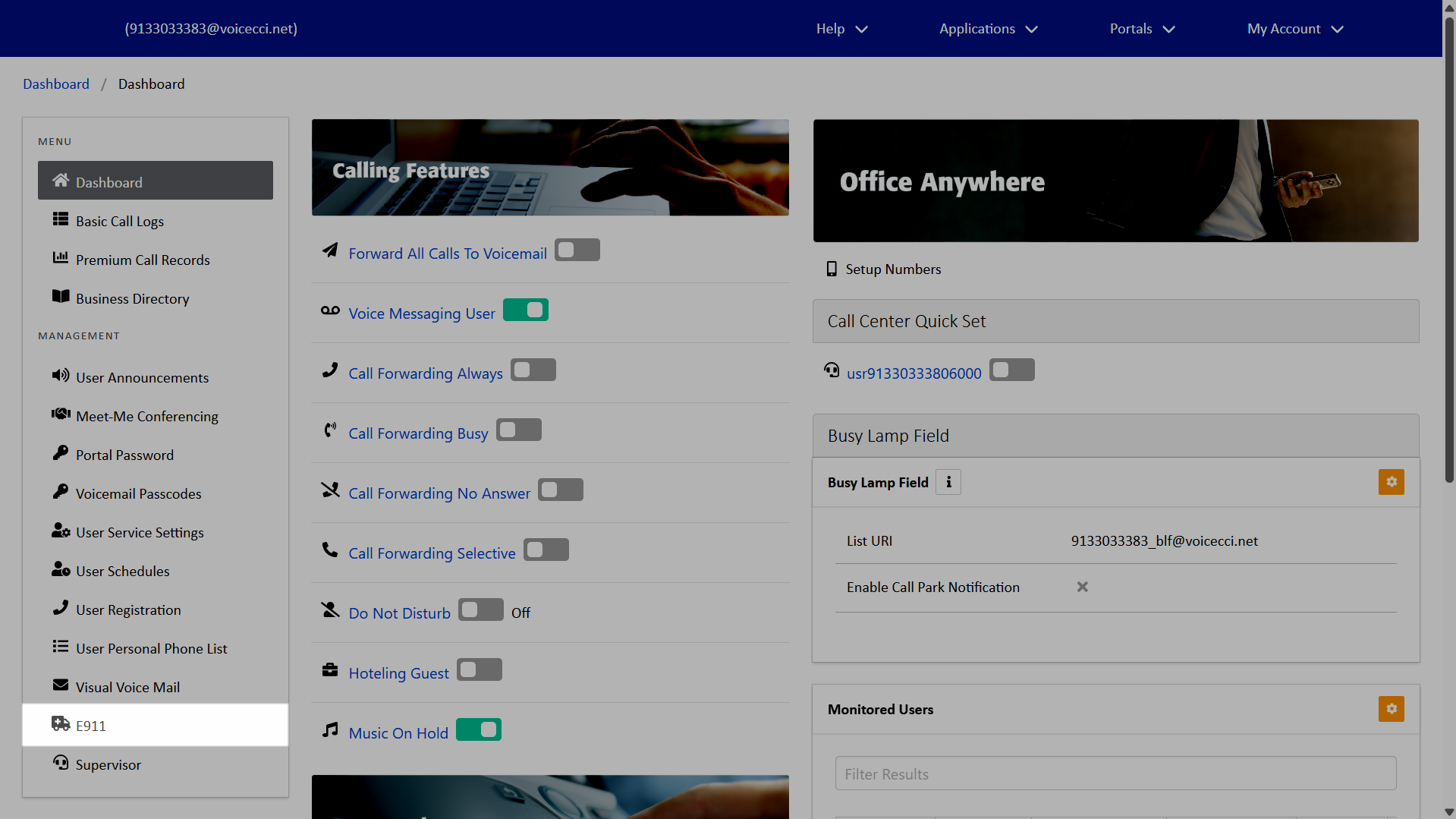
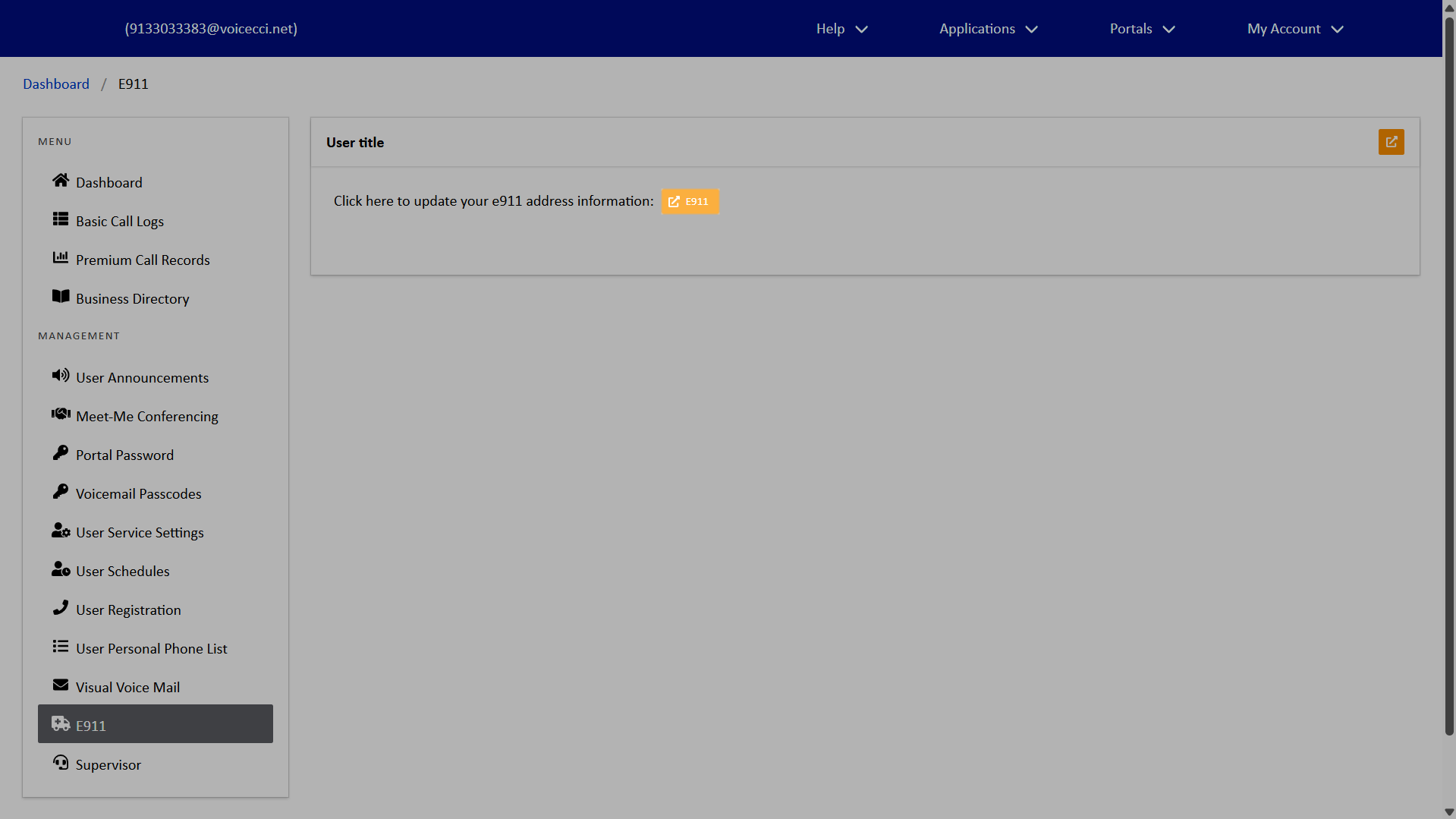
End users can manage their E911 settings to keep phone numbers and associated addresses current as work locations or devices change. These settings give users direct control over the accuracy of the information shared during an emergency call. To update your E911 settings, follow these steps:

  1. From the dashboard menu, select E911.
  2. Click the Open E911 icon.
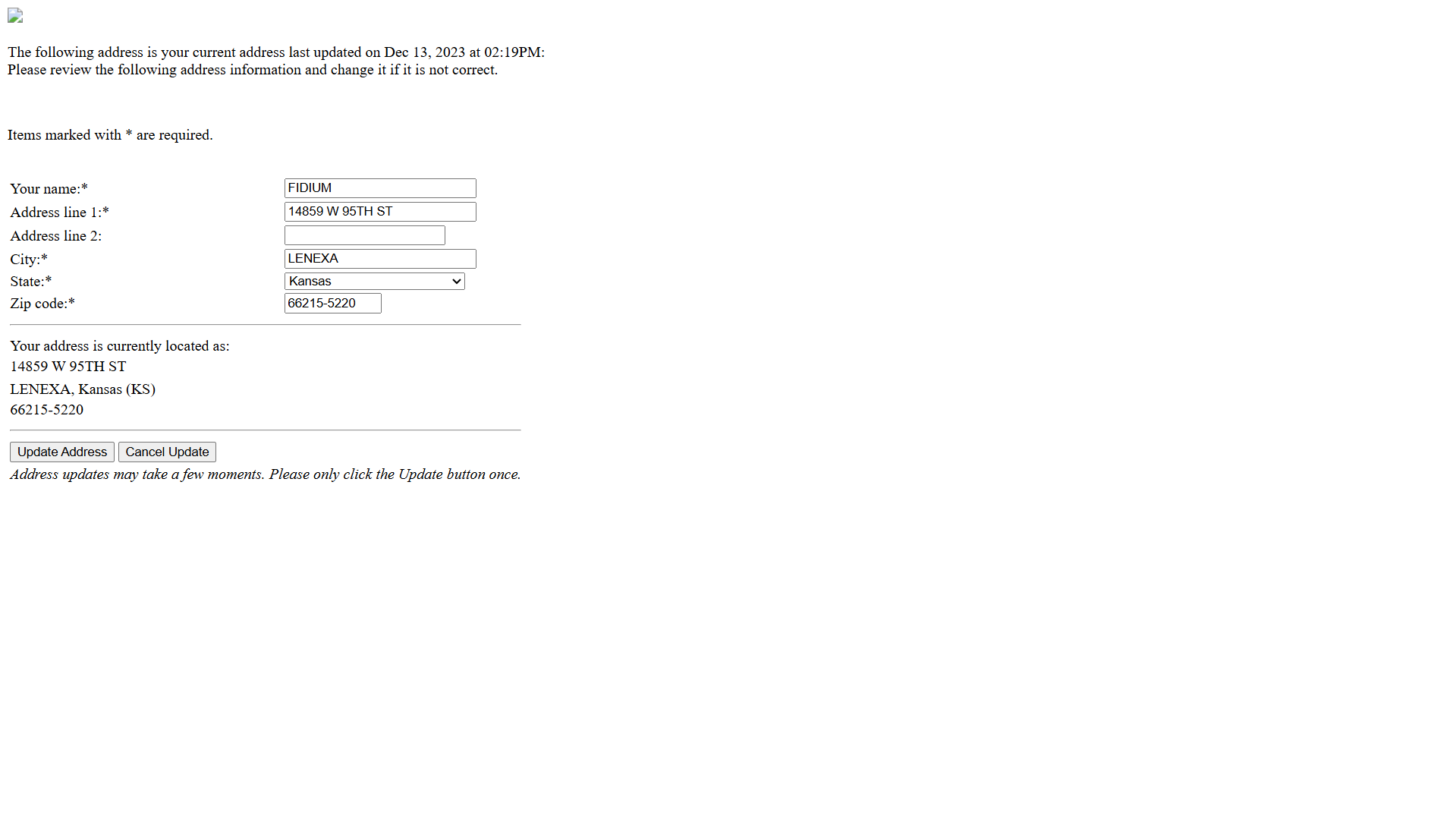
  3. Review and update your address information as needed. Fields marked with an asterisk are required.
  4. When complete, click Update Address.

    Note: Click the Update Address button only once.
Tags:Admin, Admin Portal, Attendants, Auto, Auto Attendants, Call Center, change, conference, conferencing, holiday, Holiday Schedules, Hunt Group, login, meet, meet me, Overview, password, reset, resetting, users

Privacy Policy, Do Not Sell or Share My Personal Information, Notice at Collection, Broadband Consumer Labels and other Terms & Policies. © Fidium. Powered by B-LYNK
  • Home
  • Getting Started
    • Administrator
    • End User
  • Help Topics
    • Administrators
    • Business Apps
    • Phones and Voicemail
  • Downloads & Links
  • Webinars
  • Contact Us