MENU

1.
Manage Call Forwarding to Voicemail
Call forwarding is a phone management feature that redirects incoming calls to an alternate number, such as a cell phone, home phone, or a colleague's number.
Call Forwarding to Voicemail forwards all incoming calls directly to your voicemail box.
2.
Enable Call Forwarding to Voicemail
To forward all incoming calls to voicemail, follow these steps:
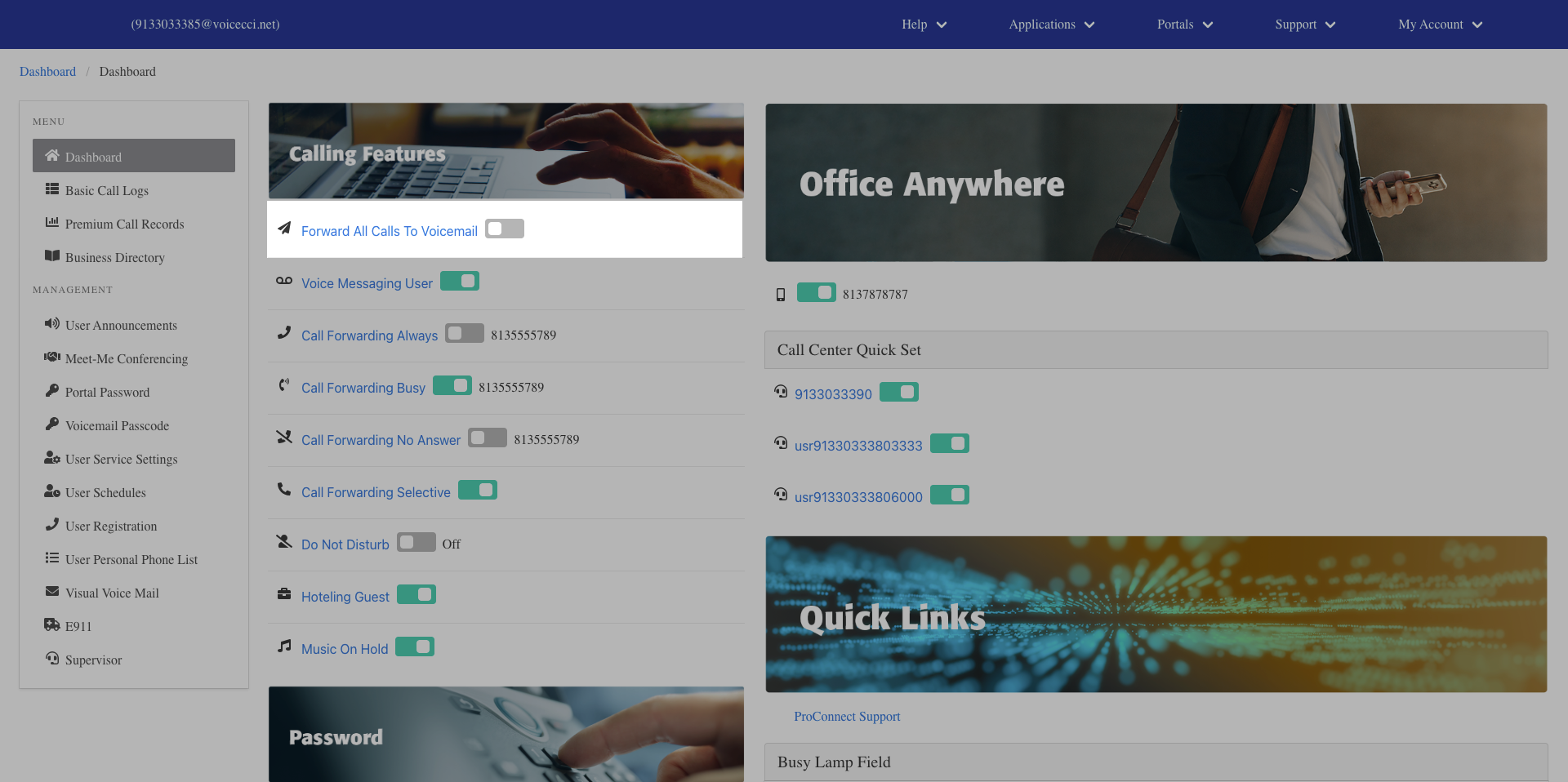
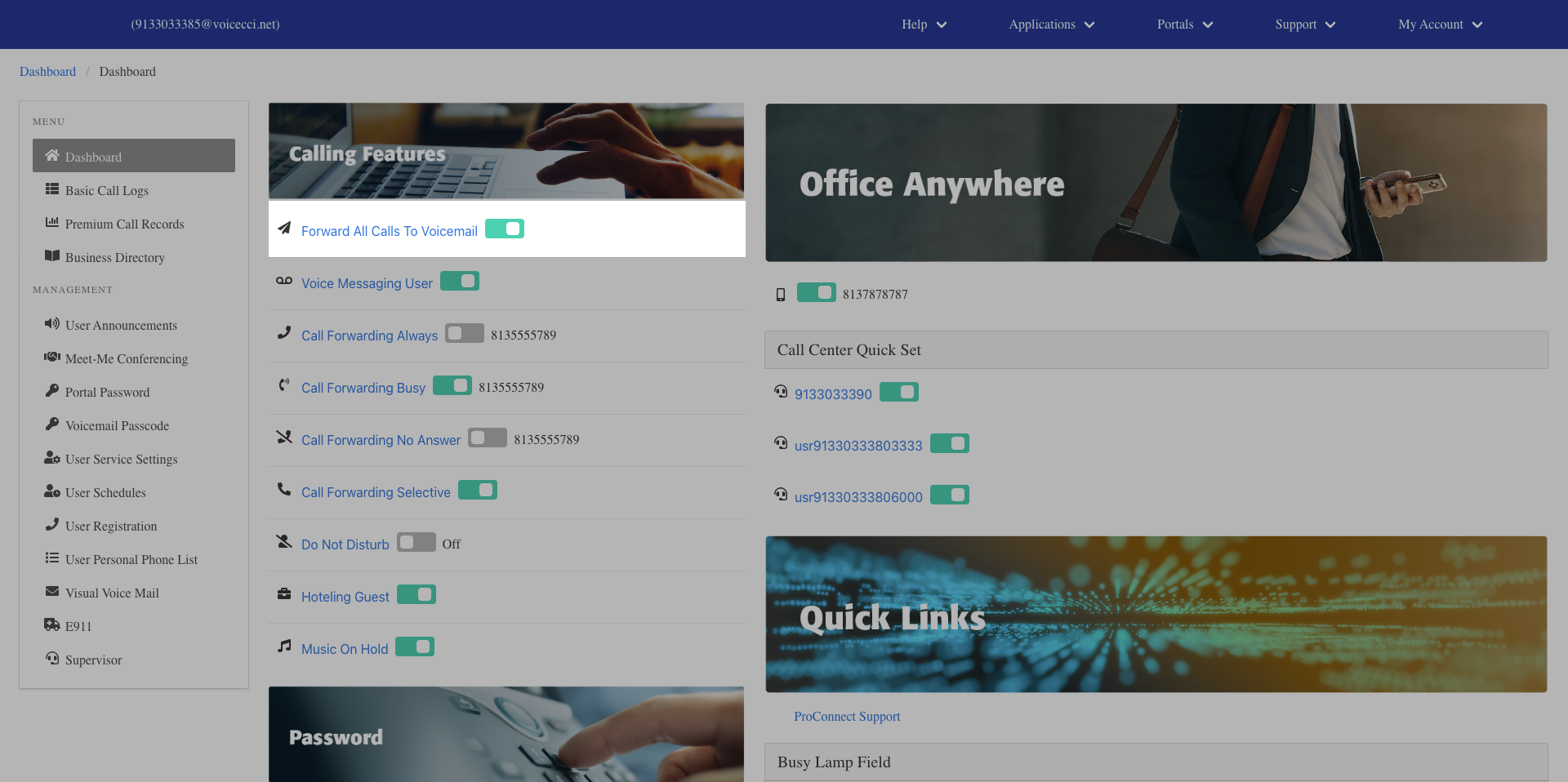
- From the main dashboard, under the Calling Features panel, click the Forward All Calls to Voicemail hyperlink.
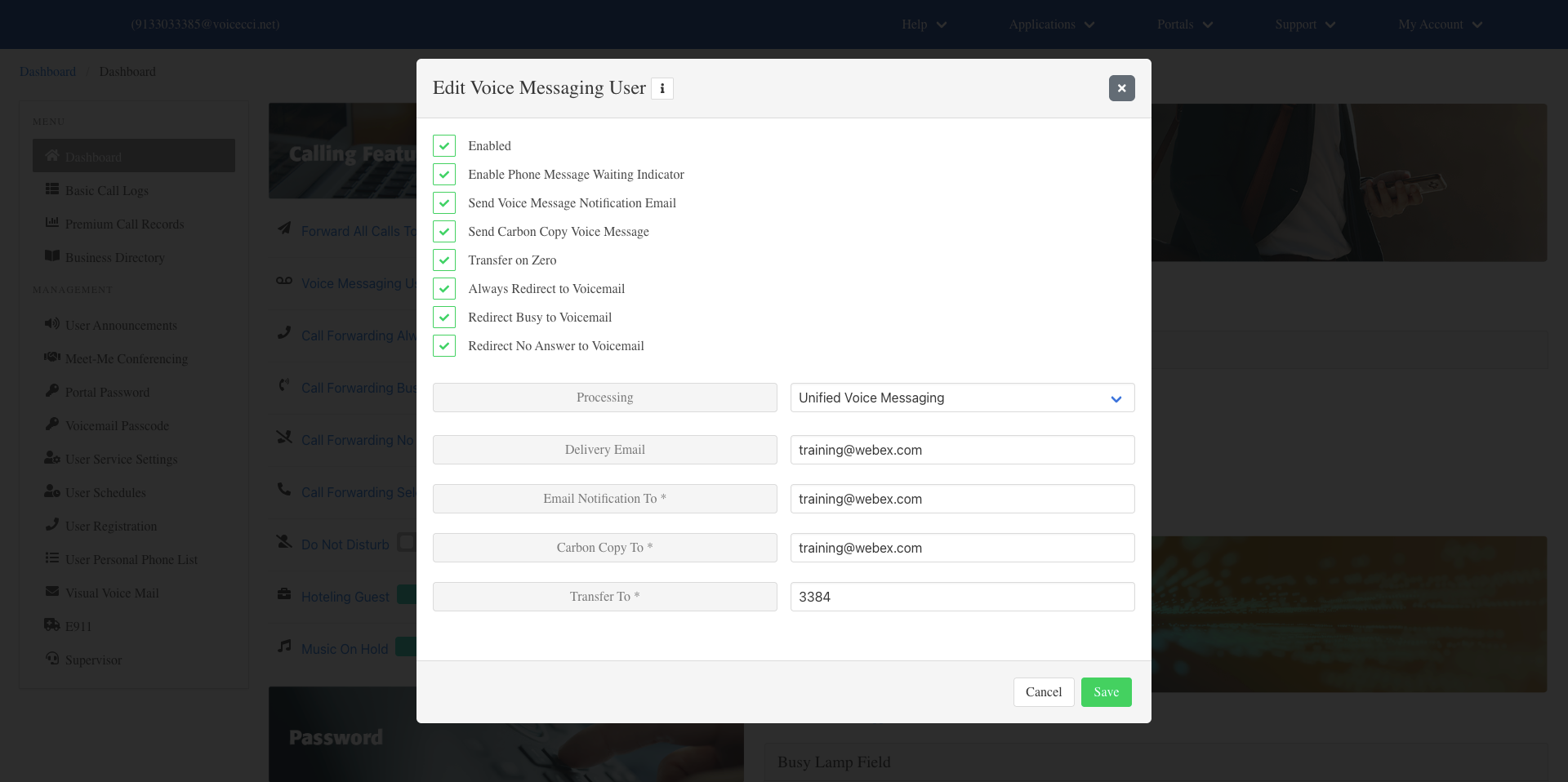
- In the General Settings section, enable any of the following options as needed:
- Enable — Check this box to activate this feature.
- Enable Phone Message Waiting Indicator — Check this box to enable the waiting indicator on your phone when a message arrives.
- Send Voice Message Notification Email — Check this box to receive an email notification when a voicemail arrives.
- Send Carbon Copy Voice Message — Check this box to send the voicemail as an attachment to the email address entered below. Note: If the Carbon Copy email address is cc1.stt@mutaresoftware.com, do not change it. This address sends your voicemail messages to a transcription service.
- Transfer on Zero — Check this box to allow callers to press 0 to be transferred to the number entered. Note: You will need to reference this option in your voicemail greeting.
- Always Redirect to Voicemail — Check this box to send all incoming calls directly to voicemail.
- Redirect Busy to Voicemail — Check this box to send all busy calls directly to voicemail.
- Redirect No Answer to Voicemail — Check this box to send all unanswered calls directly to voicemail.
- Click Save.
3.
Disable Call Forwarding to Voicemail
To disable call forwarding to voicemail, follow these steps:
- From the main dashboard, under the Calling Features pane, locate Forward All Calls To Voicemail.
- Click the Forward All Calls To Voicemail toggle to turn it off. Incoming calls will return to normal.