Image
  • Administrators
    • Getting Started
    • Administrators Hub
    • Admin Portal Video Library
    • Admin Portal Guide Library
  • End Users
    • Getting Started
    • End Users Hub
    • User Portal Video Library
    • User Portal Guide Library
  • Business Apps
    • Call Center
    • Broadsoft Thin Client
    • Webex App
    • SMS/MMS
    • Reception Client
    • Business Integrator
    • Advanced Call Reporting
    • Call Recording – Dubber
  • Phones & Voicemail
    • Cisco Phones
    • Poly Phones
    • Voicemail
  • Downloads & Links
  • Webinars
  • Contact Us

Consolidated is now Fidium. Access the latest versions of the portals here.

ProConnect User Portal – Call Recording Admins and Users

Thomas McClatchieJanuary 10, 2025ProConnect User Portal

  1. Home|
  2. Posts|
  3. End Users Hub|
  4. End Users|
  5. ProConnect User Portal – Guides|
  6. ProConnect User Portal – Call Recording Admins and Users

MENU


  • Introduction

  • 1. Configure Call Recording

Introduction

The Call Recording service allows users to record inbound and outbound calls. Administrators and end users can configure call recording settings through the admin portal.

Note: Your system administrator may restrict access to certain settings. When restricted, some options will appear as read-only.


1.

Configure Call Recording

To configure call recording for a user:

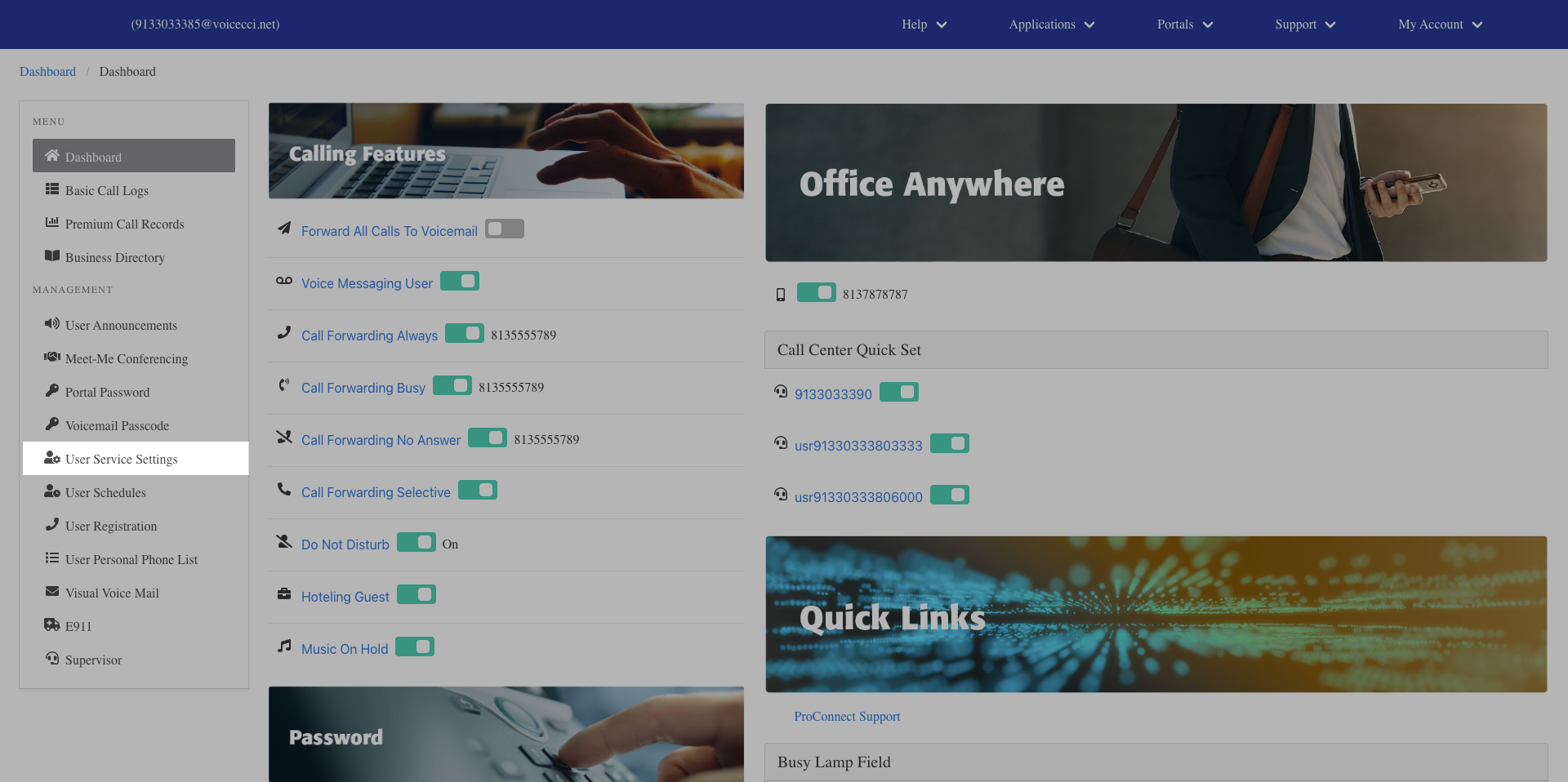
  1. From the dashboard, select Users.

    Click image for large view
  2. Select the user you would like to configure.
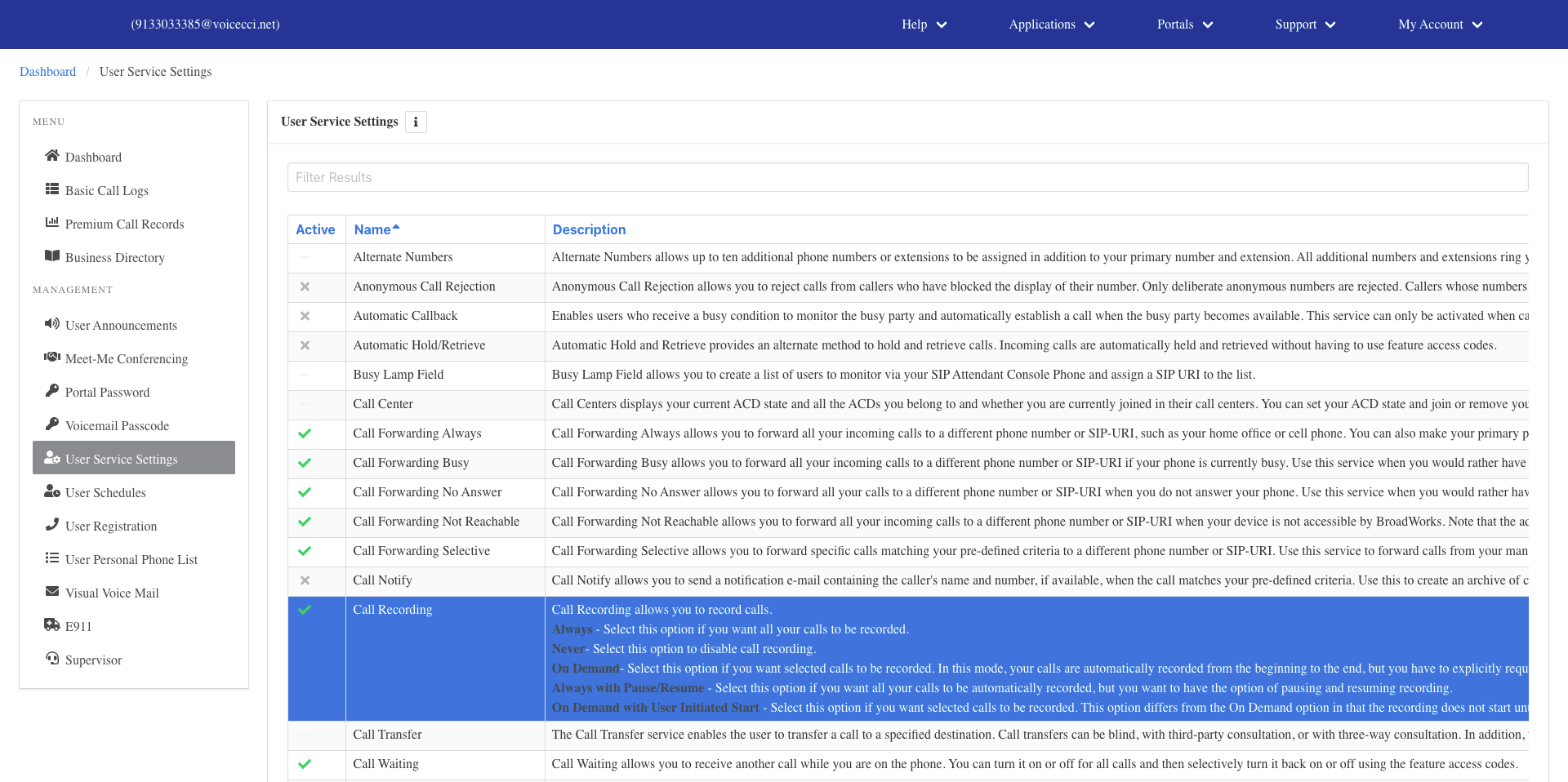
  3. Select User Service Settings.
  4. Select Call Recording.

    Click image for large view
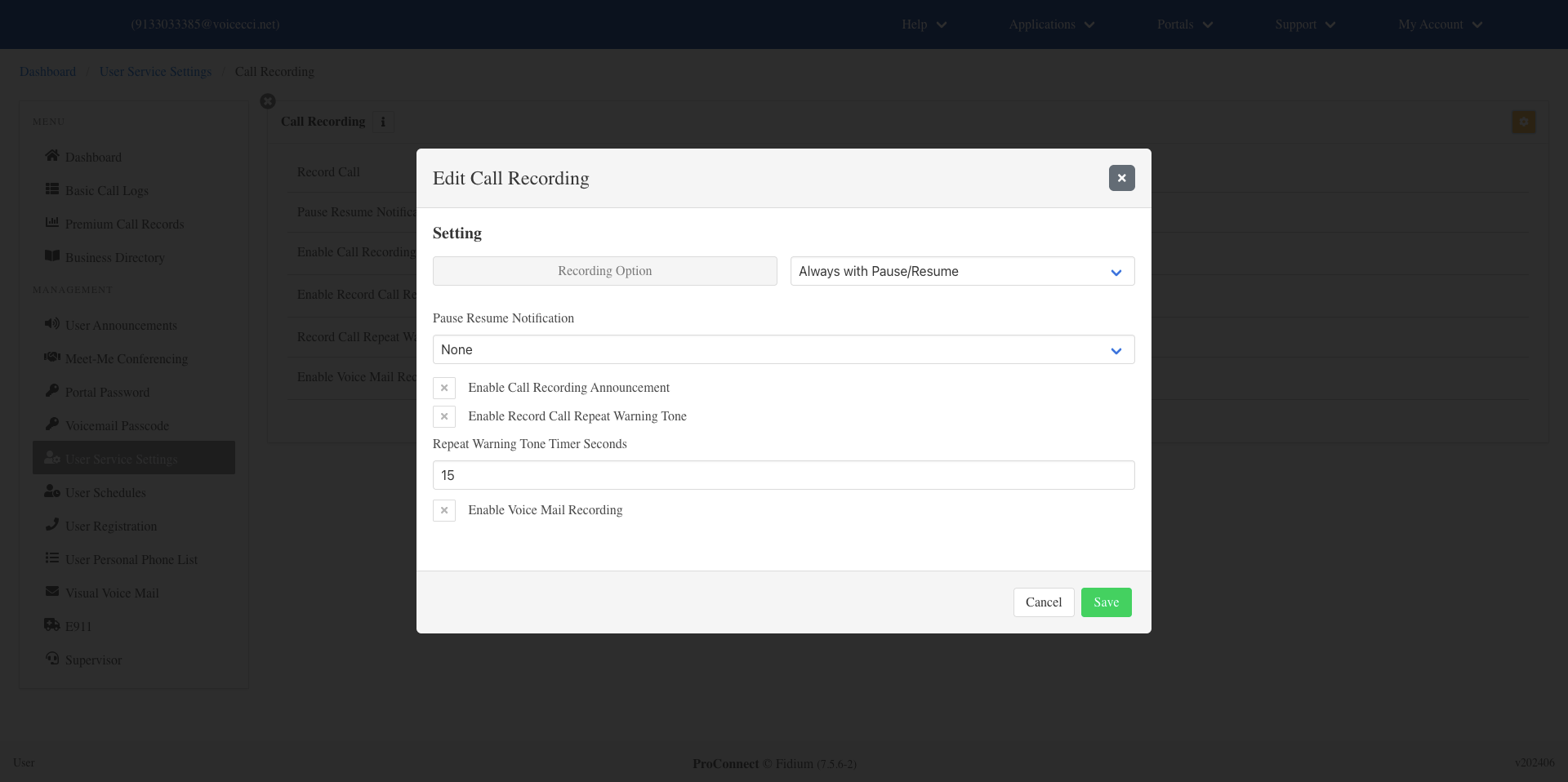
  5. Select the Settings icon to edit call recording options.

    Click image for large view
  6. Select the desired recording option:

    Click image for large view
  • Always - Records all calls automatically.
  • Never - Disables call recording.
  • On Demand - Records calls automatically but only saves them if recording is confirmed before the call ends. Recording can be paused and resumed.
  • Always with Pause/Resume - Records all calls automatically with the ability to pause and resume recording.
  • On Demand with User Initiated Start - Recording does not begin until manually started. Once started, recording can be paused, resumed, or stopped.
  1. Select how users are notified when recording is paused or resumed:
  • None – No notification
  • Beep – Plays a tone
  • Play Announcement – Plays an announcement
  1. Configure the following options as needed:
    • Enable Call Recording Announcement - Notifies participants when recording starts or stops. If not checked, the participants are not alerted when call recording is started or stopped. Note: The system announcement cannot be customized.
    • Enable Record Call Repeat Warning Tone - Plays a recurring tone during the call. Enter the frequency in seconds.
    • Repeat Warning Tone Timer Seconds - Enter the number of seconds between each warning tone.
    • Enable Voice Mail Recording - Records calls made to voicemail. Note: This parameter is only displayed if you have the Voice Messaging User service.
  2. Select Save to apply your changes.

Tags:Admin, Admin Portal, Attendants, Auto, Auto Attendants, Call Center, change, conference, conferencing, holiday, Holiday Schedules, Hunt Group, login, meet, meet me, Overview, password, reset, resetting, users

Privacy Policy, Do Not Sell or Share My Personal Information, Notice at Collection, Broadband Consumer Labels and other Terms & Policies. © Fidium. Powered by B-LYNK
  • Home
  • Getting Started
    • Administrator
    • End User
  • Help Topics
    • Administrators
    • Business Apps
    • Phones and Voicemail
  • Downloads & Links
  • Webinars
  • Contact Us