

Image
  • Administrators
    • Getting Started
    • Administrators Hub
    • Admin Portal Video Library
    • Admin Portal Guide Library
  • End Users
    • Getting Started
    • End Users Hub
    • User Portal Video Library
    • User Portal Guide Library
  • Business Apps
    • Call Center
    • Broadsoft Thin Client
    • Webex App
    • SMS/MMS
    • Reception Client
    • Business Integrator
    • Advanced Call Reporting
    • Call Recording – Dubber
  • Phones & Voicemail
    • Cisco Phones
    • Poly Phones
    • Voicemail
  • Downloads & Links
  • Webinars
  • Contact Us

Consolidated is now Fidium. Access the latest versions of the portals here.

ProConnect User Portal – Passwords

Michael HarroldSeptember 16, 2021ProConnect User Portal

  1. Home|
  2. Posts|
  3. End Users Hub|
  4. End Users|
  5. ProConnect User Portal – Guides|
  6. ProConnect User Portal – Passwords

MENU


  • 1. Reset Password and Passcode

  • 2. Reset Password from the Login Page

  • 3. Reset Password from the Portal

  • 4. Reset Passcode from the Portal

Print Friendly, PDF & Email

1.

Reset Password and Passcode

You can reset your password and passcode directly from the user portal, or reset your password from the login page.

2.

Reset Password from the Login Page

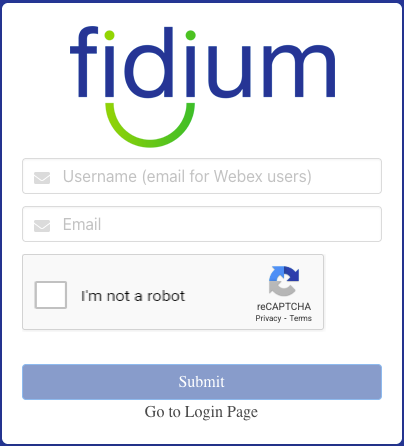
  1. From the login screen, click Forgot Password?
  2. Enter your Username and Email. Note: The email address you enter must match the email address on your ProConnect user account. If they do not match, you will not receive a password reset email.
  3. Check the reCAPTCHA box.
  4. Click Submit. A password reset link will be sent to your email.
Note: The Forgot Password link works for user accounts only. To reset the password for a group or enterprise admin account, contact Fidium ProConnect Support at 833-684-1892, Option 2.

3.

Reset Password from the Portal

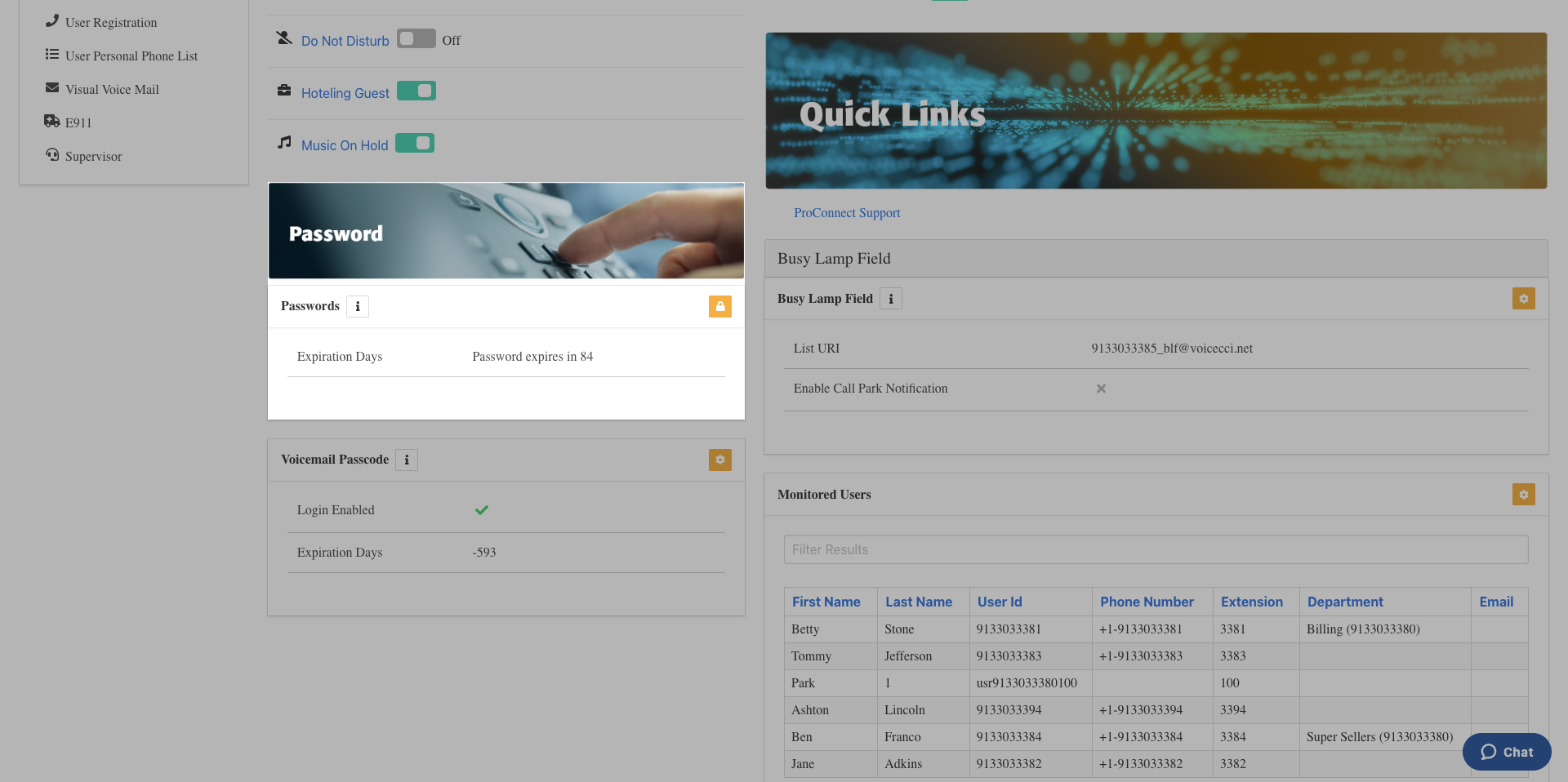
  1. From the dashboard menu, under the Password panel, click the Edit Password icon.
  1. In the Edit Password window, enter your current password.
  2. Enter your new password in the New Password field, then re-enter it in the Repeat Password field.
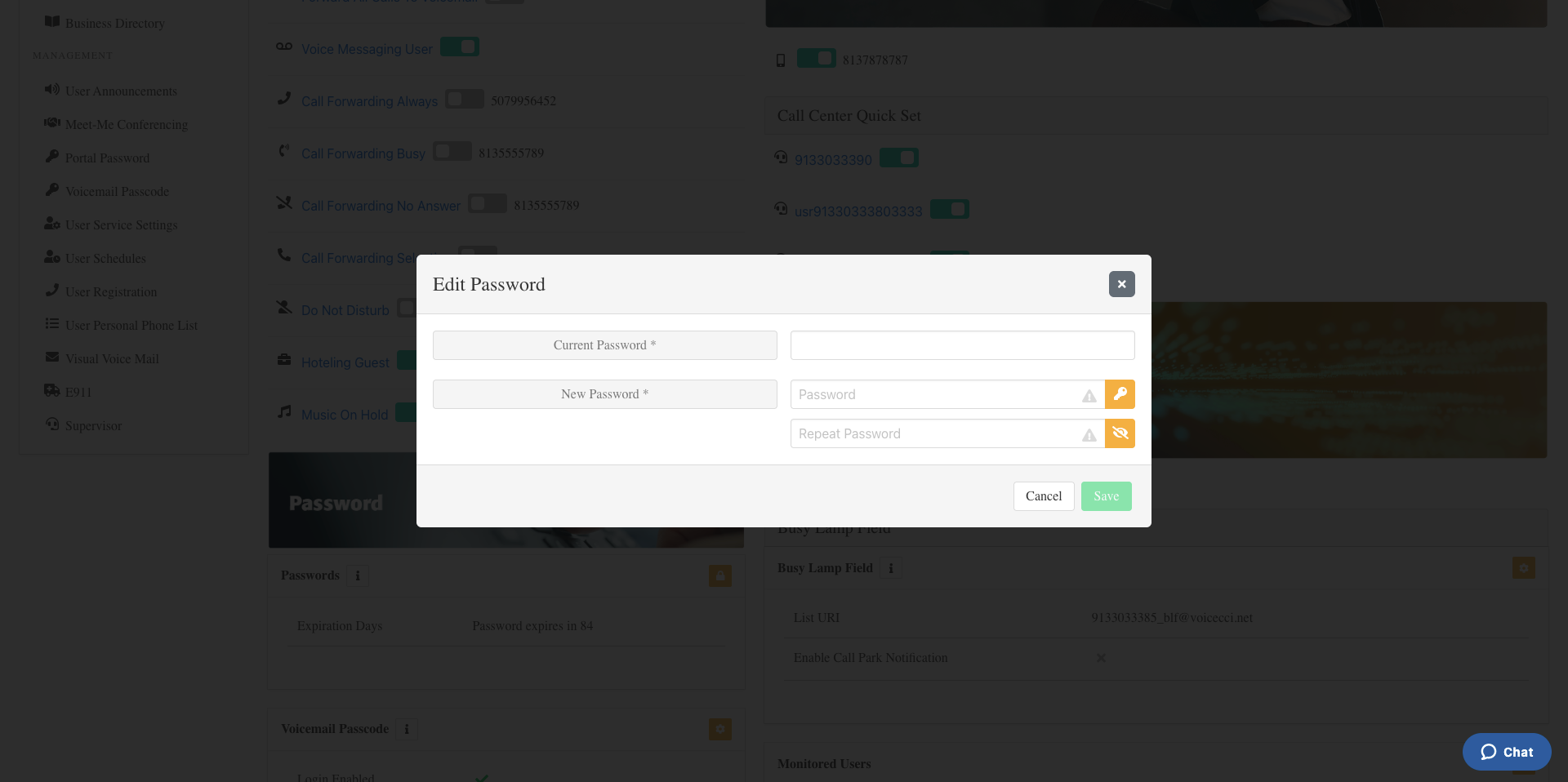
  1. Click Save. Your new password is now set.

4.

Reset Passcode from the Portal

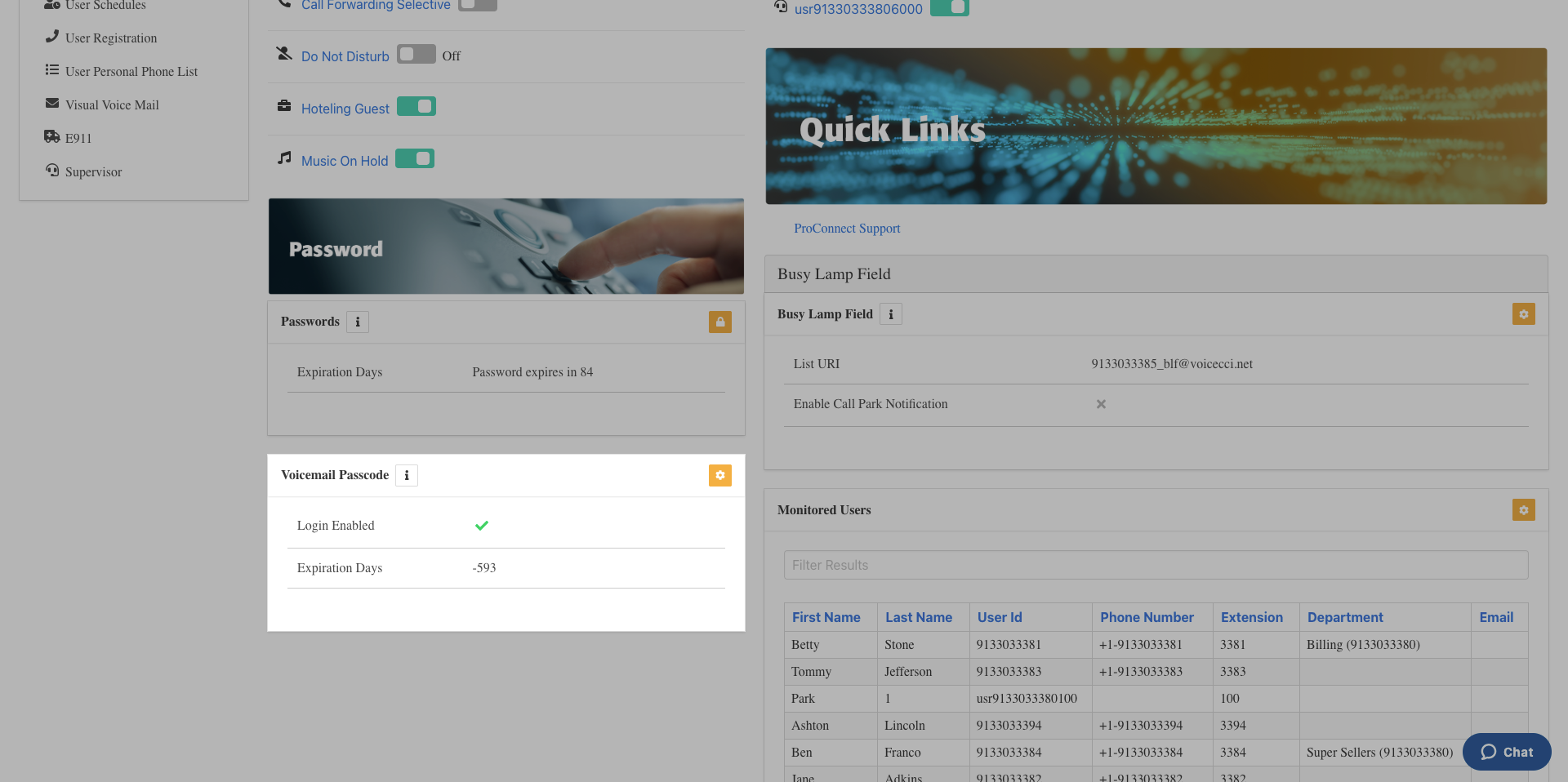
  1. From the Password panel, under Voicemail Passcode, click the Edit icon.
  1. In the Edit Passcode window, enter your current passcode.
  2. Enter your new passcode in the New Passcode field, then re-enter it in the Repeat Passcode field. Note: To have the system generate a passcode for you, click the Key icon. This will automatically populate both fields.
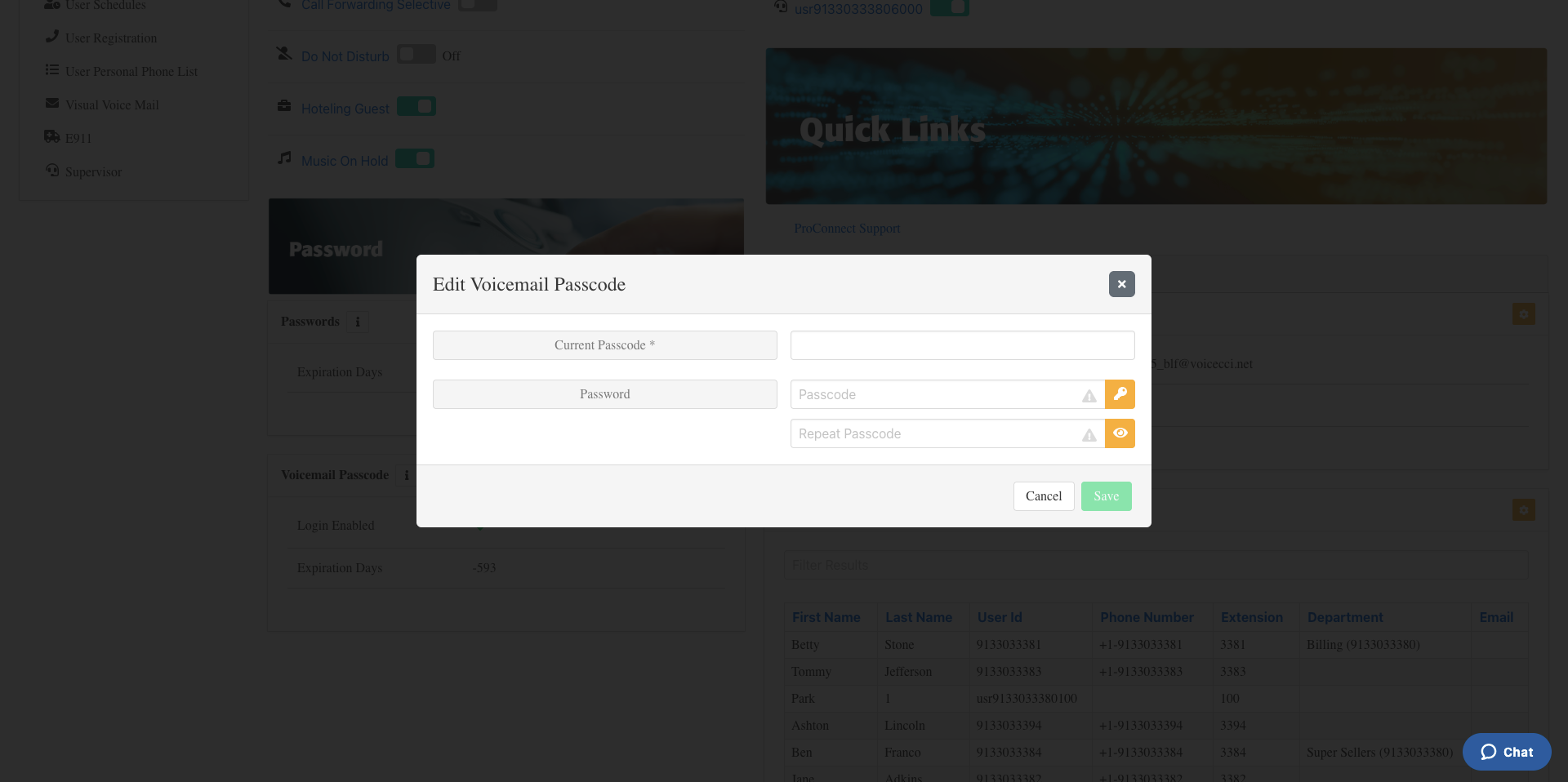
  1. Click Save. Your new passcode is now set.

Tags:Admin, Admin Portal, Attendants, Auto, Auto Attendants, Call Center, change, conference, conferencing, holiday, Holiday Schedules, Hunt Group, login, meet, meet me, Overview, password, reset, resetting, users

Privacy Policy, Do Not Sell or Share My Personal Information, Notice at Collection, Broadband Consumer Labels and other Terms & Policies. © Fidium. Powered by B-LYNK
  • Home
  • Getting Started
    • Administrator
    • End User
  • Help Topics
    • Administrators
    • Business Apps
    • Phones and Voicemail
  • Downloads & Links
  • Webinars
  • Contact Us