

1.
Manage Priority Alert
Priority Alert allows your phone to ring with a different tone based on pre-defined criteria, making it easy to identify calls from specific people or groups. Criteria for each Priority Alert entry can include a list of up to 12 phone numbers or digit patterns, a specified time schedule, and a specified holiday schedule. All criteria for an entry must be met for the alternate ringtone to apply.
2.
Add a Priority Alert
To add a Priority Alert, follow these steps:
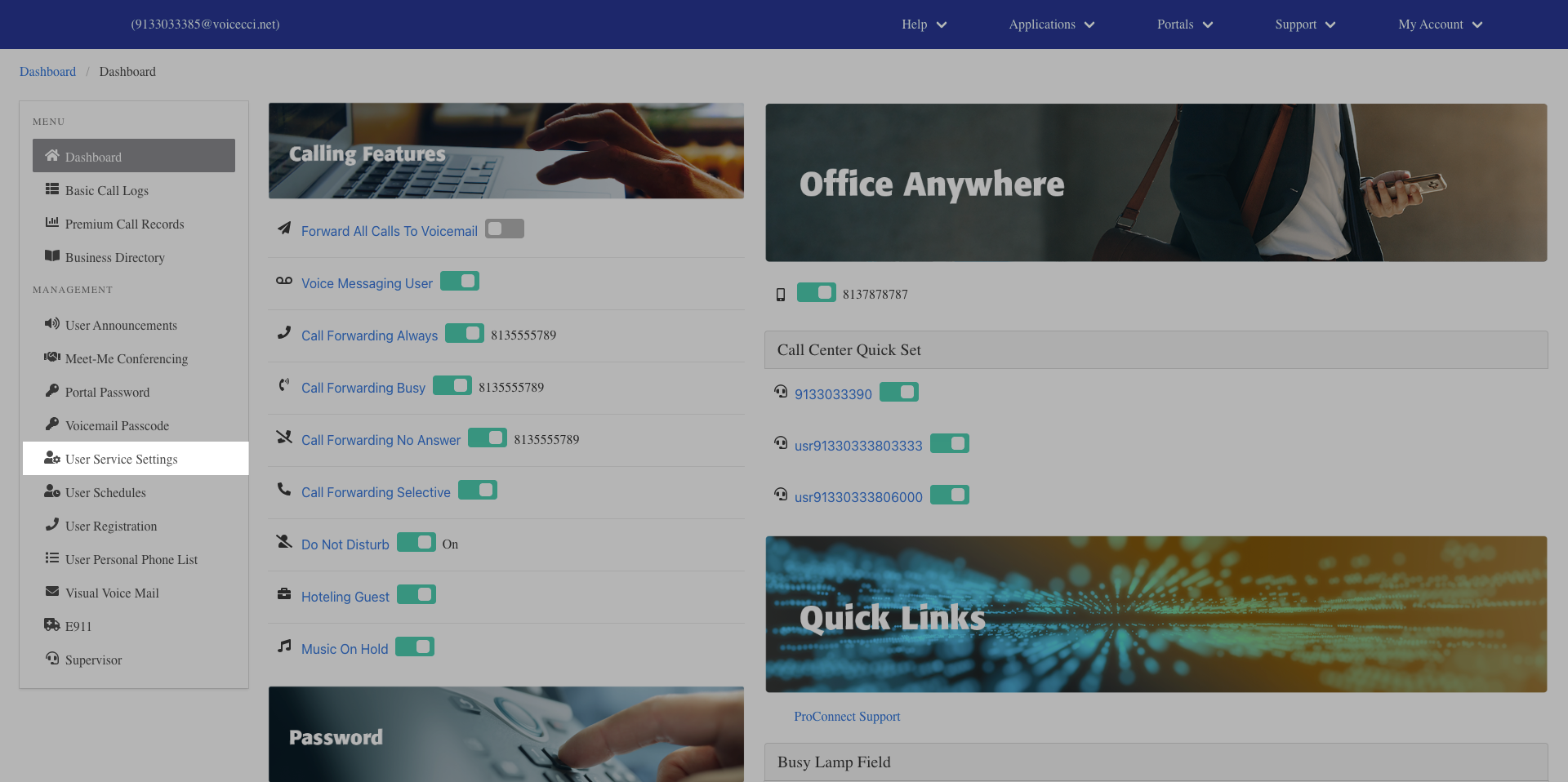
- From the dashboard menu, click User Service Settings.
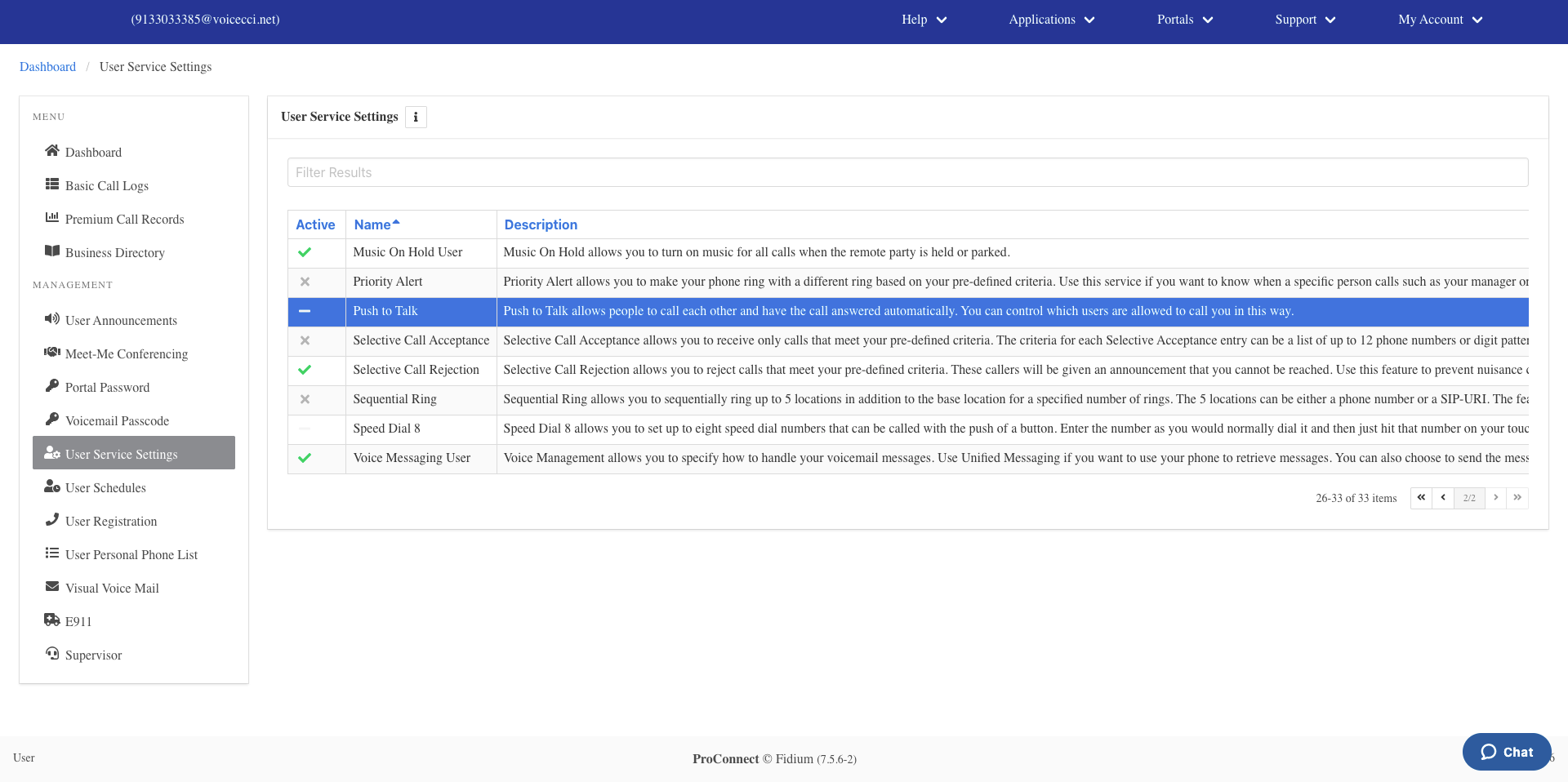
- On the Services page, click Priority Alert.
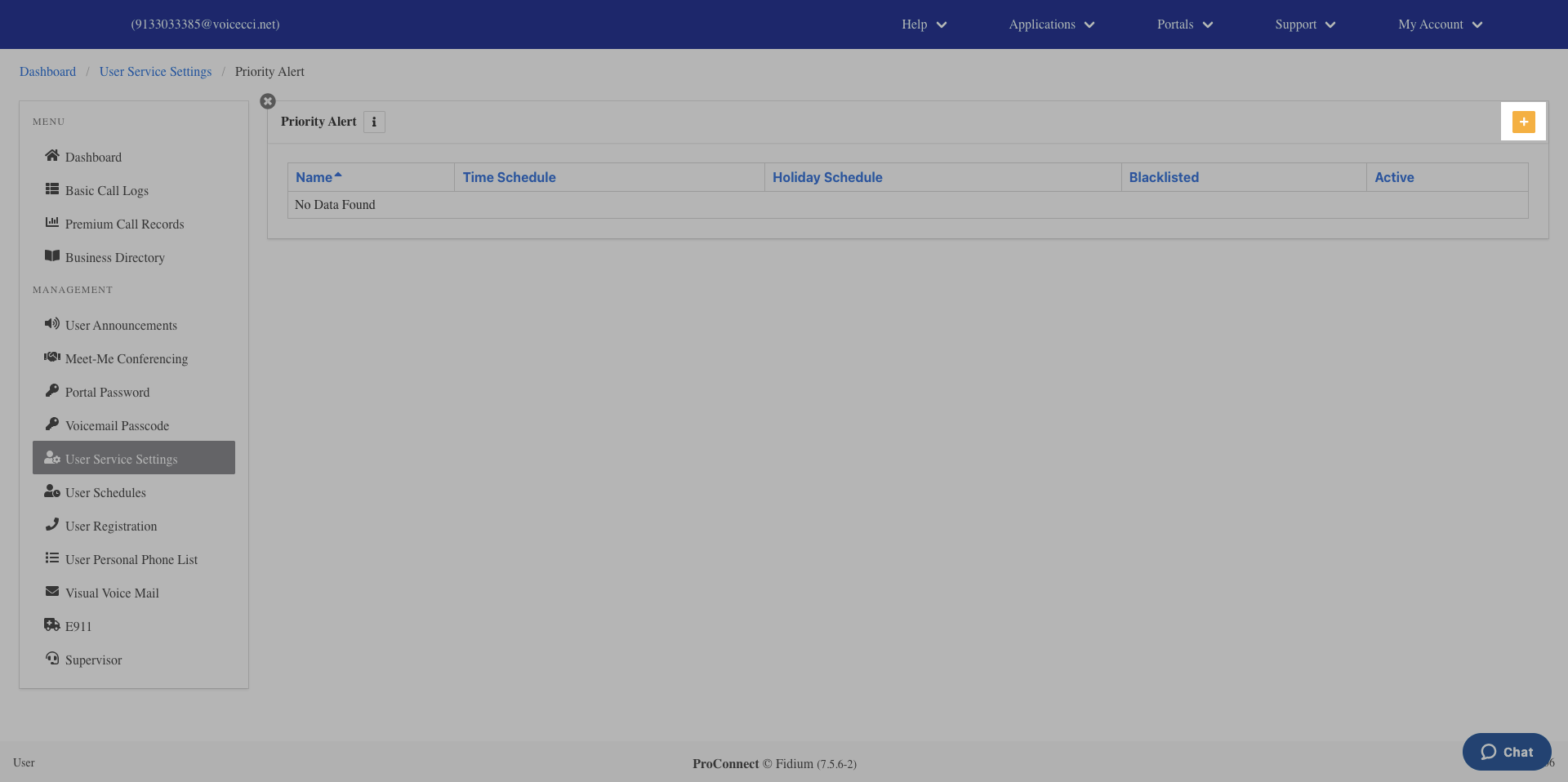
- Click the Add icon in the Priority Alert table.
- Enter a name for the Priority Alert.
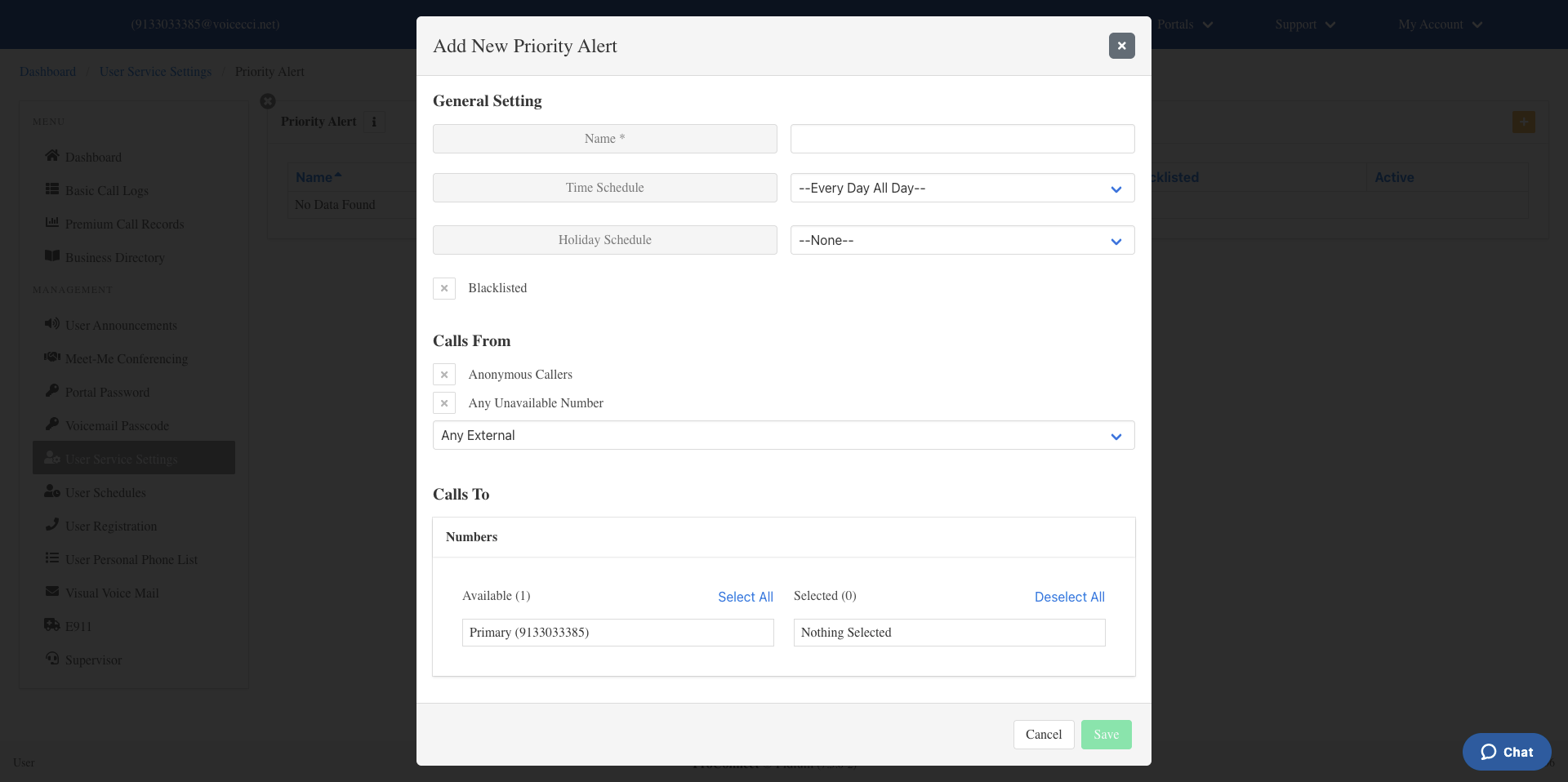
- Select a time or holiday schedule for when this alert should be active:
- Time schedule — From the drop-down menu, select Every Day All Day or a group or user-created schedule. To create a schedule, refer to the User Schedules guide.
- Holiday schedule — From the Holiday Schedule drop-down menu, select the appropriate holiday schedule.
- Under Calls From, select who you would like to apply the Priority Alert to:
- Check the appropriate checkboxes for Anonymous Callers or Unavailable Numbers.
- Select All External Calls or Specific Numbers. If selecting Specific Numbers, enter the numbers in the fields provided.
- Optionally, under Calls To, click an available number to move it to the Selective Number field to apply the Priority Alert to calls received on that number.
- Click Save.