

1.
Manage Push to Talk
Push to Talk allows you to use your desktop phone as either a one-way or two-way intercom with other users.
2.
Configure Push to Talk
To configure Push to Talk, follow these steps:
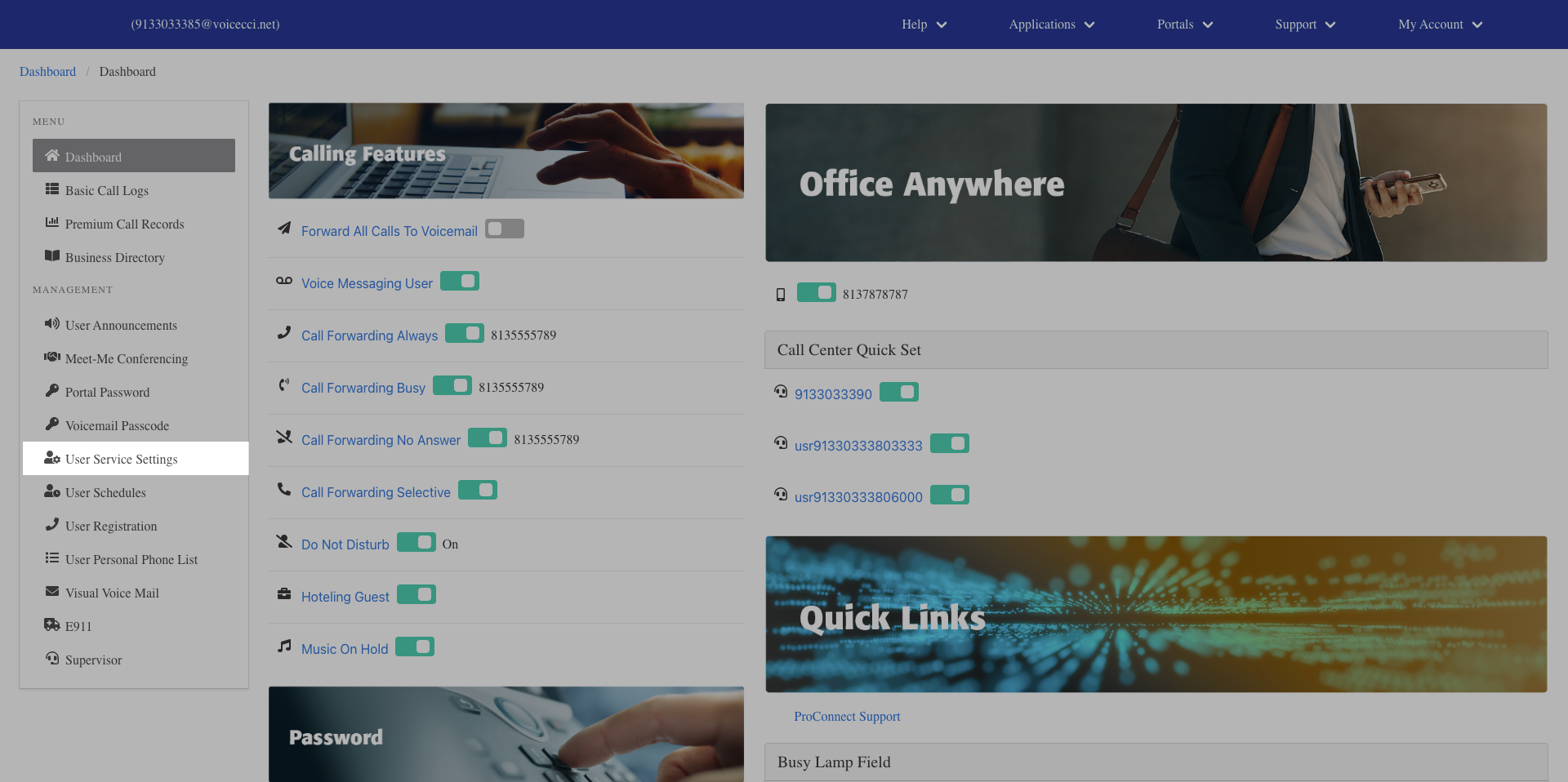
- From the dashboard menu, click User Service Settings.
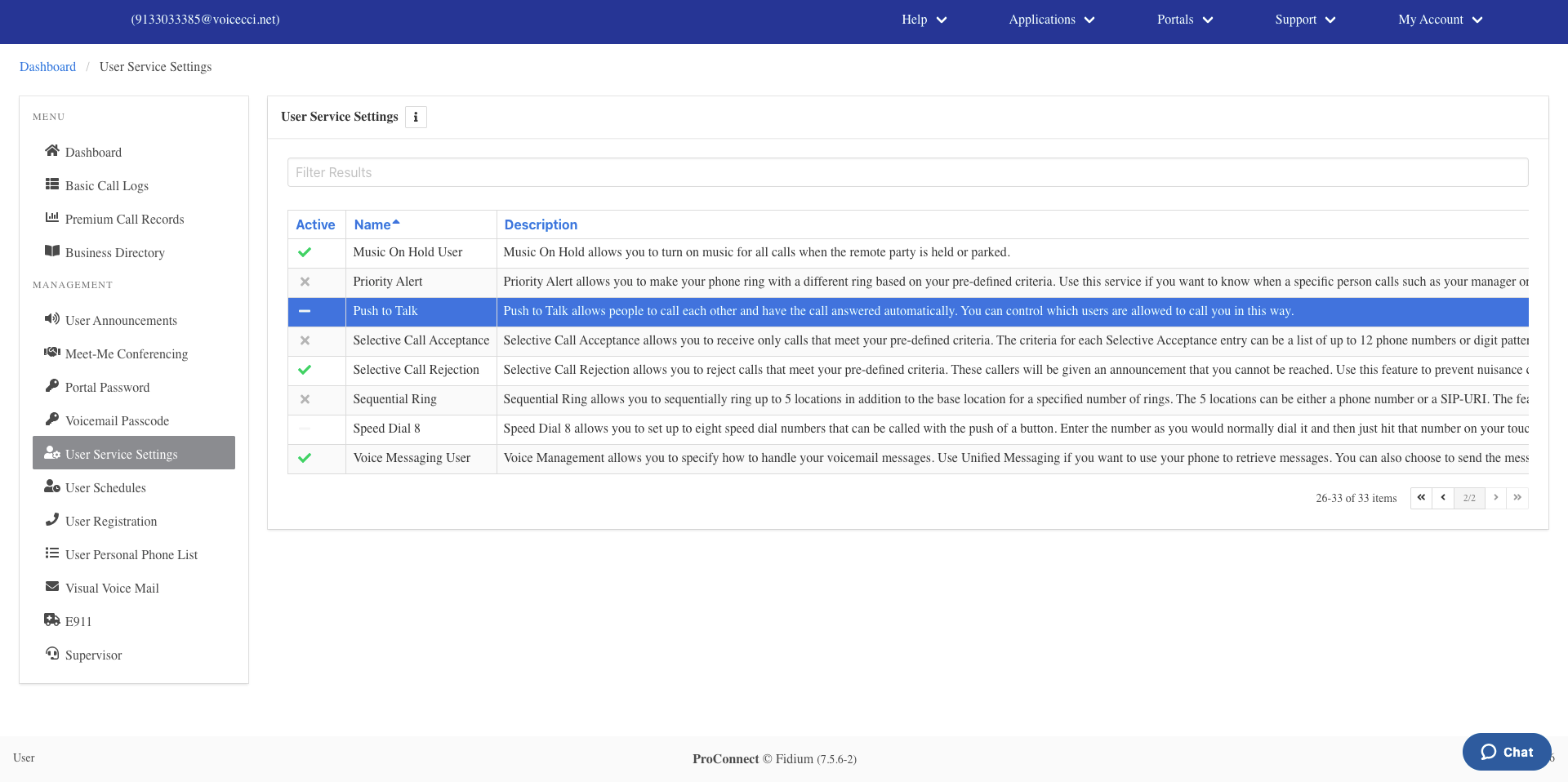
- On the Services page, click Push to Talk.
- Click the Edit icon in the Push to Talk table.
- Check the Auto Answer checkbox to enable auto-answer.
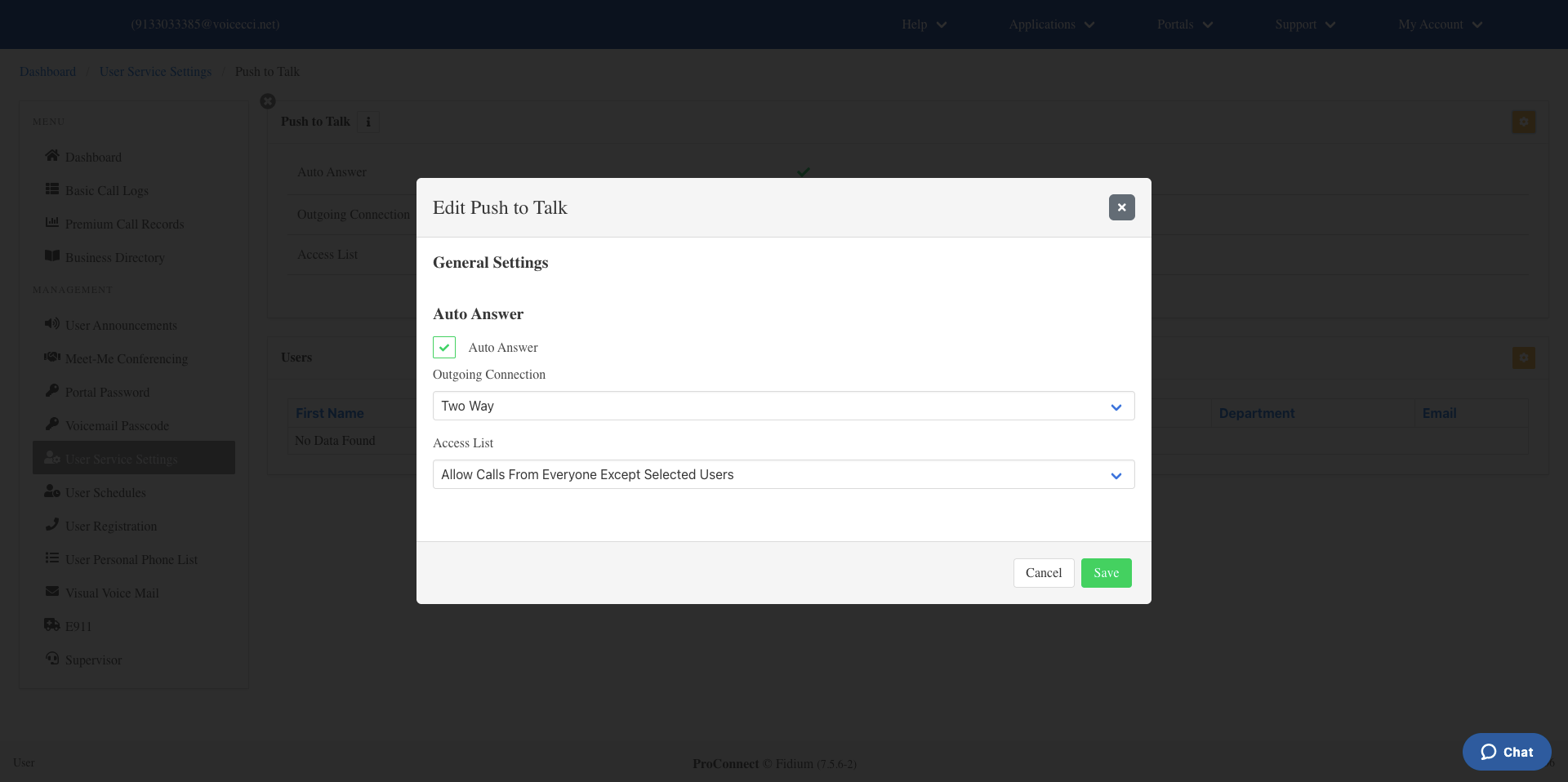
- Select a Connection Type:
- One-way — Users in your allowed list can initiate a call to you, but you cannot respond.
- Two-way — Users in your allowed list can have a two-way conversation with you.
- Select your access list from the drop-down menu.
- Click Save.
3.
Add Users to Your Access List
To add users to your Push to Talk access list, follow these steps:
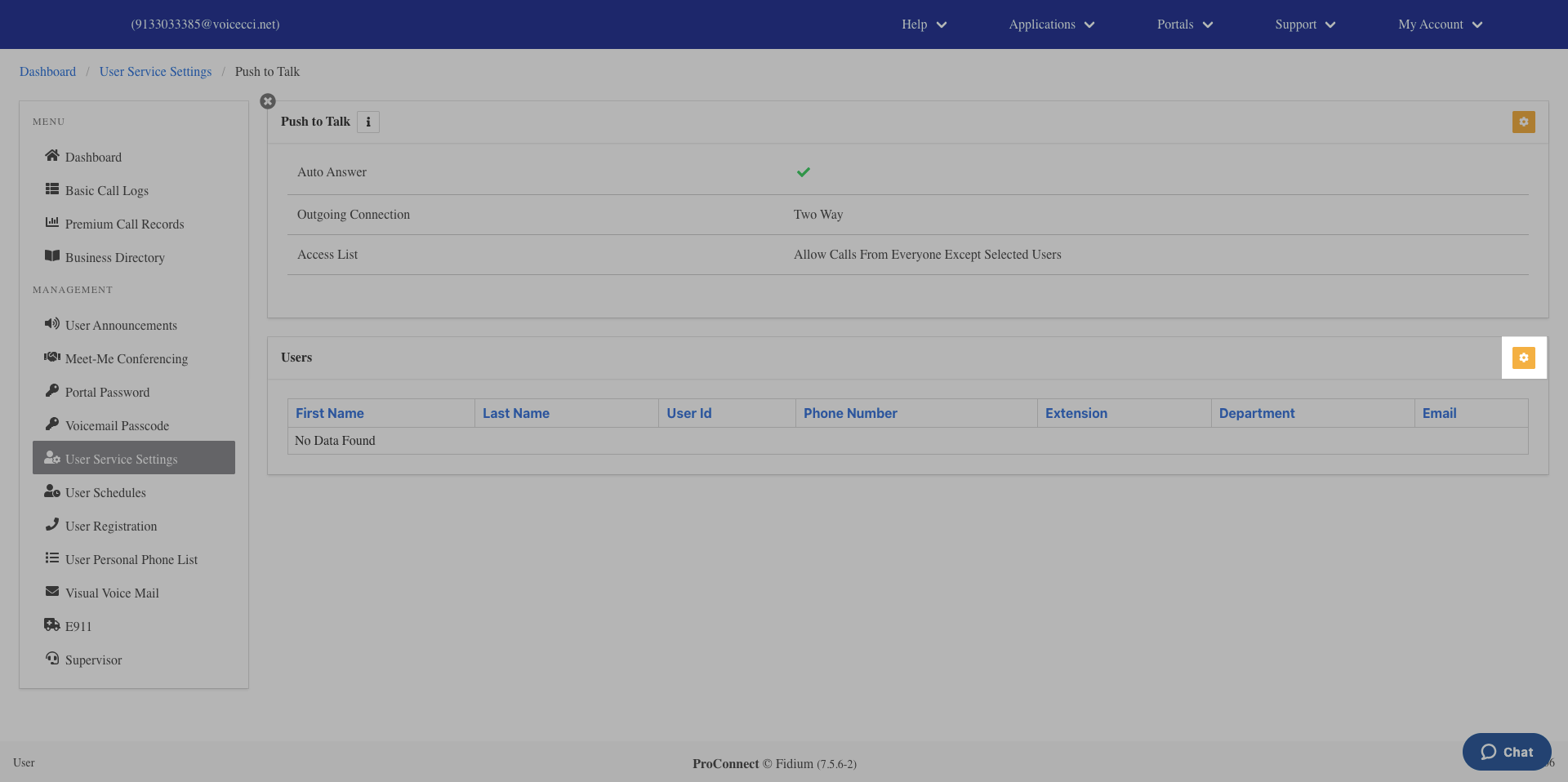
- Click the Edit icon in the Users table.
- From the Available list, click the users you want to add. Selected users will move to the Selected list.
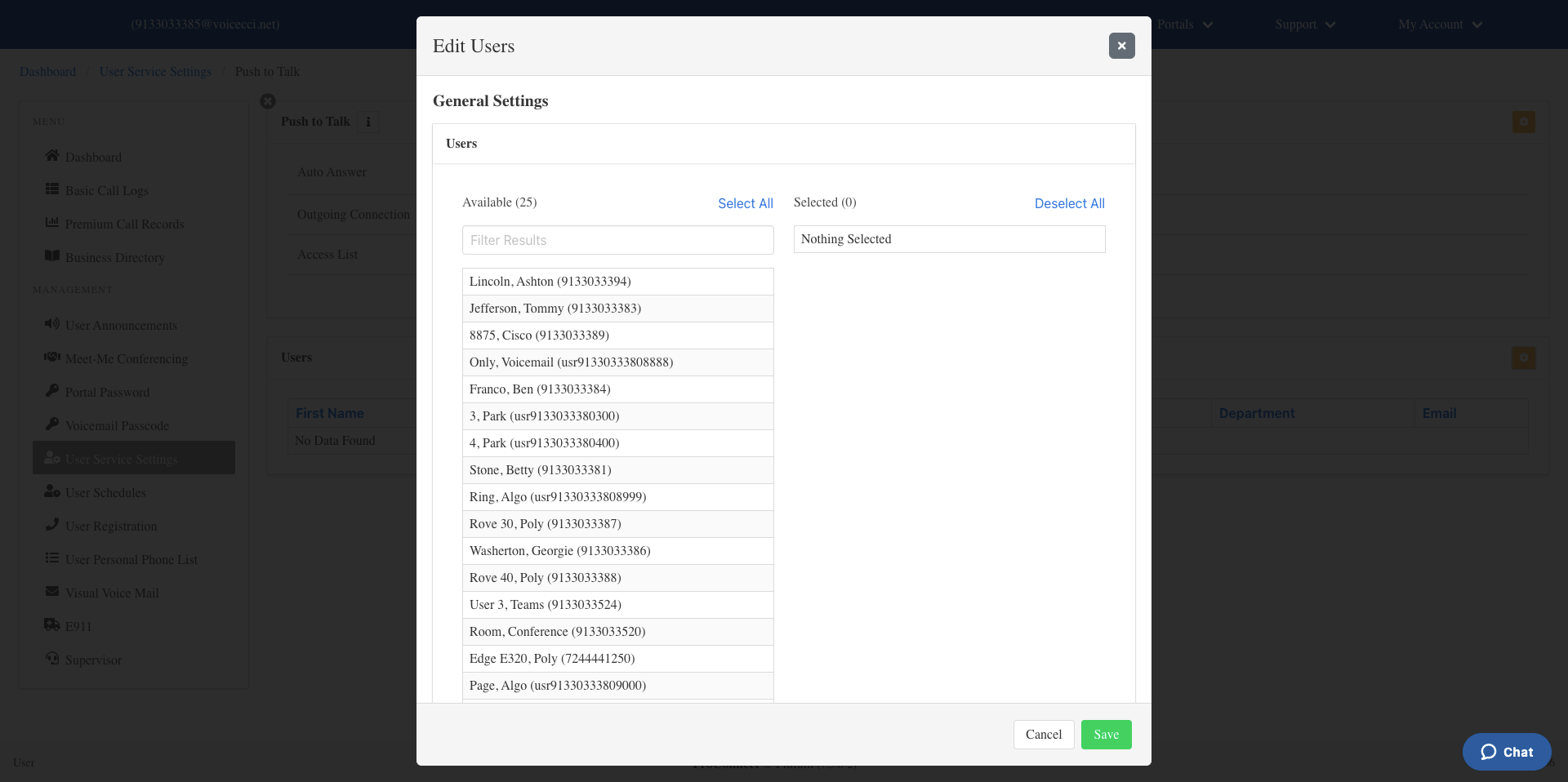
- Click Save.