

1.
Manage Selective Call Rejection
Selective Call Rejection allows you to reject calls that meet your pre-defined criteria. Callers who meet the criteria will receive an announcement that you cannot be reached. Criteria for each entry can include a list of up to 12 phone numbers or digit patterns, a specified time schedule, and a specified holiday schedule. For example, if you are receiving repeated calls from a specific number you do not wish to answer, add that number to your Selective Call Rejection list.
2.
Add a Selective Call Rejection Entry
To add a Selective Call Rejection entry, follow these steps:
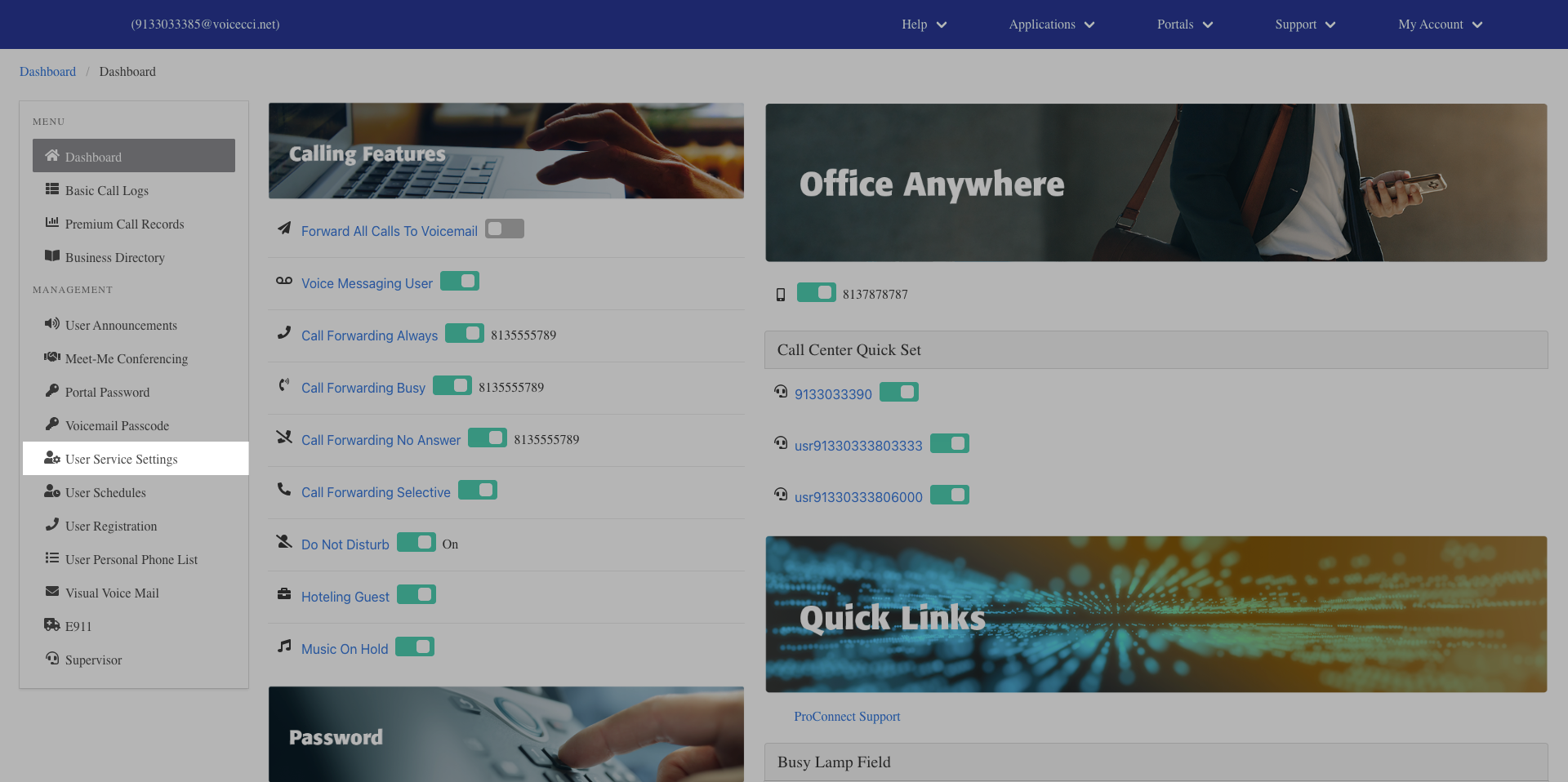
- From the dashboard menu, click User Service Settings.
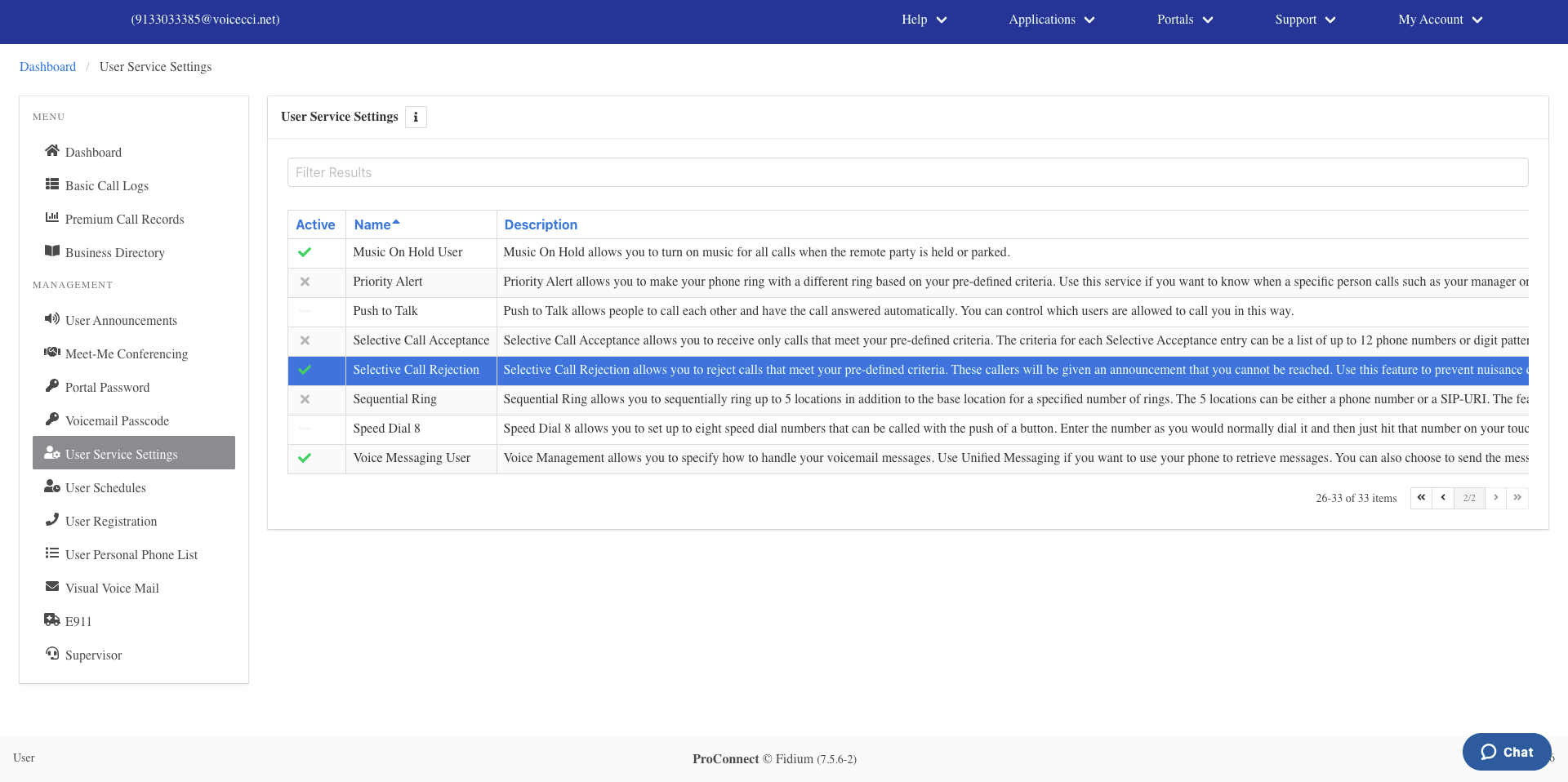
- On the Services page, click Selective Call Rejection.
- Click the Add icon in the Selective Call Rejection table.
- Check the Is Active checkbox to enable this entry. Optionally, check the Blacklisted checkbox to reject calls that meet this criteria instead.
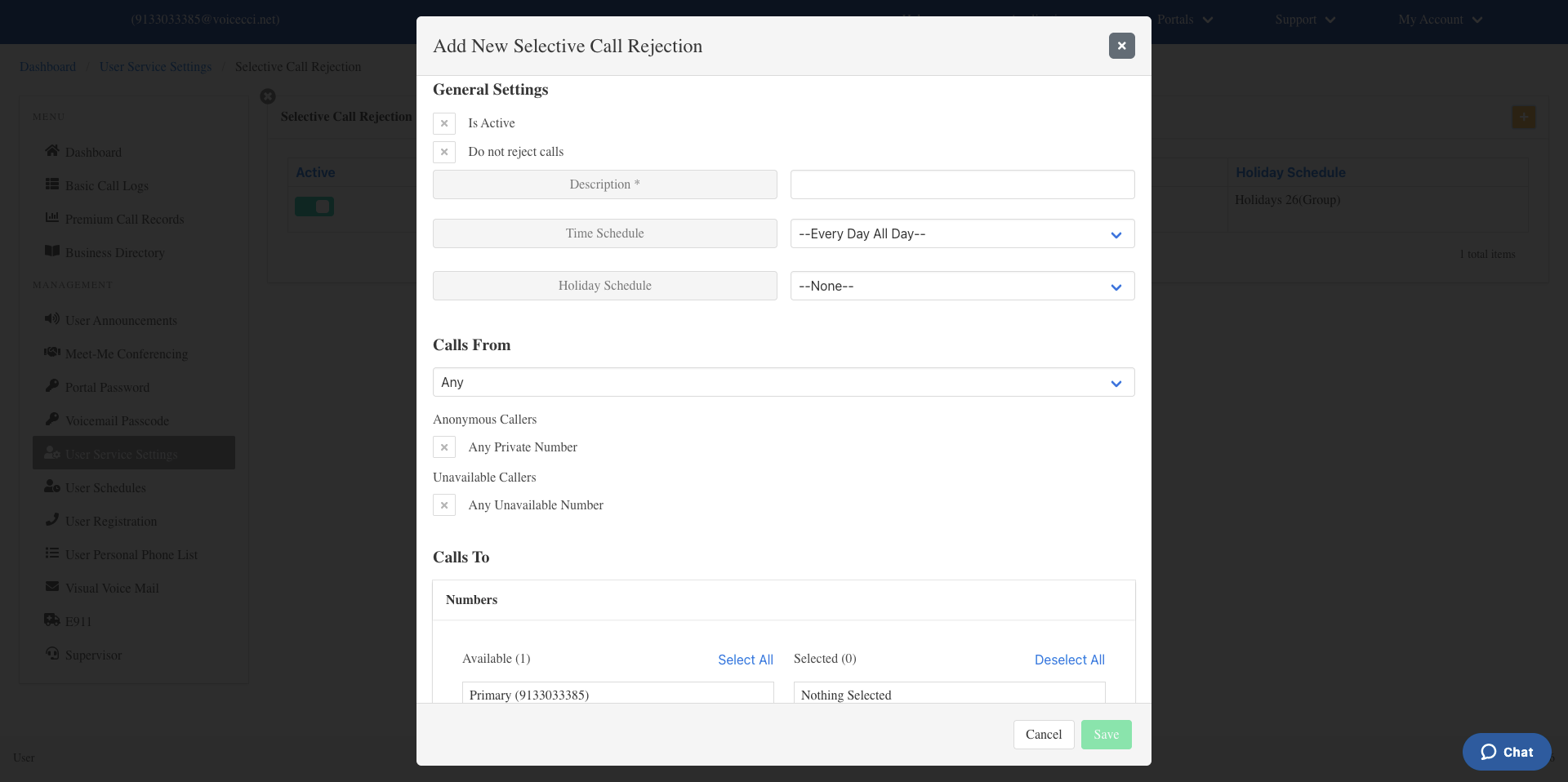
- Enter a name for the criteria.
- Select a time or holiday schedule for when this entry should be active:
- Time schedule — From the drop-down menu, select Every Day All Day or a group or user-created schedule. To create a schedule, refer to the User Schedules guide.
- Holiday schedule — From the Holiday Schedule drop-down menu, select the appropriate holiday schedule.
- From the Calls From drop-down menu, select one of the following:
- Any Number
- Any Private Numbers
- Any Unavailable Numbers
- Specific Numbers — Enter up to 12 valid 10-digit phone numbers in the fields provided.
- Optionally, select your Call To number by clicking the number you wish to use.
- Click Save. Your criteria are now set for this Selective Call Rejection entry.