

1.
Manage Sequential Ring
Sequential Ring allows you to create a list of up to 5 additional numbers — 6 total — to ring in a specific order when you receive an incoming call. Criteria must be assigned to activate this feature. Criteria for each entry can include calls from any number, a list of up to 12 phone numbers or digit patterns, a specified time schedule, and a specified holiday schedule.
2.
Configure Sequential Ring
To configure Sequential Ring, follow these steps:
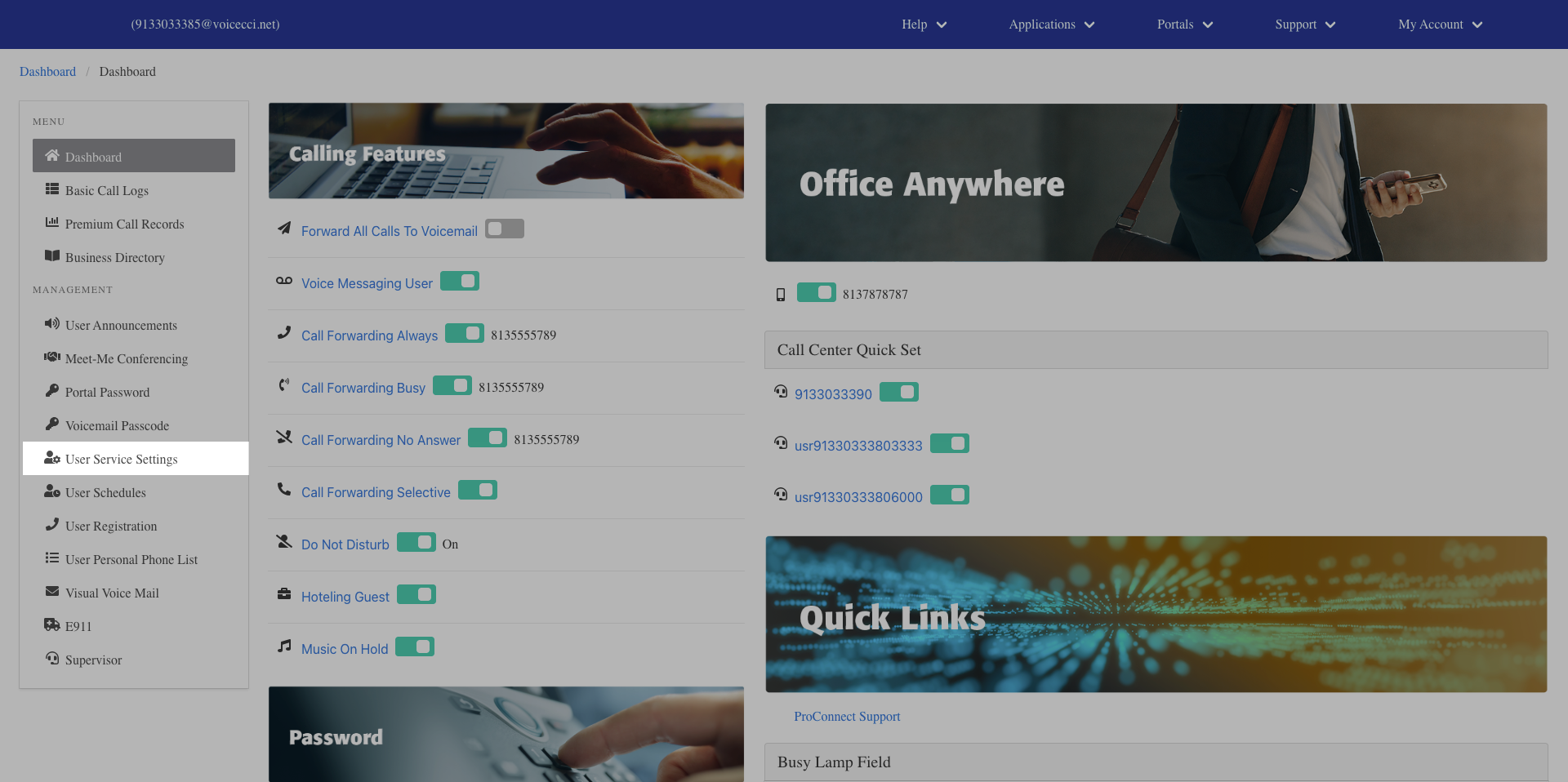
- From the dashboard menu, click User Service Settings.
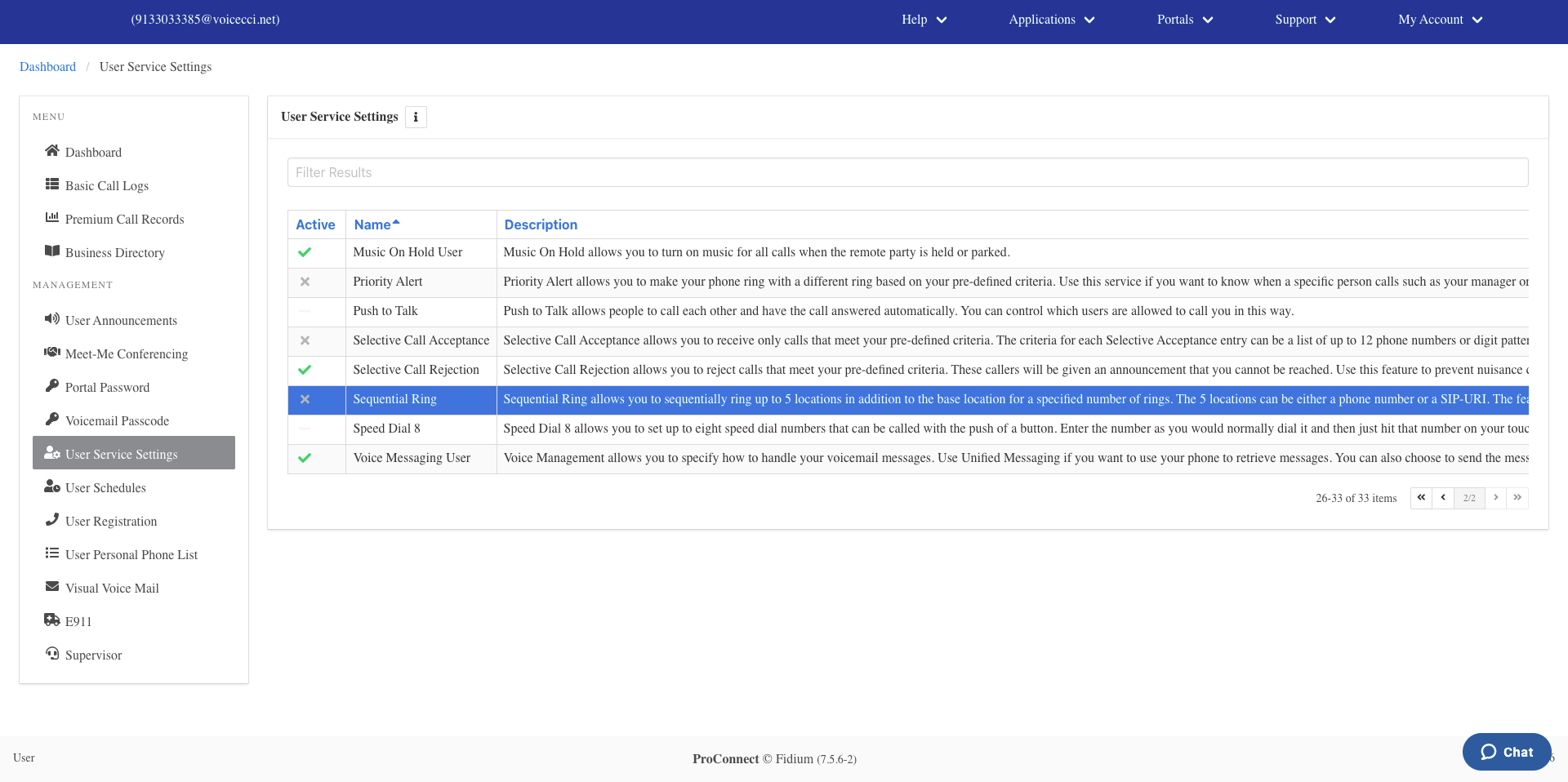
- On the Services page, click Sequential Ring.
- Click the Edit icon in the Sequential Ring table.
- Under General Settings, enable any of the following options as needed:
- Ring Base Location First — Rings your main number first before ringing the other numbers you have added.
- Continue if Base Location Is Busy — Automatically rings the additional numbers if the base location is unreachable.
- Caller May Stop Search — Allows the caller to stop the search and be redirected back to the base location.
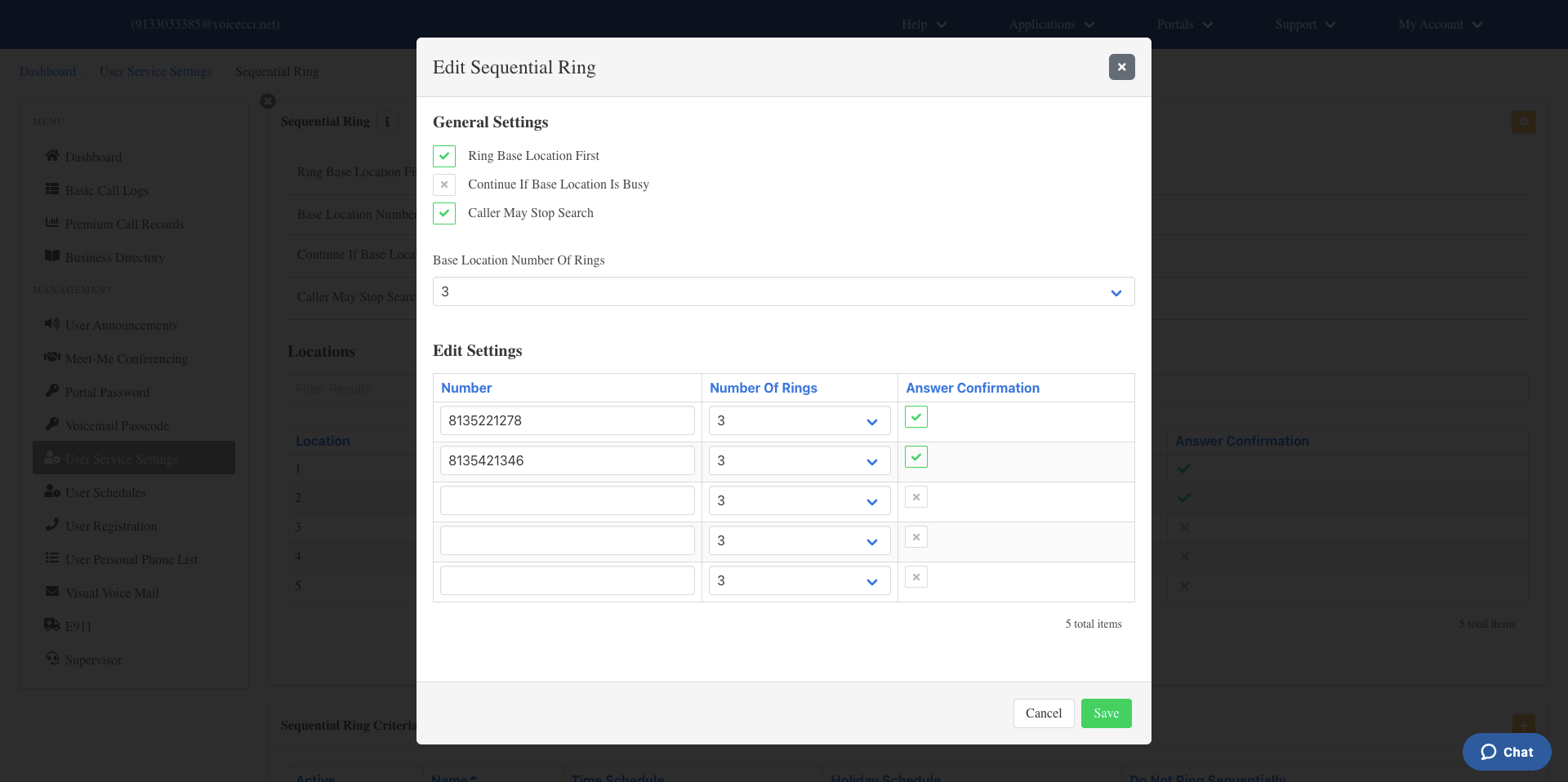
- From the drop-down menu, select the number of rings at the base location before the call rings the other devices.
- Enter up to 5 valid 10-digit phone numbers in the fields provided. You can also choose whether each number should ring when you are already on a call.
- Click Save.
3.
Add Criteria
To add criteria to Sequential Ring, follow these steps:
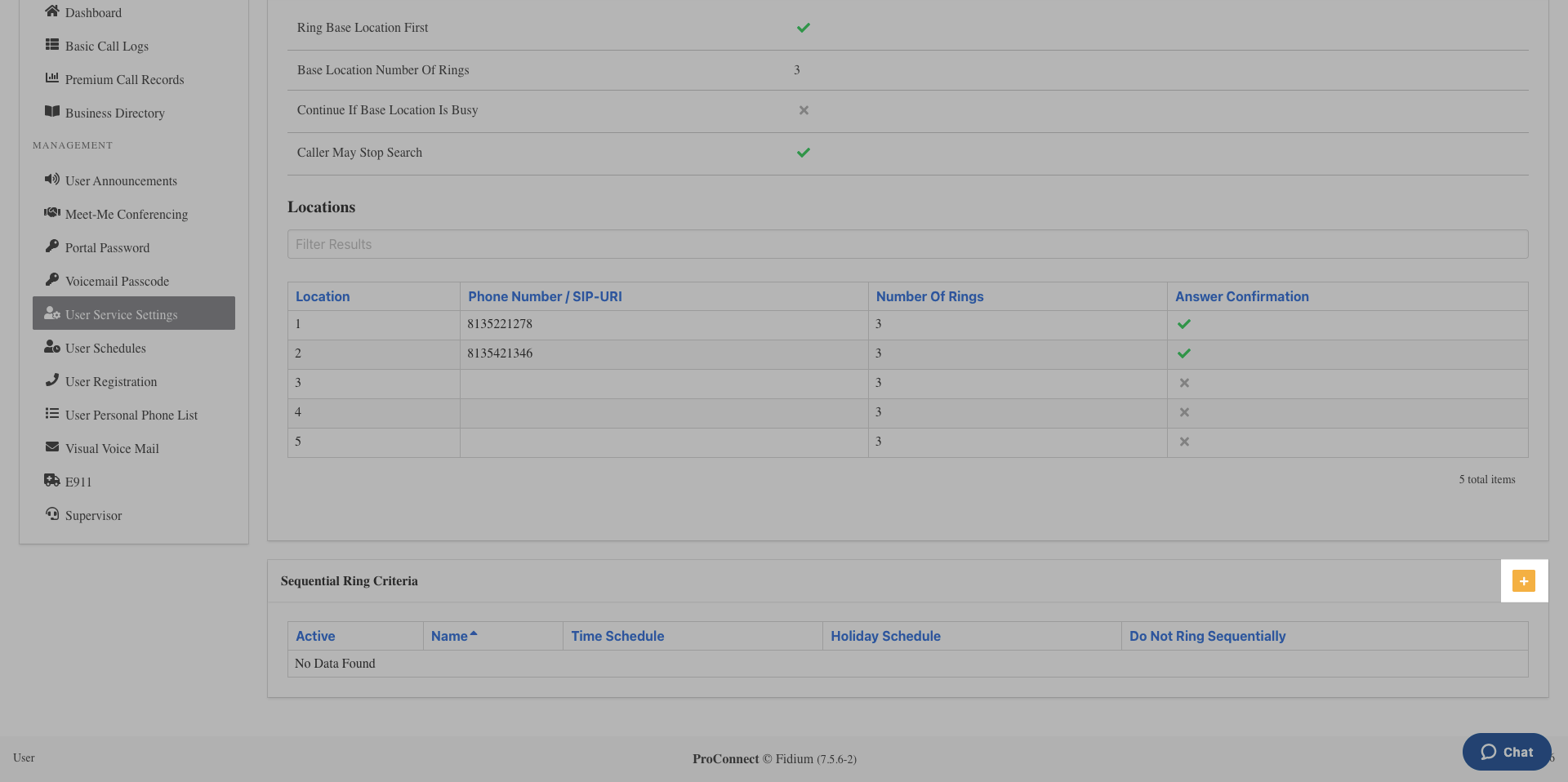
- Click the Add icon in the Sequential Ring Criteria table.
- Check the Is Active checkbox to enable this entry. Optionally, check the Blacklist checkbox to blacklist calls that meet this criteria.
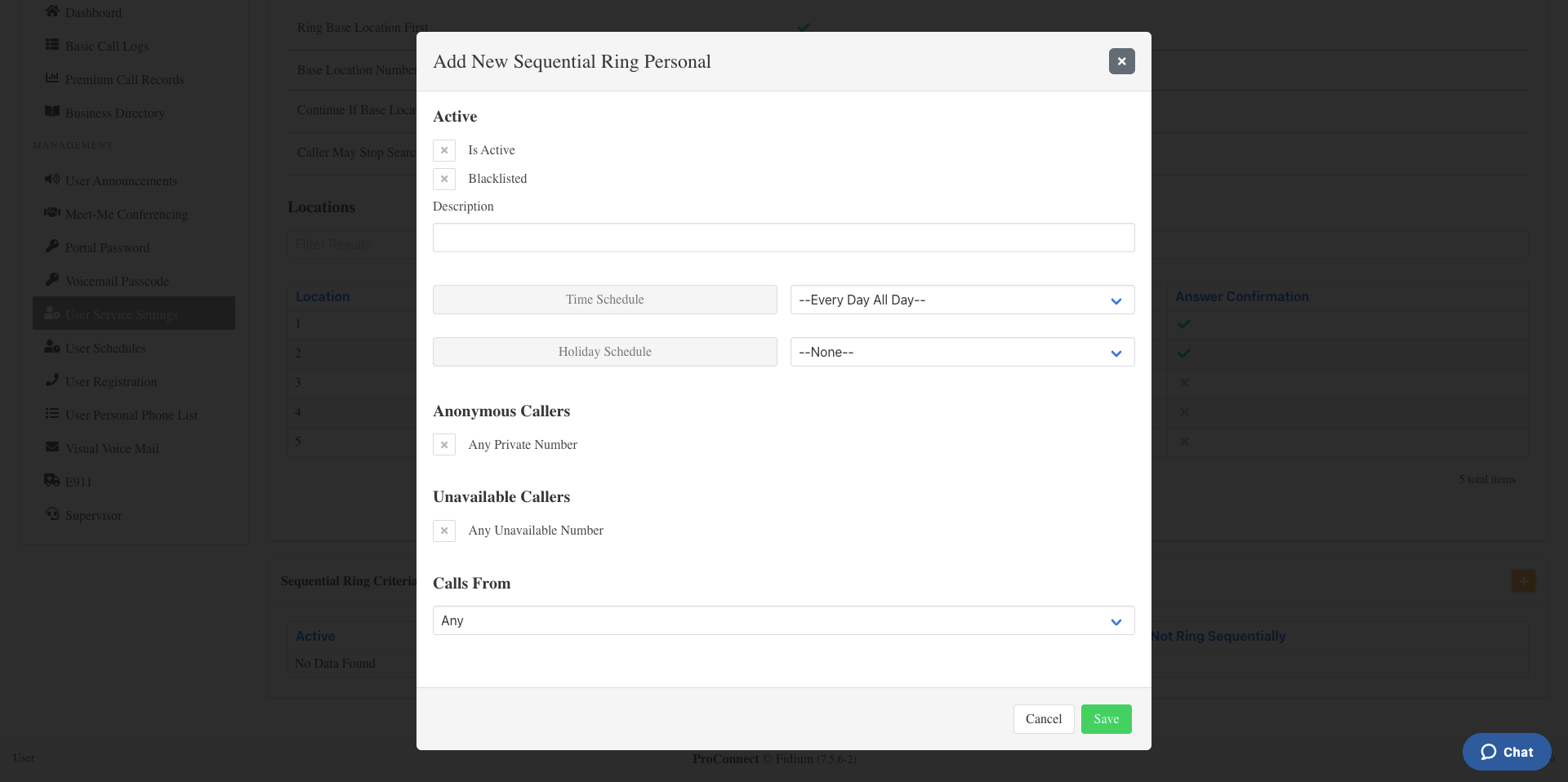
- Enter a name for the criteria.
- Select a time or holiday schedule for when this entry should be active:
- Time schedule — From the drop-down menu, select Every Day All Day or a group or user-created schedule. To create a schedule, refer to the User Schedules guide.
- Holiday schedule — From the Holiday Schedule drop-down menu, select the appropriate holiday schedule.
- From the Calls From drop-down menu, select one of the following:
- Any Number
- Any Private Numbers
- Any Unavailable Numbers
- Specific Numbers — Enter up to 12 valid 10-digit phone numbers in the fields provided.
- Click Save. Your criteria are now set for this Sequential Ring entry.